# Usage & traffic (/dashboard/analytics)
The **Analytics** tab answers the questions traditional web analytics can't: which tools are being called, by which AI clients, from where. All traffic through your server's gateway URL is measured automatically, no SDK or instrumentation required.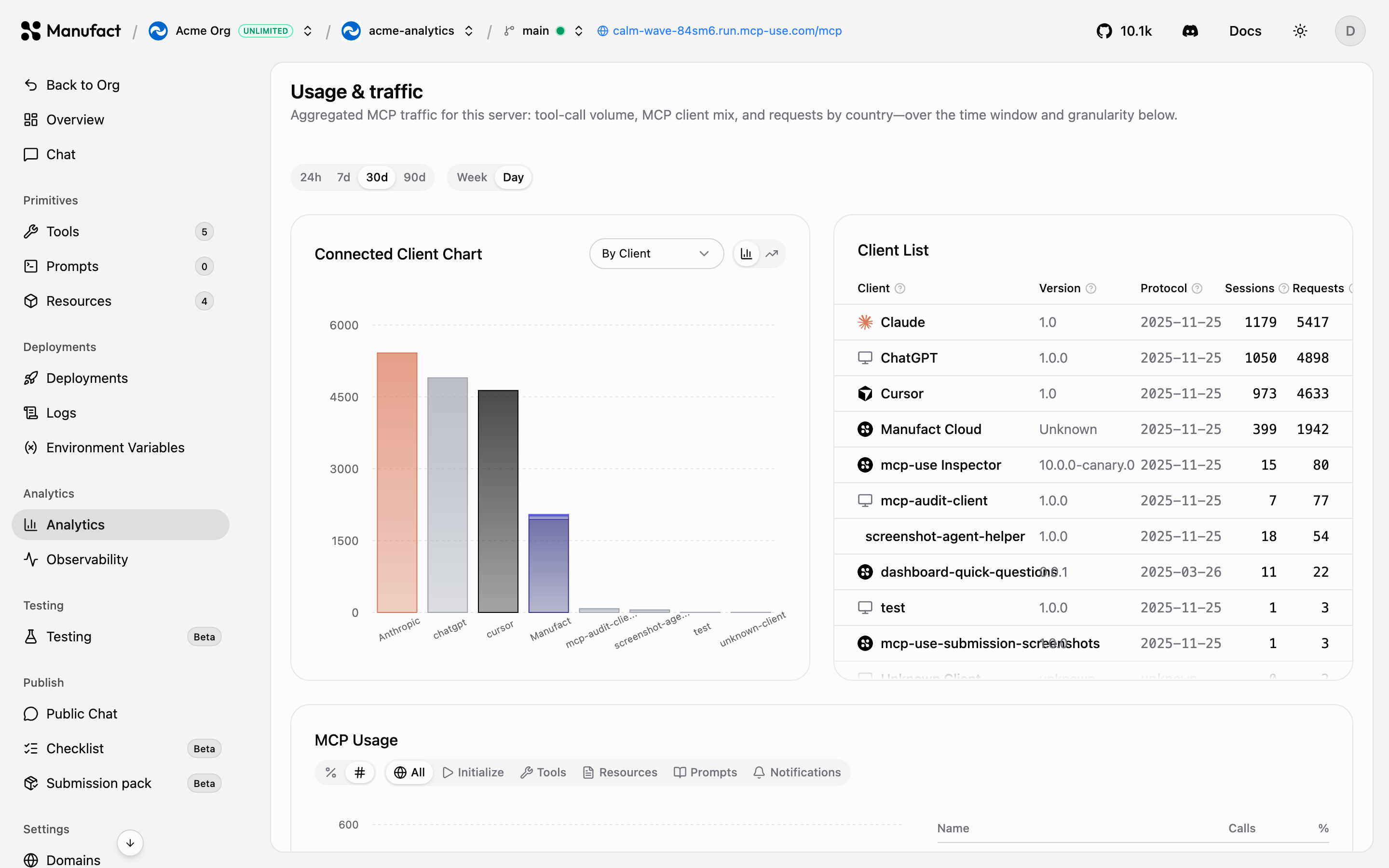## What you can see [#what-you-can-see]- **Tool calls over time**: volume broken down per tool, so you can see which capabilities users actually rely on.
- **MCP client mix**: which clients connect to your server: Cursor, Claude, ChatGPT, custom agents, and others.
- **Requests by country**: where your traffic originates.
- **Sessions**: how many distinct MCP sessions your server handles.Org-wide aggregates (total servers, tool calls, and sessions over the last 30 days) are also shown on the organization **Dashboard**.## Time ranges [#time-ranges]Switch between **24h**, **7d**, **30d**, and **90d** windows.
How far back you can look depends on your plan: 7 days on Free, 30 days on
Hobby, 365 days on Startup, unlimited on Enterprise. See
[Billing & plans](/dashboard/billing).
## Going deeper [#going-deeper]Analytics shows aggregate trends. To inspect individual requests, sessions, and payloads; use [Observability](/dashboard/observability).
# API keys (/dashboard/api-keys)
API keys authenticate programmatic access to your organization, from the REST API, CI pipelines, and scripts. Manage them on the **API Keys** page.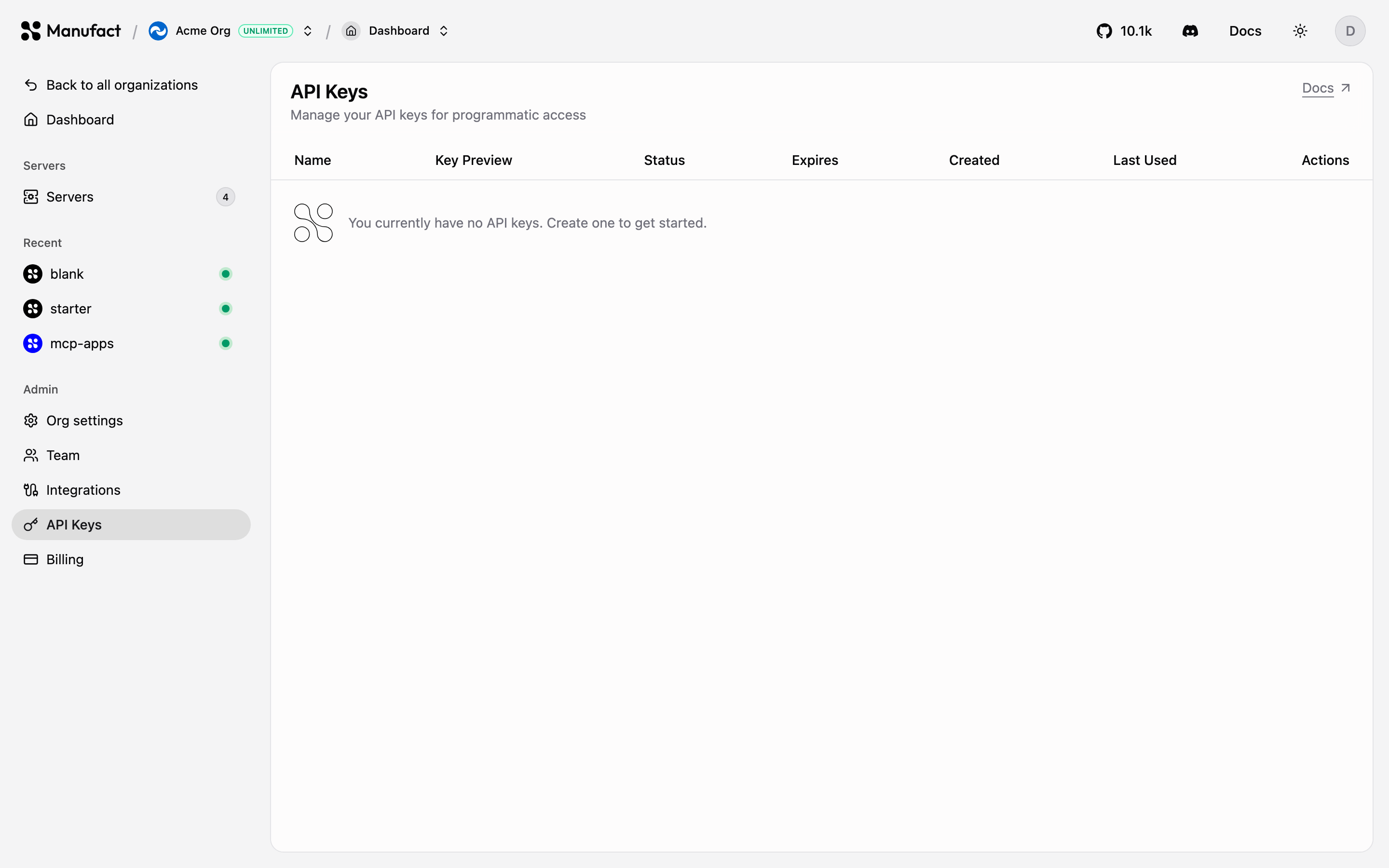## Creating a key [#creating-a-key]1) Go to **API Keys** and click **Create key**.
2) Give it a descriptive name (for example `ci-deploy`).
3) Pick an expiry, never, 7, 30, 90, or 365 days.
4) Copy the key immediately: it starts with `mcp_` and is shown only once.## Using a key [#using-a-key]Send it as a bearer token (an `x-api-key` header works too):```bash
curl -H "Authorization: Bearer mcp_..." \
https://cloud.mcp-use.com/api/v1/servers
```See the [APIs section](/apis) for the full REST API reference.## CLI authentication [#cli-authentication]For interactive use, the [CLI](/cli) doesn't need an API key, `mcp-use login` opens a browser flow (or a device-code flow on headless machines) and stores a session. Use API keys for non-interactive environments like CI.## Security [#security]- Scope each key to one purpose and name it accordingly, so revoking is painless.
- Prefer expiring keys; rotate non-expiring keys periodically.
- Treat keys like passwords, keep them in your CI secret store, never in the repository.
# Billing & plans (/dashboard/billing)
Billing is per organization, managed on the **Billing** page. It shows your current plan, subscription status, usage against limits, and the plan grid for upgrades.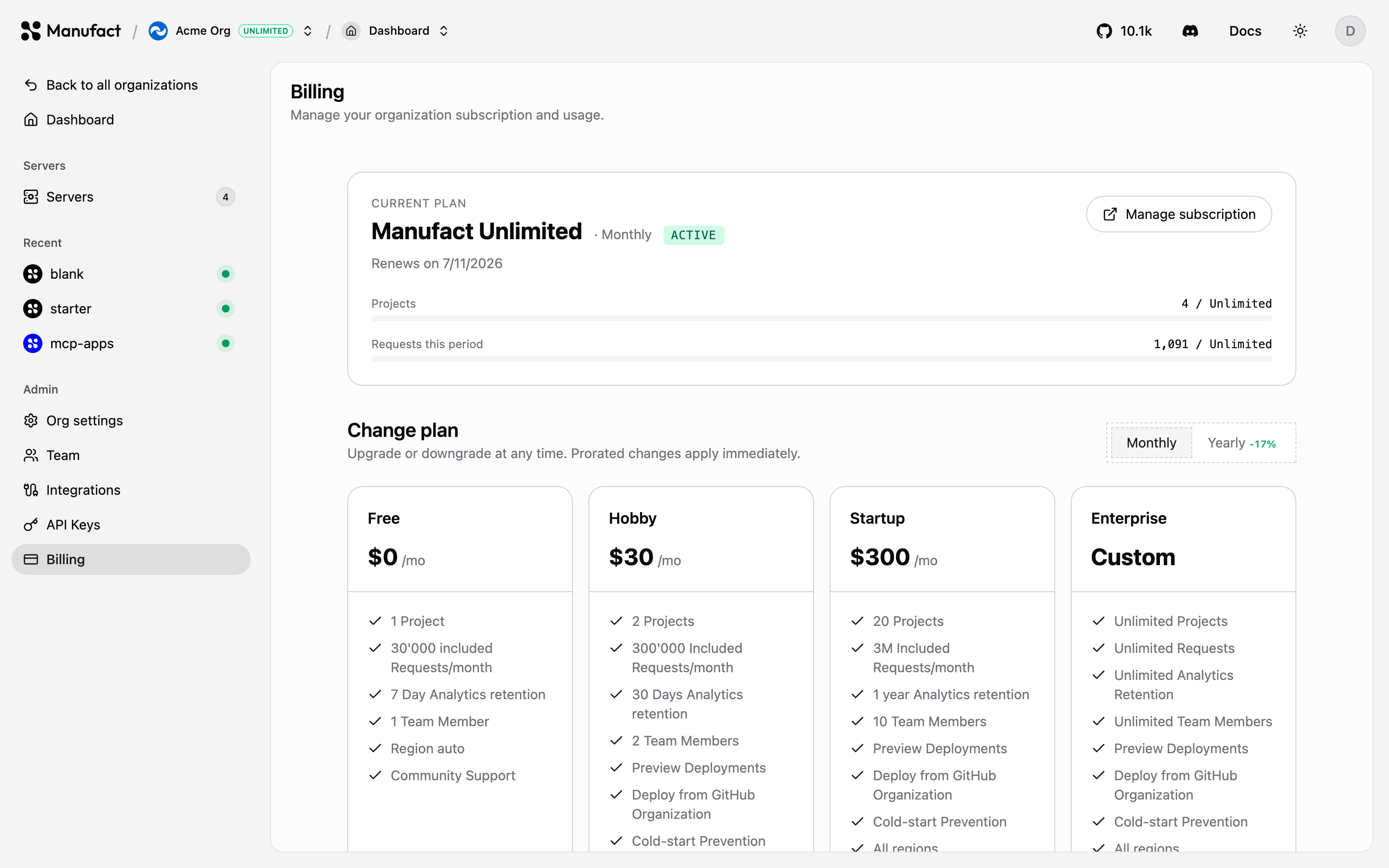## Plans [#plans]| | Free | Hobby | Startup | Enterprise |
| --------------------- | ----------------- | ----------------- | -------------------- | -------------------- |
| Projects | 1 | 2 | 20 | Unlimited |
| Requests / month | 30k | 300k | 3M | Unlimited |
| Analytics retention | 7 days | 30 days | 365 days | Unlimited |
| Team members | 1 | 2 | 10 | Unlimited |
| Preview deployments | - | ✓ | ✓ | ✓ |
| GitHub org deploys | - | ✓ | ✓ | ✓ |
| Prevent scale to zero | - | ✓ | ✓ | ✓ |
| Regions | Auto routing only | Auto routing only | Auto + US, EU & APAC | Auto + US, EU & APAC |
| Support | Community | Email | Slack | Priority |Enterprise pricing starts at $1,000/month, contact sales from the plan grid.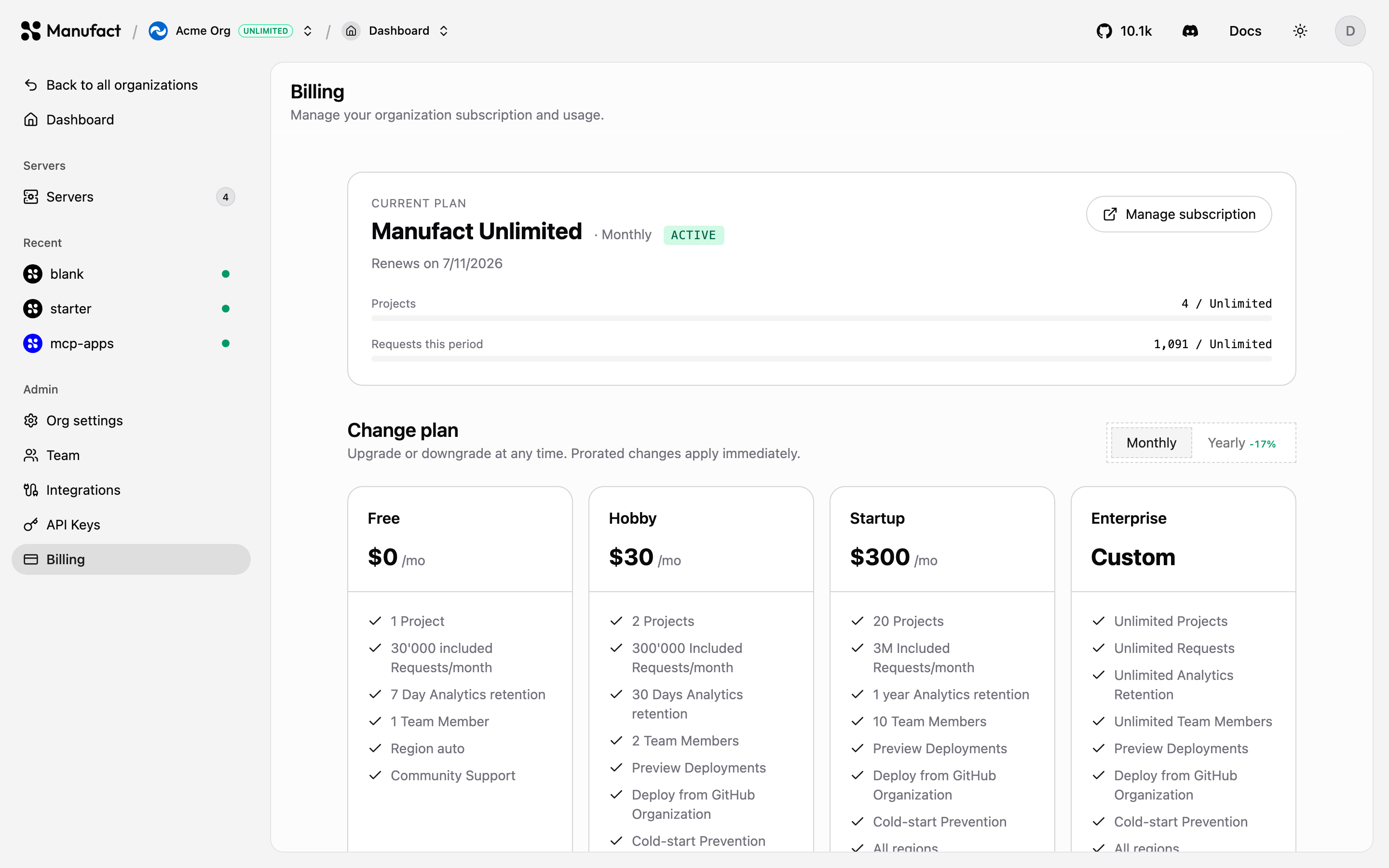## Usage [#usage]The Billing page tracks **Projects** and **Requests this period** against your plan. Request limits are soft caps: traffic isn't cut off at the gateway when you exceed them, but sustained overage means it's time to upgrade.When a limit blocks an action, creating a server, inviting a member, selecting a region, viewing older analytics, the dashboard shows an upgrade prompt at the point of friction.## Managing your subscription [#managing-your-subscription]- **Upgrade**: pick a plan in the grid; monthly and yearly billing are both available.
- **Switch billing period**: move between monthly and yearly at any time.
- **Downgrade or cancel**: handled through the **Stripe Customer Portal** via **Manage subscription**. Cancellations apply at the end of the billing period, and the status badge reflects it.Invoices and payment methods also live in the Stripe portal.
# Connecting clients (/dashboard/connect-clients)
Once deployed, your server speaks MCP over HTTP at its gateway URL. Any MCP-compatible client can connect to it. The dashboard generates the exact configuration for each one.## Add to client [#add-to-client]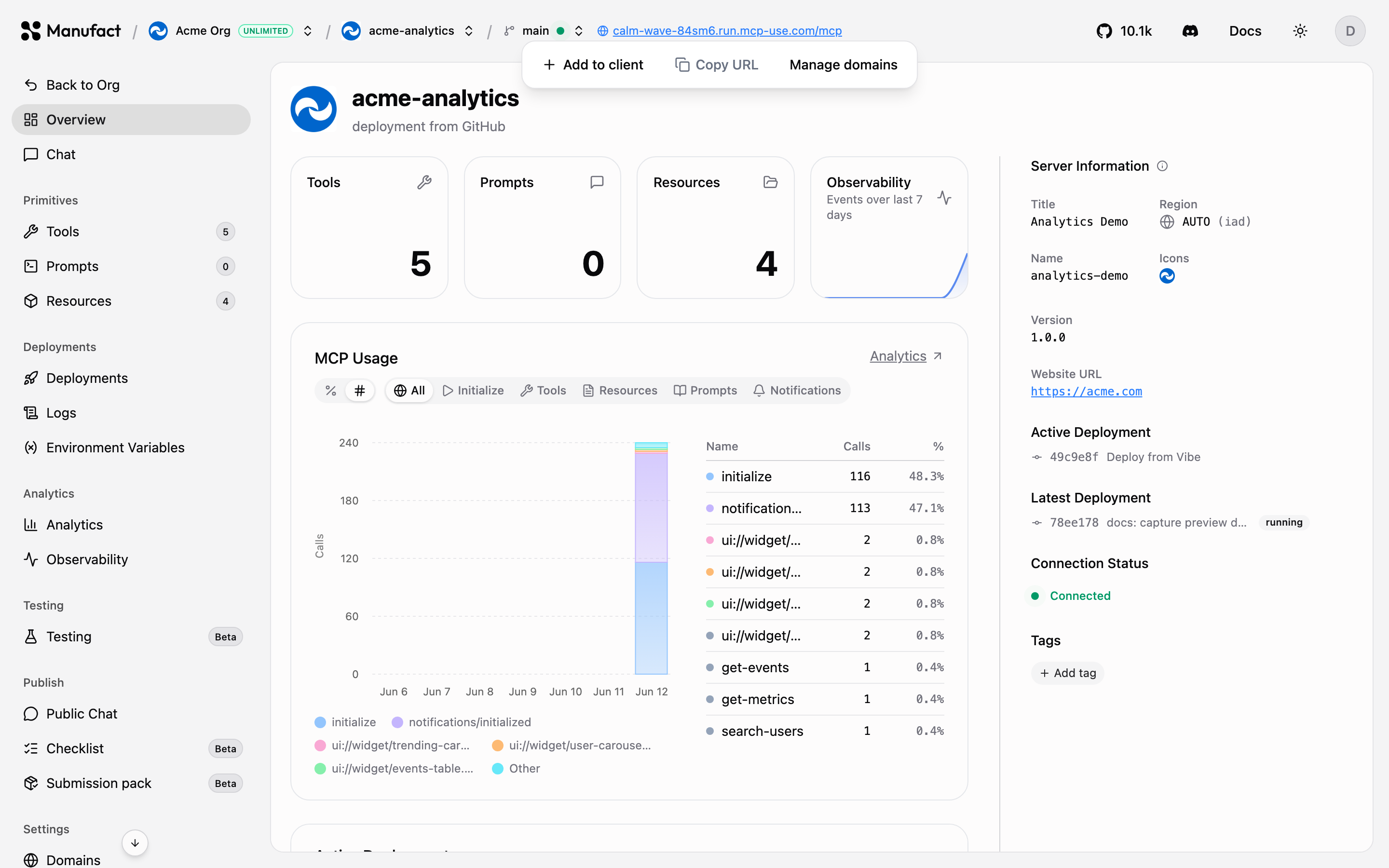On any server page, click the URL chip in the header, then **Add to client**.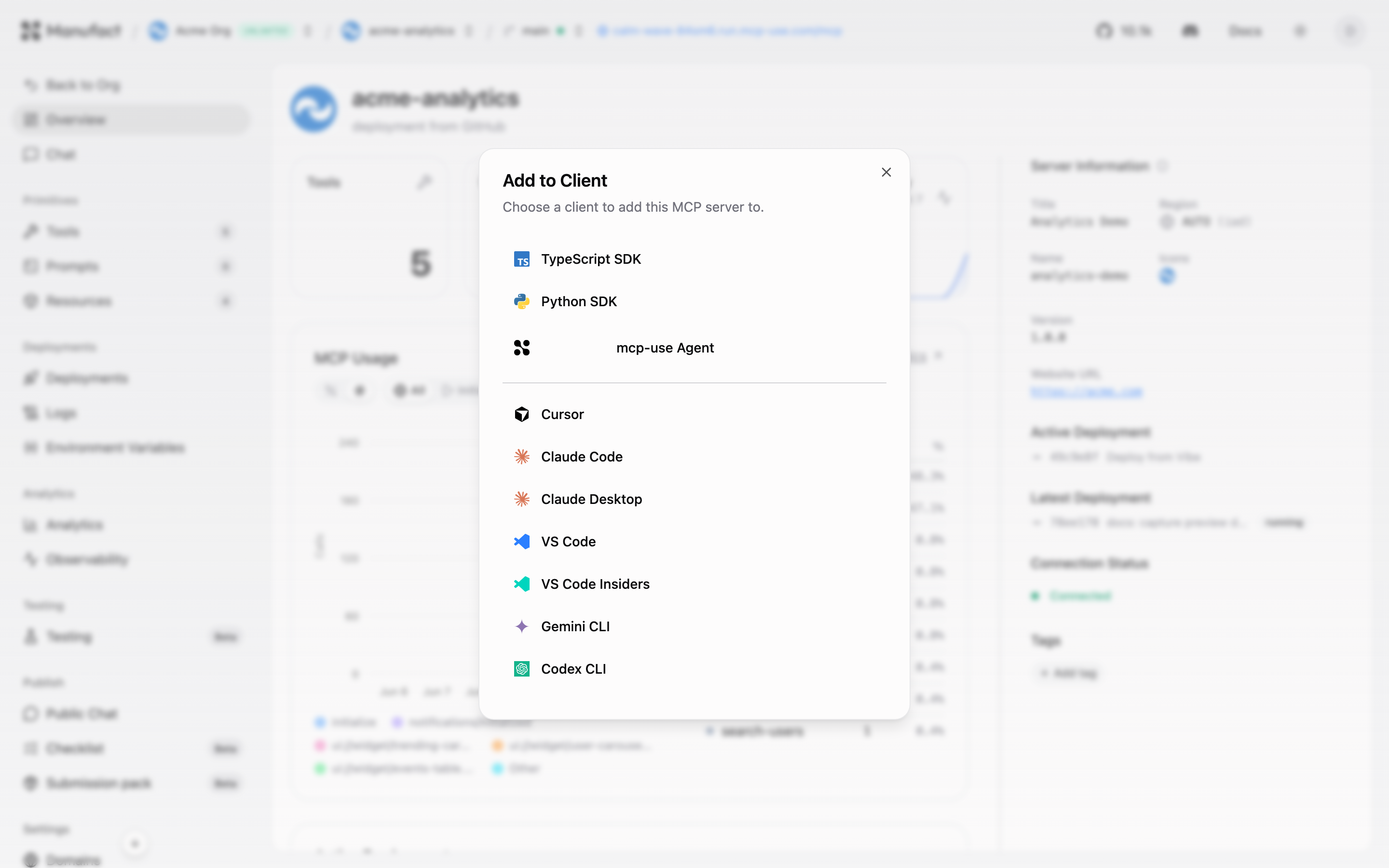You get one-click installs or copy-paste configuration for:- **Editors**: Cursor, VS Code, VS Code Insiders
- **Claude**: Claude Desktop and Claude Code
- **CLI agents**: Gemini CLI, Codex CLI
- **SDKs**: TypeScript and Python snippets using [mcp-use](https://docs.mcp-use.com)
- **mcp-use Agent**: attach the server to a hosted agent directly## Manual configuration [#manual-configuration]If your client isn't listed, use the standard MCP remote-server config with your gateway URL:```json
{
"mcpServers": {
"my-server": {
"url": "https://.run.mcp-use.com/mcp"
}
}
}
```## Connecting from code [#connecting-from-code]With the mcp-use TypeScript SDK:```ts
import { MCPClient } from 'mcp-use';
const client = new MCPClient({
mcpServers: {
myServer: { url: 'https://.run.mcp-use.com/mcp' },
},
});
```See the [mcp-use documentation](https://docs.mcp-use.com) for agents, tool calling, and the Python equivalent.## Authentication [#authentication]If your server requires OAuth, clients go through the standard MCP OAuth flow automatically. In the dashboard, the **Authenticate** button in the server header runs the same flow for the built-in Chat and inspector tabs. Expired credentials surface on the org **Dashboard** under **Needs Attention**.## Testing before you share [#testing-before-you-share]Use the server's **Chat** tab to talk to it with an agent, and the **Tools**, **Prompts**, and **Resources** tabs to verify everything is exposed as expected, the same inspector that powers [mcp-use](https://docs.mcp-use.com), embedded in the dashboard.
# Deployments (/dashboard/deployments)
Every Manufact-hosted server is backed by a deployment pipeline. A deployment goes through the steps **Cloning → Analyzing → Building → Deploying → Health Checks → Complete**, and you can follow each step live from the **Deployments** tab.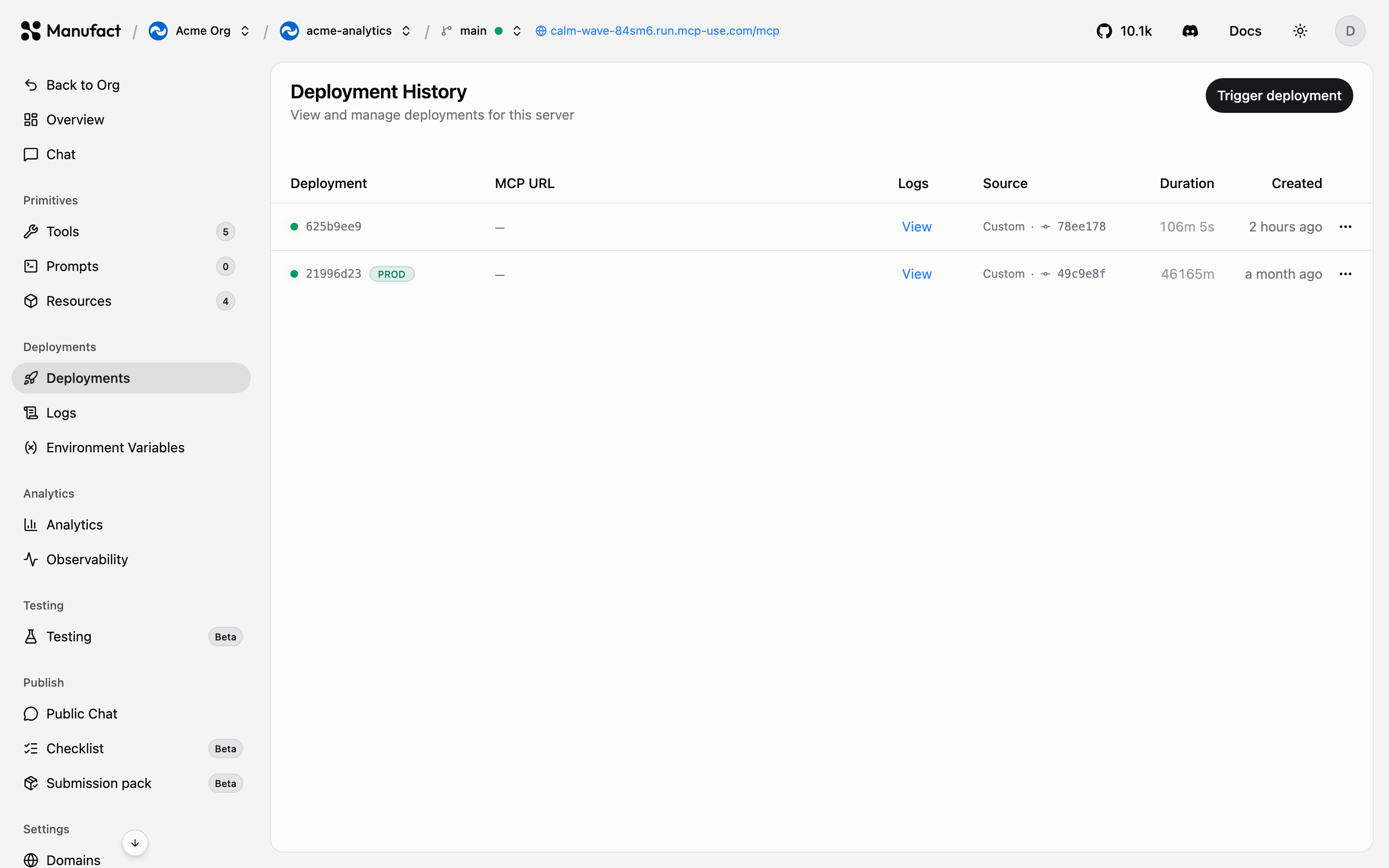## Automatic deployments [#automatic-deployments]Pushing to your production branch triggers a deployment automatically, the production branch always deploys. You can tune what else triggers a deploy in [Server settings](/dashboard/settings):- **Watch paths (globs)**: only deploy when files under specific paths change (useful in monorepos).
- **Branch allow list (globs)**: control which other branches create deployments.
- **Wait for CI**: hold the deploy until your GitHub checks pass.## Production and preview environments [#production-and-preview-environments]- **Production** is the deployment of your configured production branch. It serves your main gateway URL.
- **Preview** environments are created per branch. Each gets its own MCP URL of the form `https://--br-.run.mcp-use.com/mcp`, so you can test changes against real clients before merging.Use the **environment selector** in the server header to switch between production and preview branches, the URL chip, logs, and environment variables all follow the selected environment.
Preview deployments require the Hobby plan or higher. See [Billing & plans](/dashboard/billing).
## Manual deployments [#manual-deployments]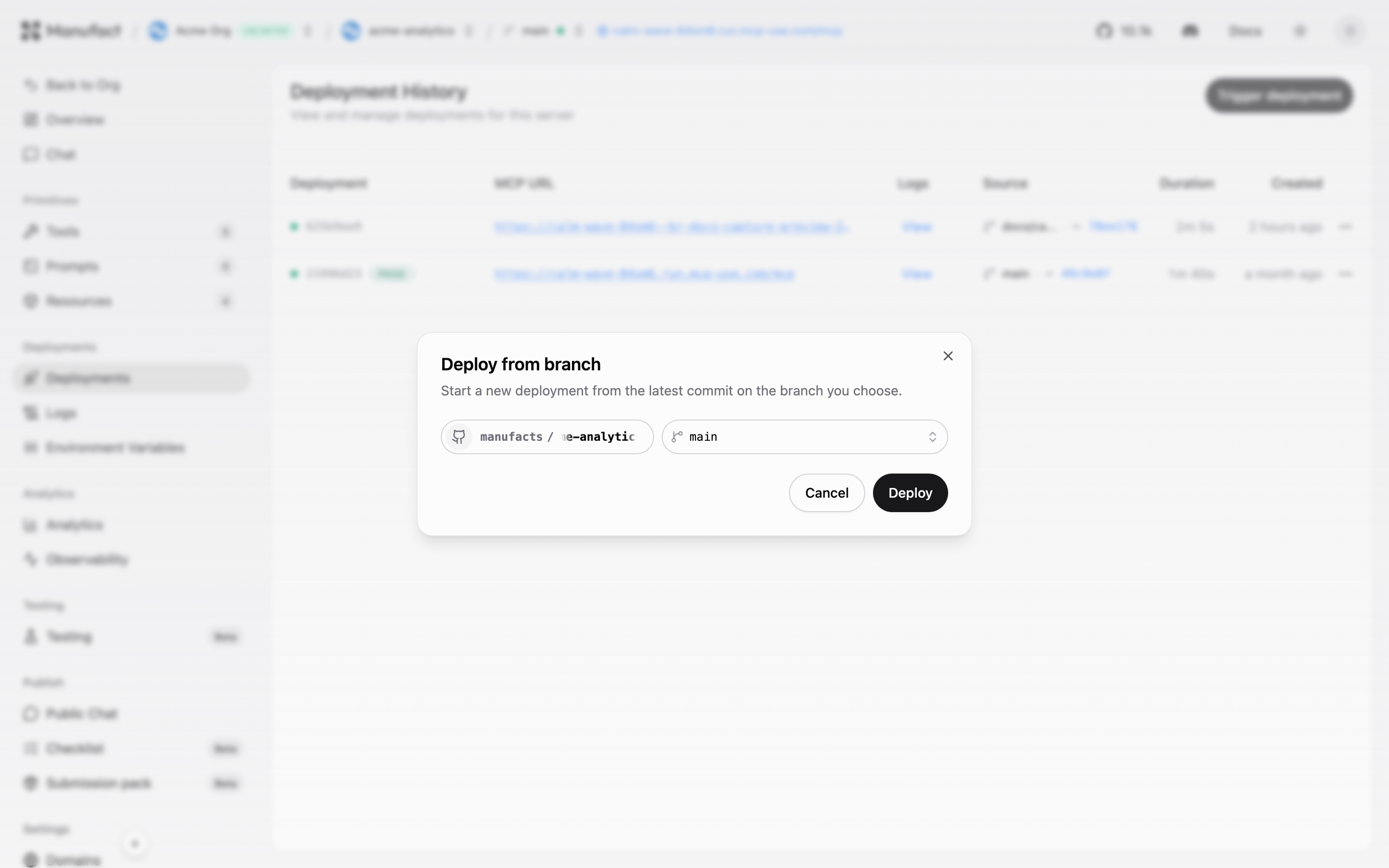From the **Deployments** tab you can:- **Trigger deployment**: deploy a branch on demand.
- **Redeploy**: rebuild and ship the same source (after changing environment variables or settings). For a production-branch deployment that isn't currently active, this appears as **Promote to production**.
- **Set as Active**: switch traffic to a specific deployment.
- **Start / Stop / Delete**: manage stopped, failed, or old deployments.## Deployment history [#deployment-history]The history table shows every deployment with its MCP URL, source branch and commit, duration, and creation time. Click a row to open the detail drawer with **Build Logs** (broken down by pipeline step) and **Runtime Logs** tabs.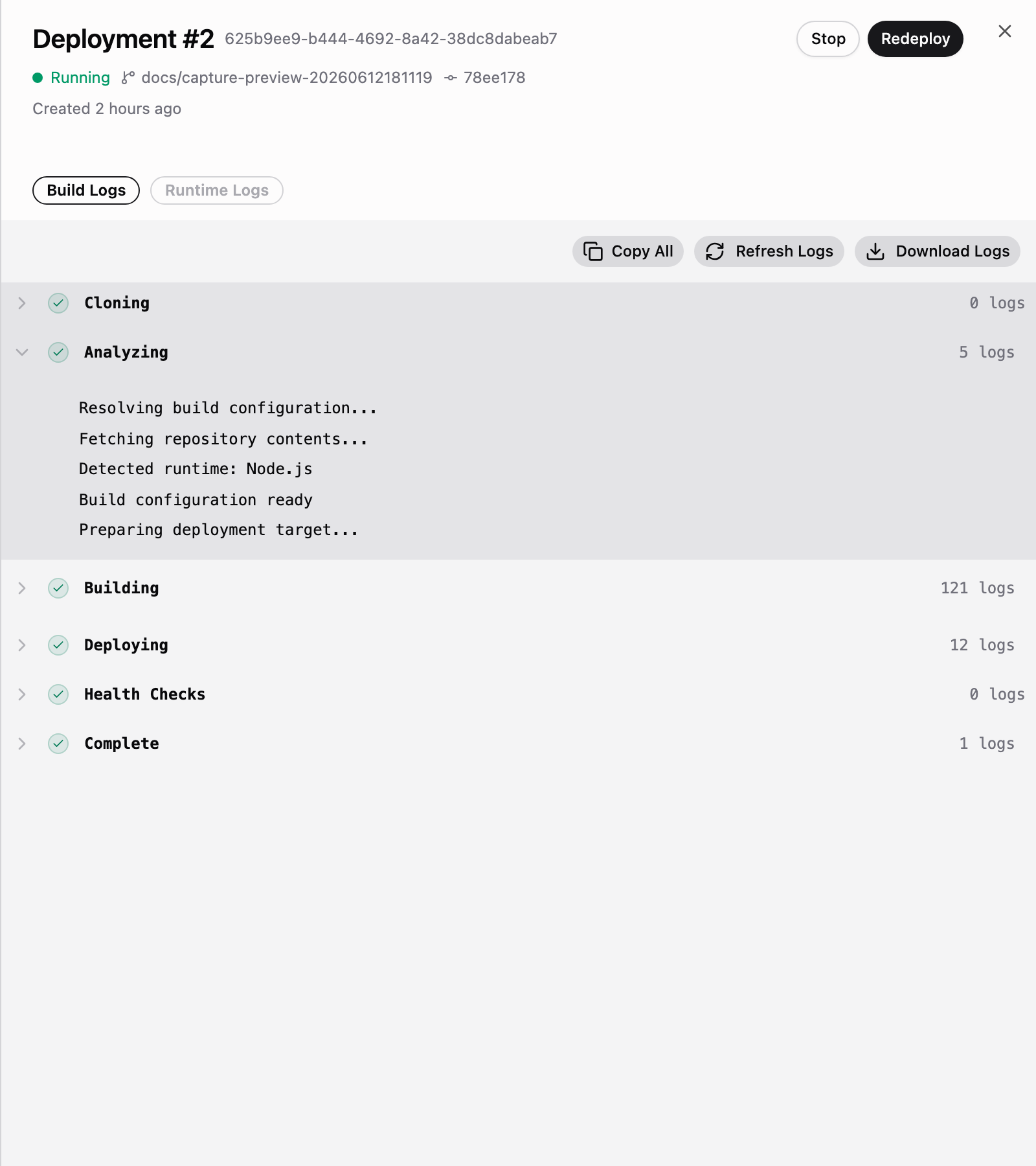## Build configuration [#build-configuration]The build is controlled by settings configured at creation time and editable later in [Server settings](/dashboard/settings):- **Framework preset**: mcp-use, mcp-python, FastMCP, and others, or **Dockerfile** for full control.
- **Root directory**: where your server lives inside the repository.
- **Build command / start command**: override the preset defaults.## Troubleshooting failed deployments [#troubleshooting-failed-deployments]Failed deployments surface on the org **Dashboard** under **Needs Attention**, and trigger an email if you have **Failed deployment emails** enabled in account settings (on by default). Open the deployment drawer to read build logs step by step, a failure at **Health Checks** means the deployed server didn't respond correctly, which usually points to a wrong start command or a missing environment variable.
# Domains (/dashboard/domains)
Every Manufact-hosted server gets a free URL based on its **slug**, and you can add custom domains on top. Manage both on the **Domains** tab.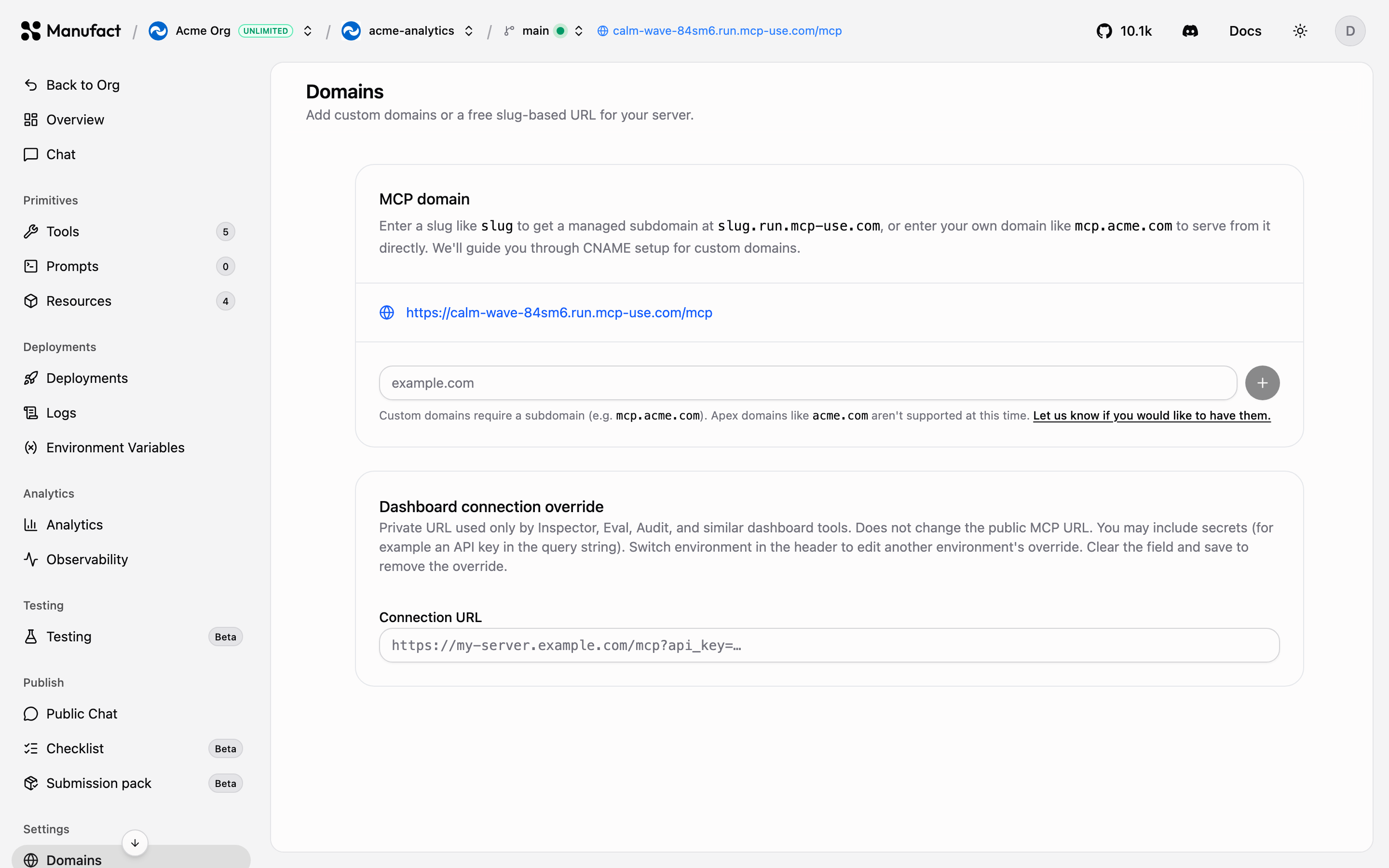## Slug-based URL [#slug-based-url]Your server's default URL looks like:```text
https://.run.mcp-use.com/mcp
```The slug is generated when the server is created. You can edit it on the Domains tab: the change is staged as **Pending deploy** and the old slug keeps serving traffic until your next production deployment, when the new slug takes over. Setting the slug back to its current value cancels the pending change.## Custom domains [#custom-domains]To serve your MCP server from your own domain: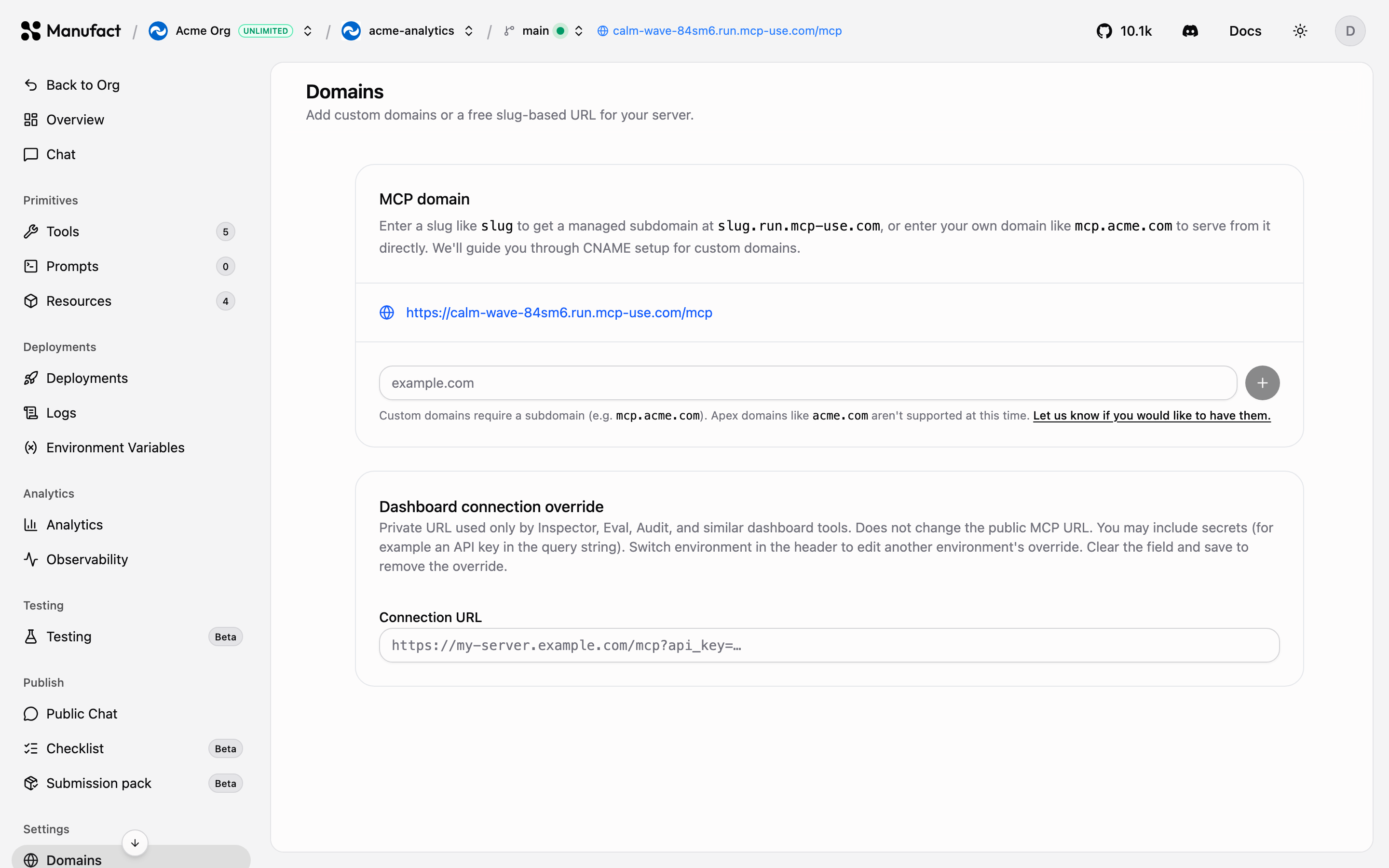1. Click **Add domain** and enter the domain (for example `mcp.example.com`).
2. Add the **CNAME** record shown in the dashboard at your DNS provider, pointing to `deploy.run.mcp-use.com`.
3. Wait for verification, the dashboard re-checks automatically every few seconds, and SSL is provisioned for you once DNS resolves.
If verification reports a CAA error, add CAA records on your apex domain
allowing the certificate authorities listed in the dashboard
(`letsencrypt.org`, `pki.goog`, `digicert.com`, `ssl.com`).
Once verified, the domain shows **Pending deploy** until you redeploy, the dashboard prompts you. Removing an active domain is also staged until the next production deploy; removing a domain that never verified deletes it immediately.## Which URL should I distribute? [#which-url-should-i-distribute]All URLs, slug and verified custom domains, route to the same production deployment and are tracked identically in [analytics](/dashboard/analytics). Distribute a custom domain if you want the URL to survive a potential migration, or the slug URL for zero setup.
# Environment variables (/dashboard/environment-variables)
Environment variables let you pass secrets and configuration to your server at runtime, API keys, database URLs, feature flags. Manage them on the **Environment Variables** tab of your server.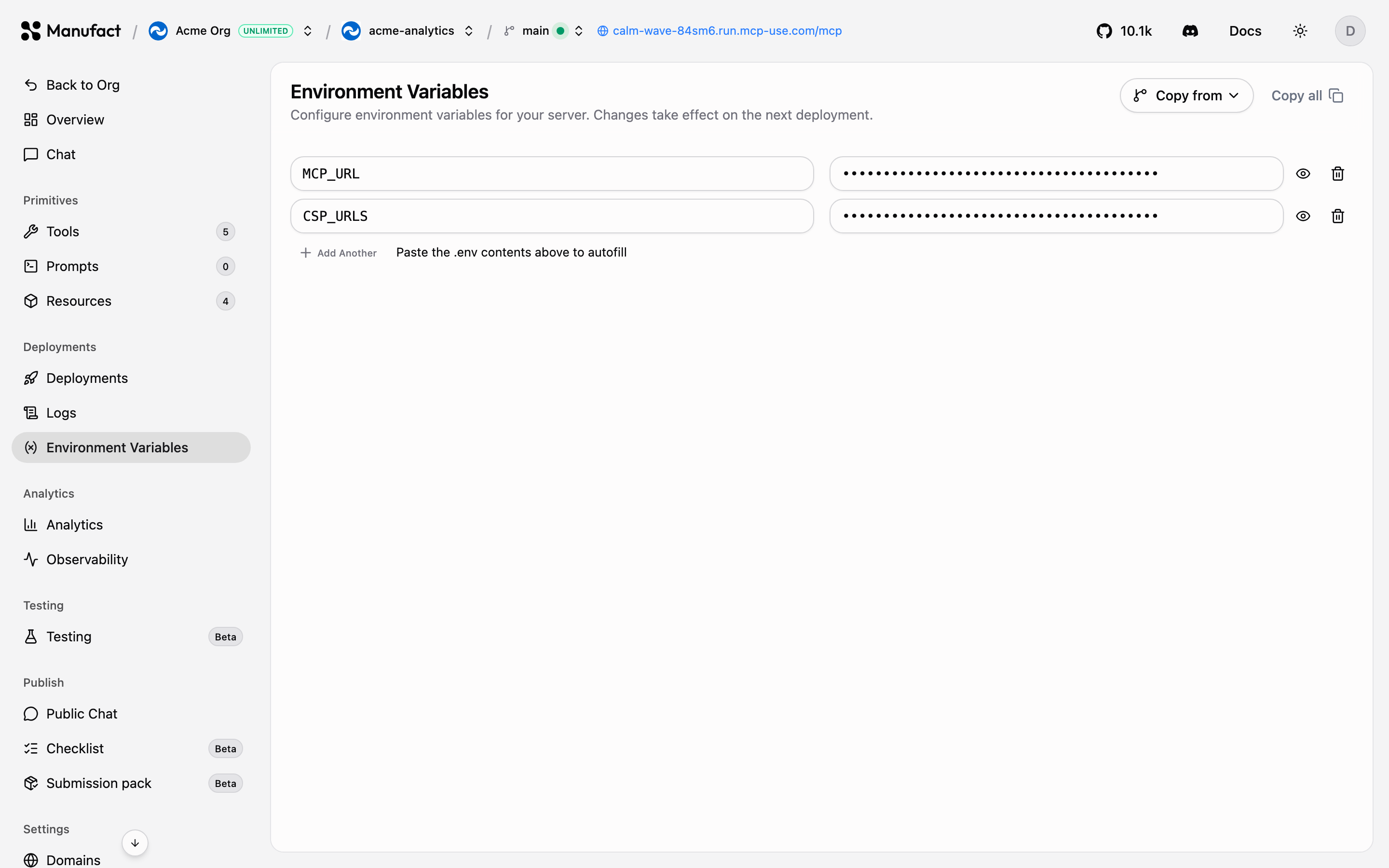## Scoping [#scoping]Variables are scoped to an **environment**. Use the environment selector in the server header to edit variables for:- **Production**: your production branch deployment.
- **Preview**: a specific preview branch.This lets you point preview deployments at staging databases or sandbox API keys while production uses the real thing.## Adding variables [#adding-variables]Add keys and values one by one, or paste the contents of a `.env` file to import many at once. You can also set variables during the initial deploy on the **Configure Deployment** screen.
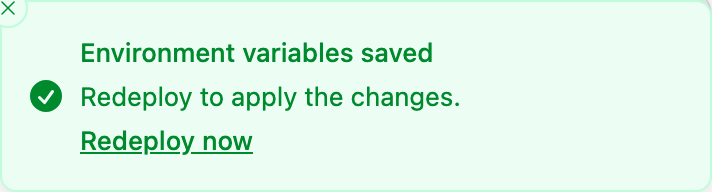
Saving variables does not restart your server. Trigger a redeploy from the
[Deployments](/dashboard/deployments) tab for changes to take effect, the
dashboard reminds you after saving.
## Platform-managed variables [#platform-managed-variables]Manufact injects some variables automatically at deploy time, such as `MCP_URL` (the public URL of the deployment) and `CSP_URLS`. These appear as prefilled rows so you can see exactly what your server receives; they're only saved as your own variables if you override their values.## Best practices [#best-practices]- Keep secrets out of your repository, set them here instead of committing `.env` files.
- Use separate values per environment so previews can't touch production data.
- After rotating a secret, redeploy so the running deployment picks it up.
# Welcome to Manufact Cloud (/dashboard)
Manufact Cloud is an all-in-one platform for MCP servers: deploy from GitHub in minutes, watch every tool call with MCP-native analytics, and ship your server to any AI client, Cursor, Claude, ChatGPT, and more.## For Agents [#for-agents]### Build an MCP server, ChatGPT App, or Claude Connector [#build-an-mcp-server-chatgpt-app-or-claude-connector]Paste this prompt into Cursor, Claude Code, Codex, or another coding agent.Install the skill directly: ### Manage a server deployed on Manufact [#manage-a-server-deployed-on-manufact]Connect the official [Manufact MCP server](/mcp) (`https://mcp.manufact.com/mcp`) to deploy, debug, and monitor servers from your agent. Cursor and VS Code open in one click; other clients copy a ready-made command.See the [MCP server reference](/mcp) for all 20 tools.## For Humans [#for-humans]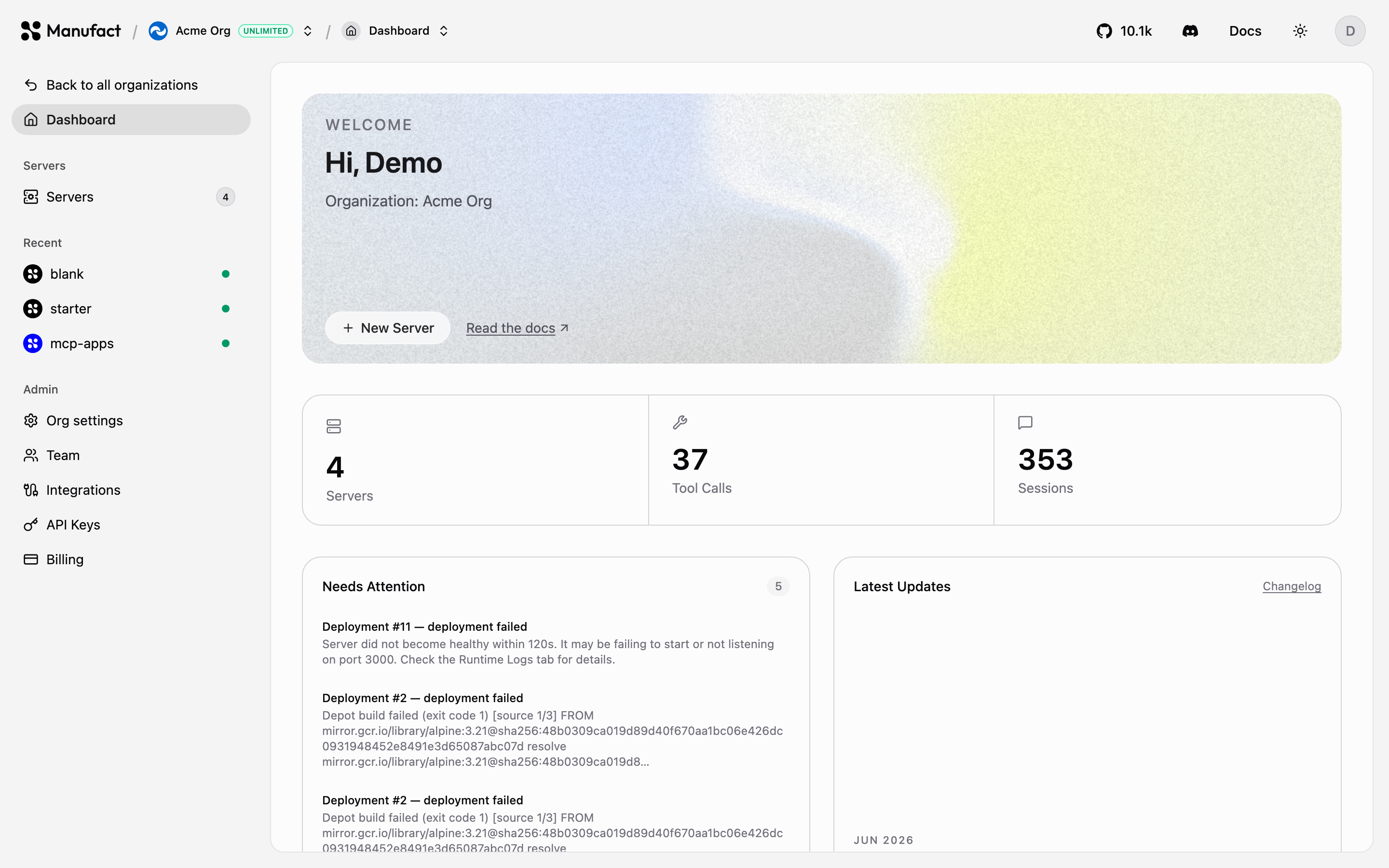### Getting started [#getting-started]Get your MCP server up and running in minutes.
### Build & Deploy [#build--deploy]
### Monitoring [#monitoring]
### Distribution [#distribution]
### Publish [#publish]
### Organization [#organization]
# GitHub integration (/dashboard/integrations)
Manufact deploys from GitHub through a GitHub App, managed on the **Integrations** page of your organization.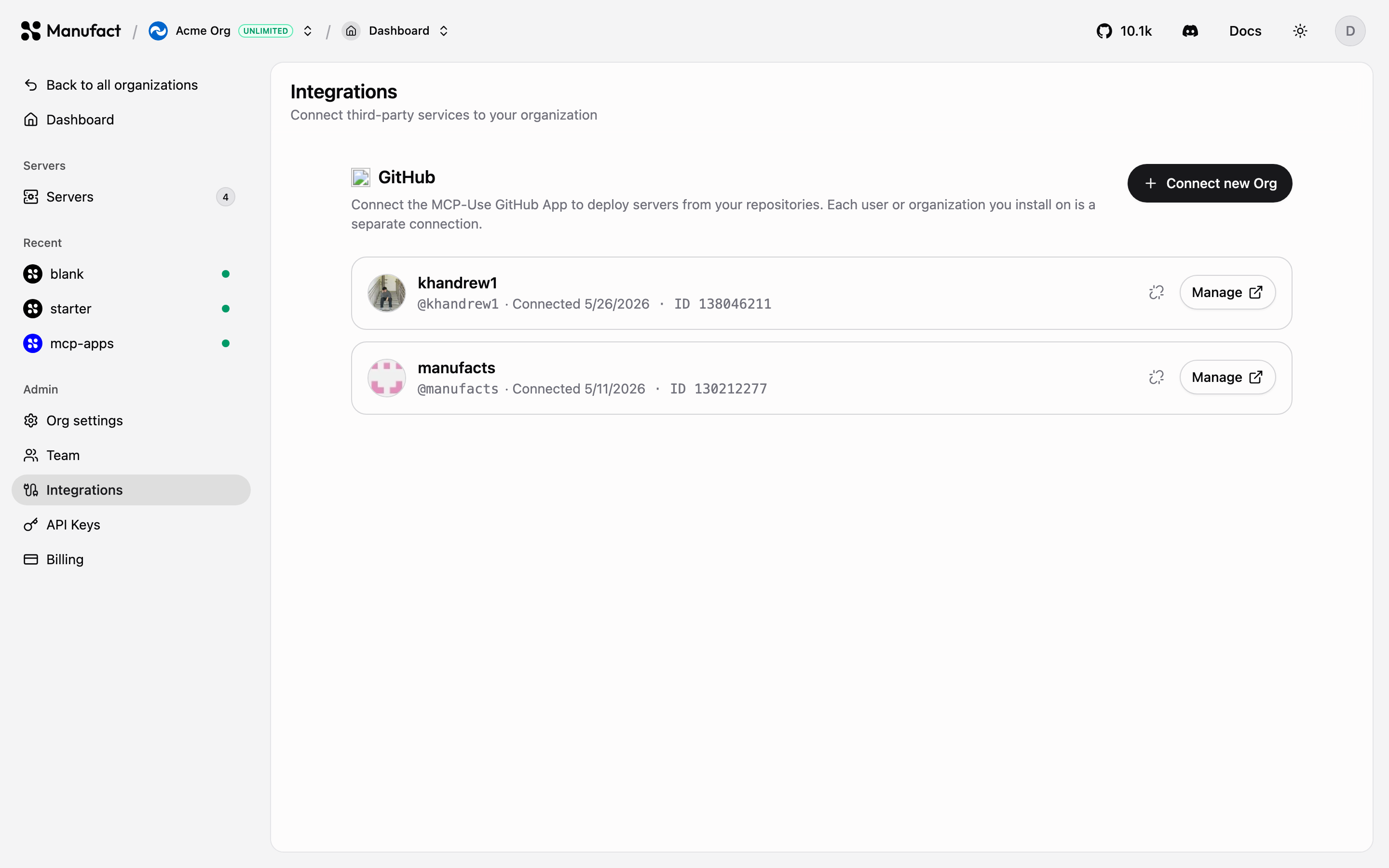## Connecting GitHub [#connecting-github]1) Go to **Integrations** and click **Connect** next to GitHub (or **Connect new Org** to add another GitHub account or organization).
2) GitHub asks which repositories the app may access, grant all repositories or pick specific ones.
3) Back in Manufact, the installation appears in the list and its repositories become available in the **New Server** repo picker.You can connect multiple GitHub accounts and organizations to a single Manufact organization.## What the app does [#what-the-app-does]* Lists repositories in the server creation flow.
* Receives push webhooks to trigger [automatic deployments](/dashboard/deployments).
* Reads commit statuses when **Wait for CI** is enabled.
* Links deployments back to their commits and branches in the dashboard.
Deploying from a GitHub organization repository requires the Hobby plan or
higher, personal GitHub account installs work on Free. See
[Billing & plans](/dashboard/billing).
## Changing repository access [#changing-repository-access]Repository access is managed on GitHub's side: open the installation from the Integrations page to add or remove repositories. To disconnect an installation entirely, use **Disconnect**: servers deployed from it keep running, but lose automatic deploys until reconnected.
# Runtime logs (/dashboard/logs)
The **Logs** tab streams runtime output, everything your server writes to stdout and stderr, from the **active healthy deployment** of the selected environment.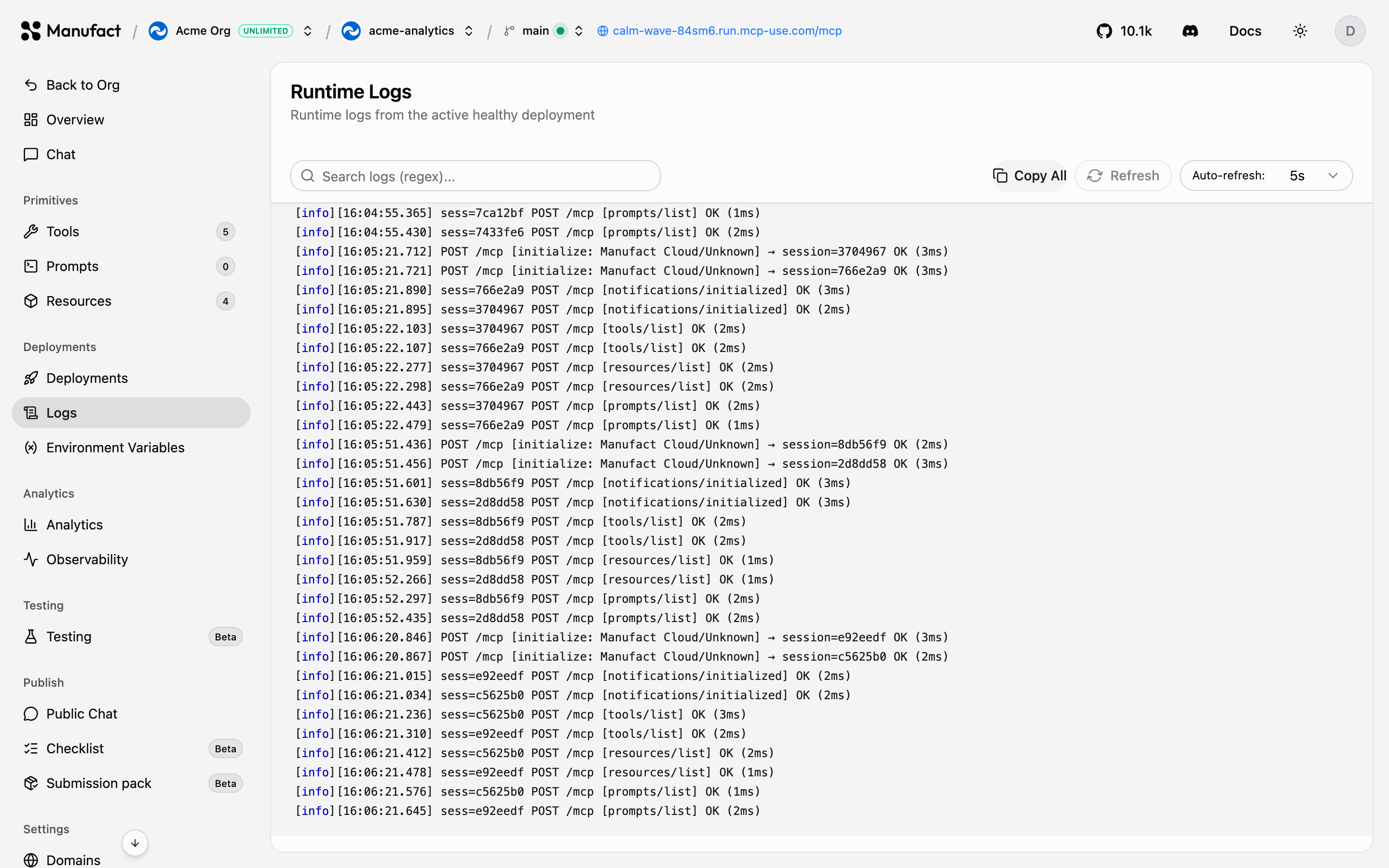## Runtime vs build logs [#runtime-vs-build-logs]There are two kinds of logs in Manufact Cloud:| Type | Where | What it contains |
| ---------------- | --------------------------------------------------------- | ---------------------------------------------------------------- |
| **Runtime logs** | **Logs** tab | Your server's output while serving traffic |
| **Build logs** | [Deployments](/dashboard/deployments) → deployment drawer | The build pipeline output for one specific deployment, per phase |If the Logs tab is empty, check that the selected environment has a deployment in the **running** state, logs only stream from a live deployment.## Tips [#tips]- Use the environment selector in the header to view logs for a preview branch instead of production.
- A tail of recent runtime logs is also shown on the server **Overview** page under the active deployment card.
- Log output is the fastest way to debug tool errors surfaced in [Observability](/dashboard/observability): find the failing request there, then match its timestamp here.
# Observability (/dashboard/observability)
While [Usage & traffic](/dashboard/analytics) shows aggregate trends, the **Observability** tab shows individual events: every request flowing through the gateway, in real time.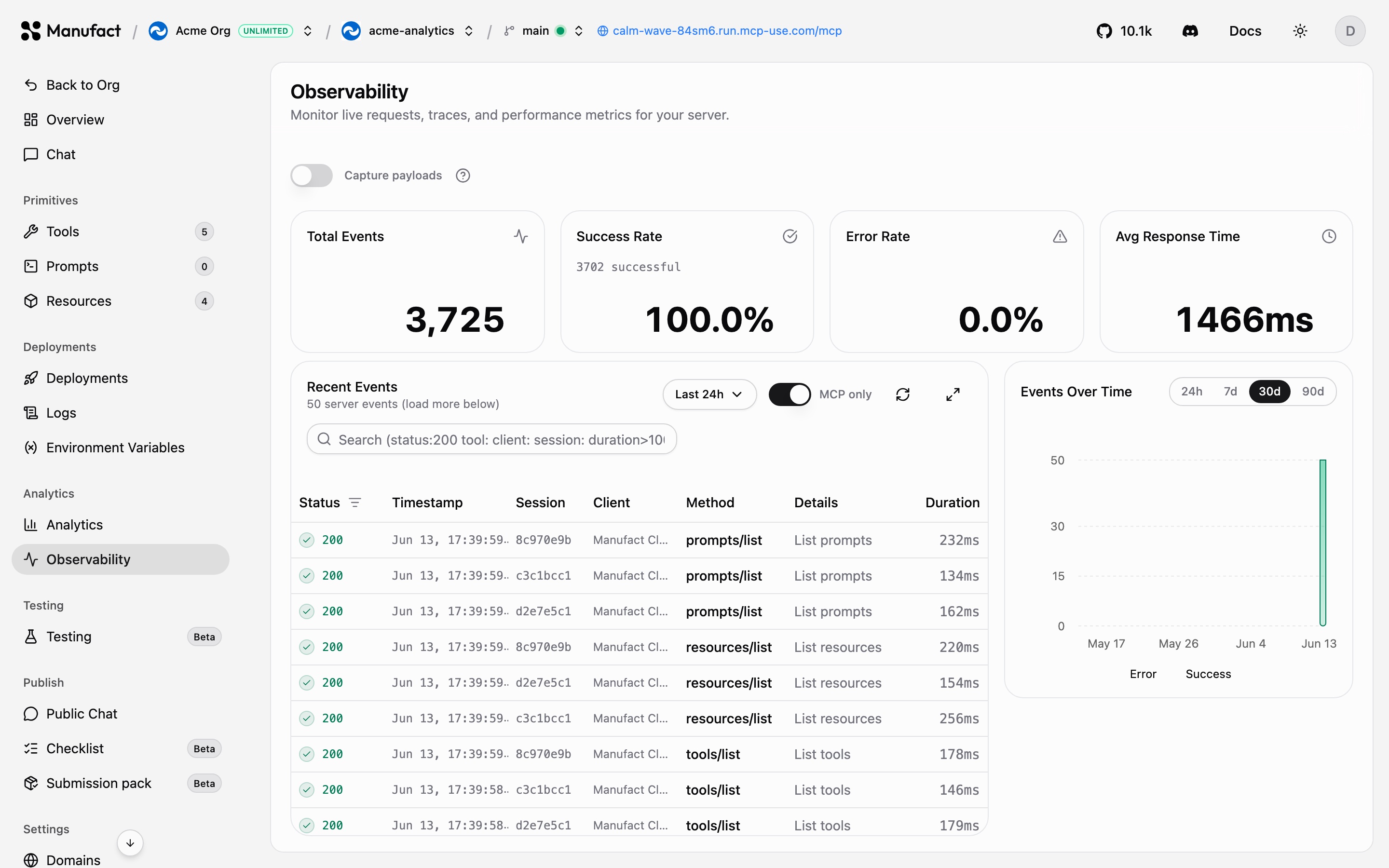## Event stream [#event-stream]The event table lists each request with its status, timestamp, session, client, method, details, and duration. Search and filter to isolate specific tools, error responses, or clients.Click an event to open the **session detail** view: the full sequence of requests in that MCP session, so you can reconstruct exactly what a client did, initialization, tool listing, tool calls, and errors, in order.## Payload capture [#payload-capture]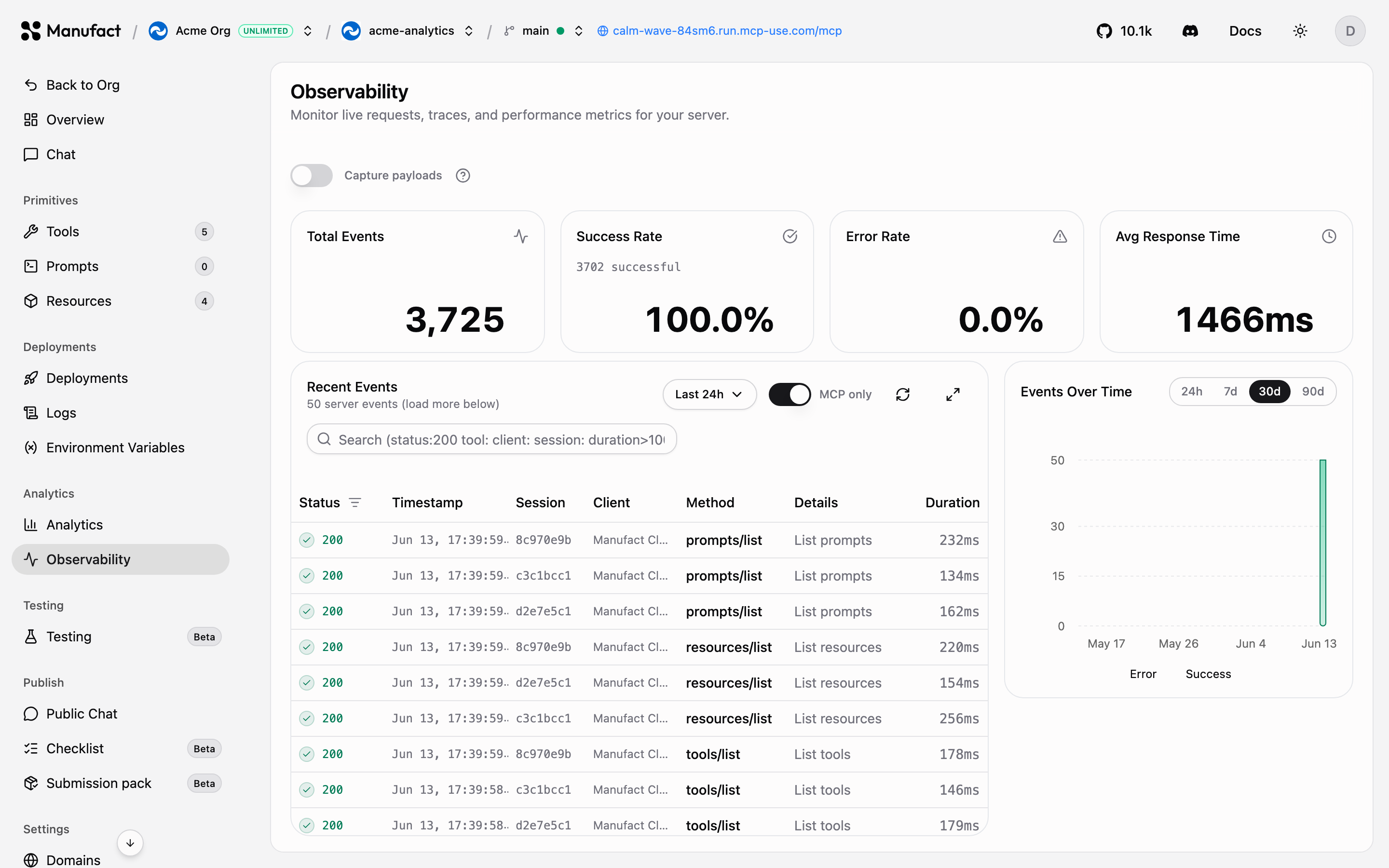By default Manufact stores request metadata only. Toggle **Capture payloads** to also store full request and response bodies for each event, invaluable when debugging why a tool call failed or what arguments a client actually sent.
Payloads can contain user data. Enable capture only when you need it, and
disable it again when you're done debugging.
## Performance metrics [#performance-metrics]Charts above the event stream track request volume, error rates, and latency over time, scoped to the same filters as the table.## Retention [#retention]Observability data follows the same retention windows as analytics: 7 days on Free, 30 on Hobby, 365 on Startup, unlimited on Enterprise.
# Public Chat (/dashboard/public-chat)
**Public Chat** turns your server into a product anyone can try from a browser, no MCP client required. In the dashboard, open your server and go to **Publish → Public Chat** to configure it.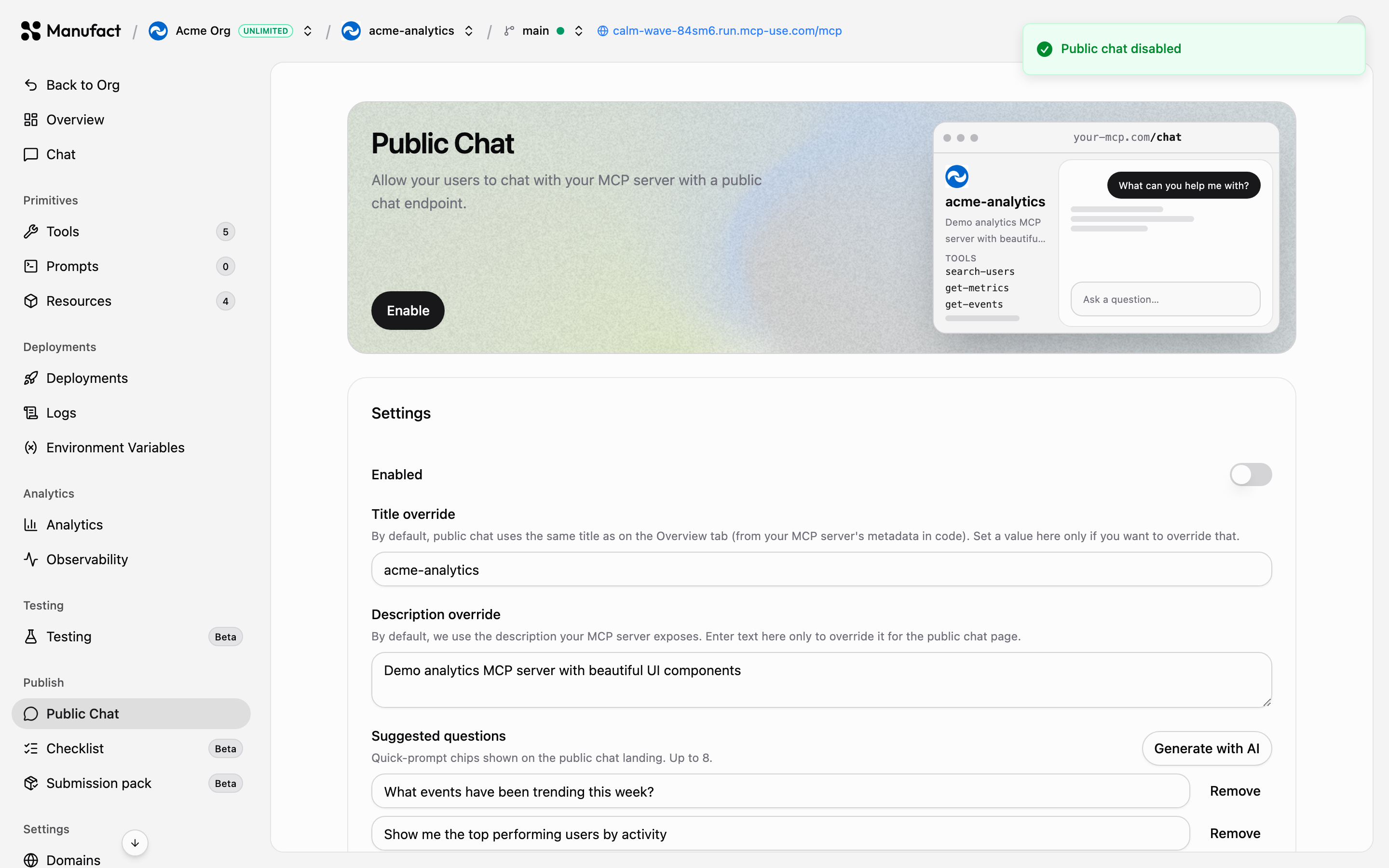## Enabling Public Chat [#enabling-public-chat]1) Toggle Public Chat on.
2) Set a **title** and **description** override for the chat page.
3) Optionally add **suggested questions** (up to 8) that appear as starter prompts; there's an AI button to generate them from your server's capabilities.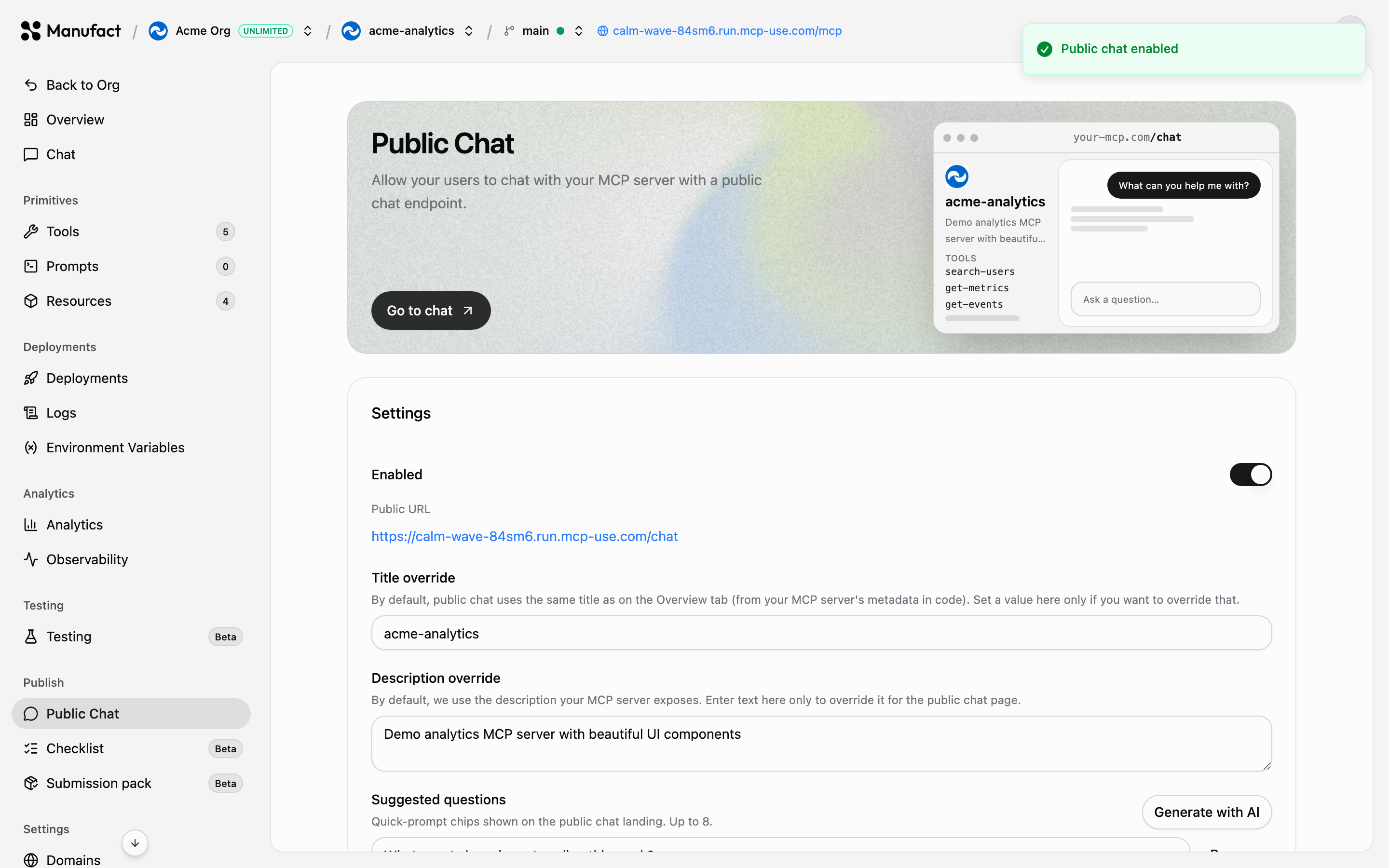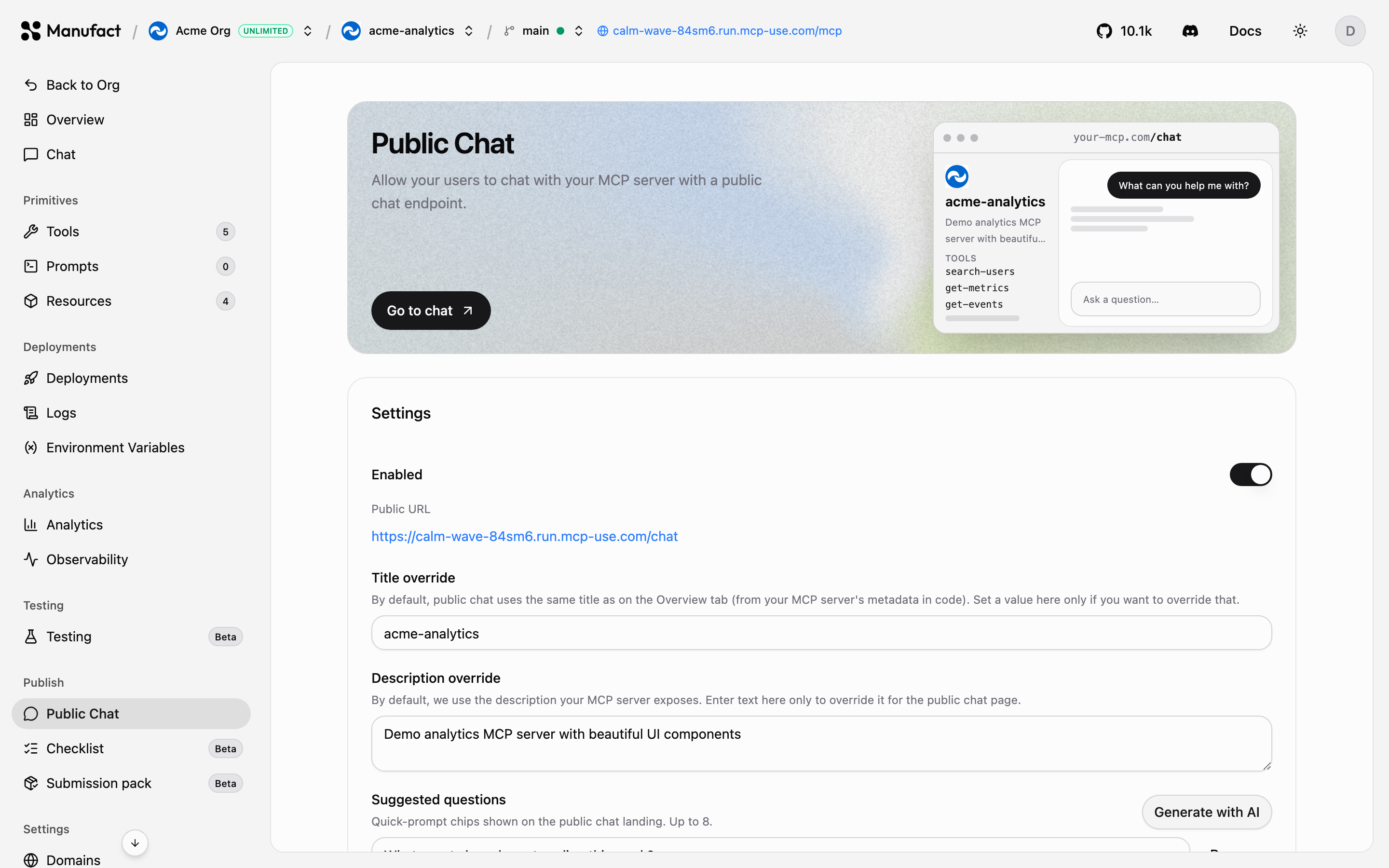The tab shows a live preview of the page, and once enabled your chat is available at your server's URL with a `/chat` path:```text
https://.run.mcp-use.com/chat
```Verified custom domains work too: `https:///chat`.## Public transcripts [#public-transcripts]The **Public transcripts** table lists chat threads so you can see how visitors actually use your server: which questions they ask and which tools the agent invoked to answer them.
If your server needs credentials, think carefully before exposing it through
Public Chat: visitors interact with it using the server's configured access.
The dashboard shows a security warning banner for this case.
## When to use it [#when-to-use-it]- **Demos**: share a working MCP server with stakeholders or on social media.
- **Docs**: let users try your tools before installing them in a client.
- **Validation**: watch real conversations to refine tool names and descriptions before [publish checks](/dashboard/publish-checks) or generating a [submission pack](/dashboard/submission-pack).
# Publish checks (/dashboard/publish-checks)
Before you distribute a server, to your users, the MCP registry, or an app directory, the **Checklist** tab in the **Publish** section helps you verify it's ready. It works for Manufact-hosted and external (URL-connected) servers.## Checklist [#checklist]The **Checklist** tab (Beta) runs an automated audit of your server for protocol compliance and platform readiness: initialization behavior, tool schemas, error handling, metadata quality, and more.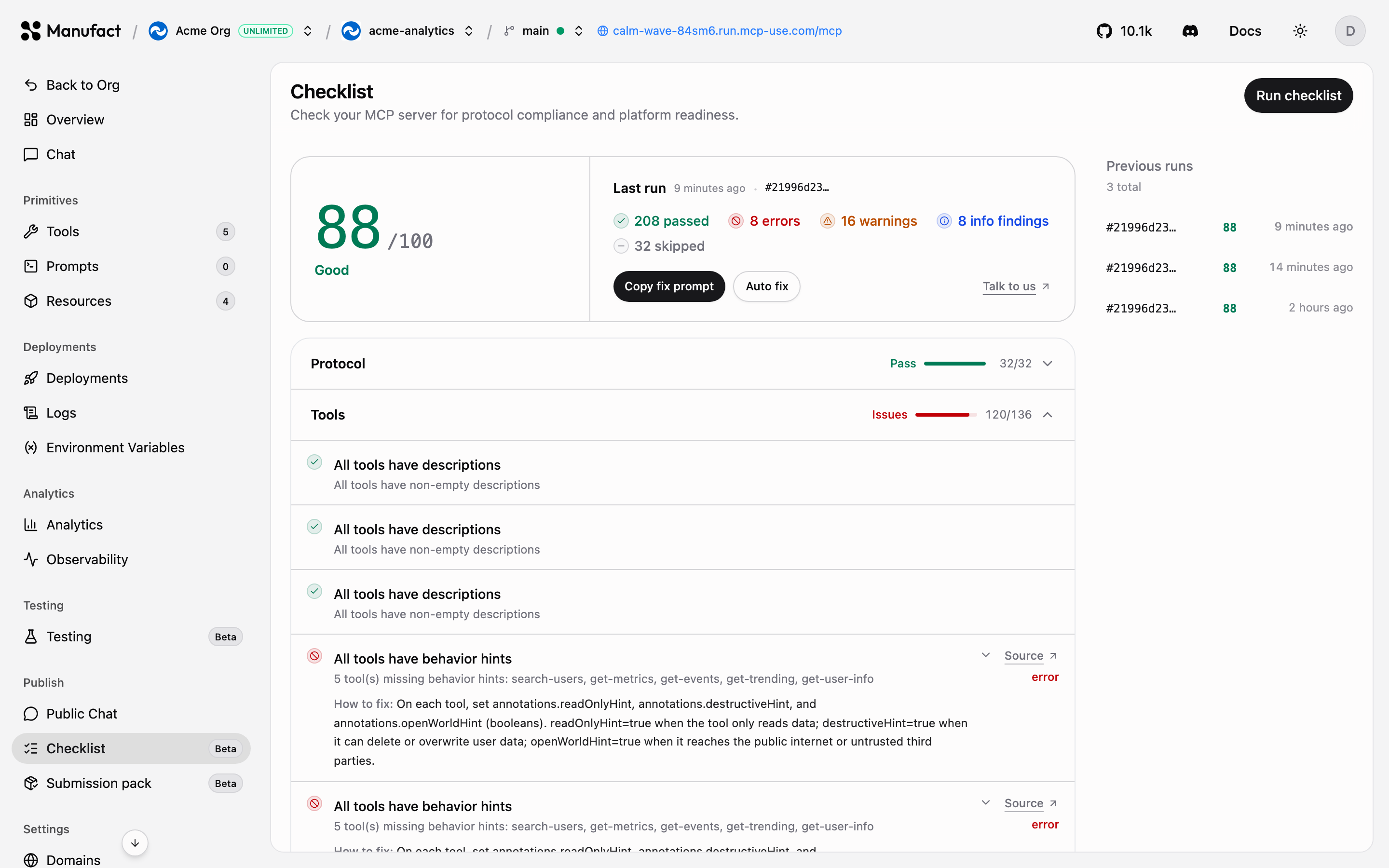1) Open your server, go to **Publish → Checklist**, and click **Run checklist**.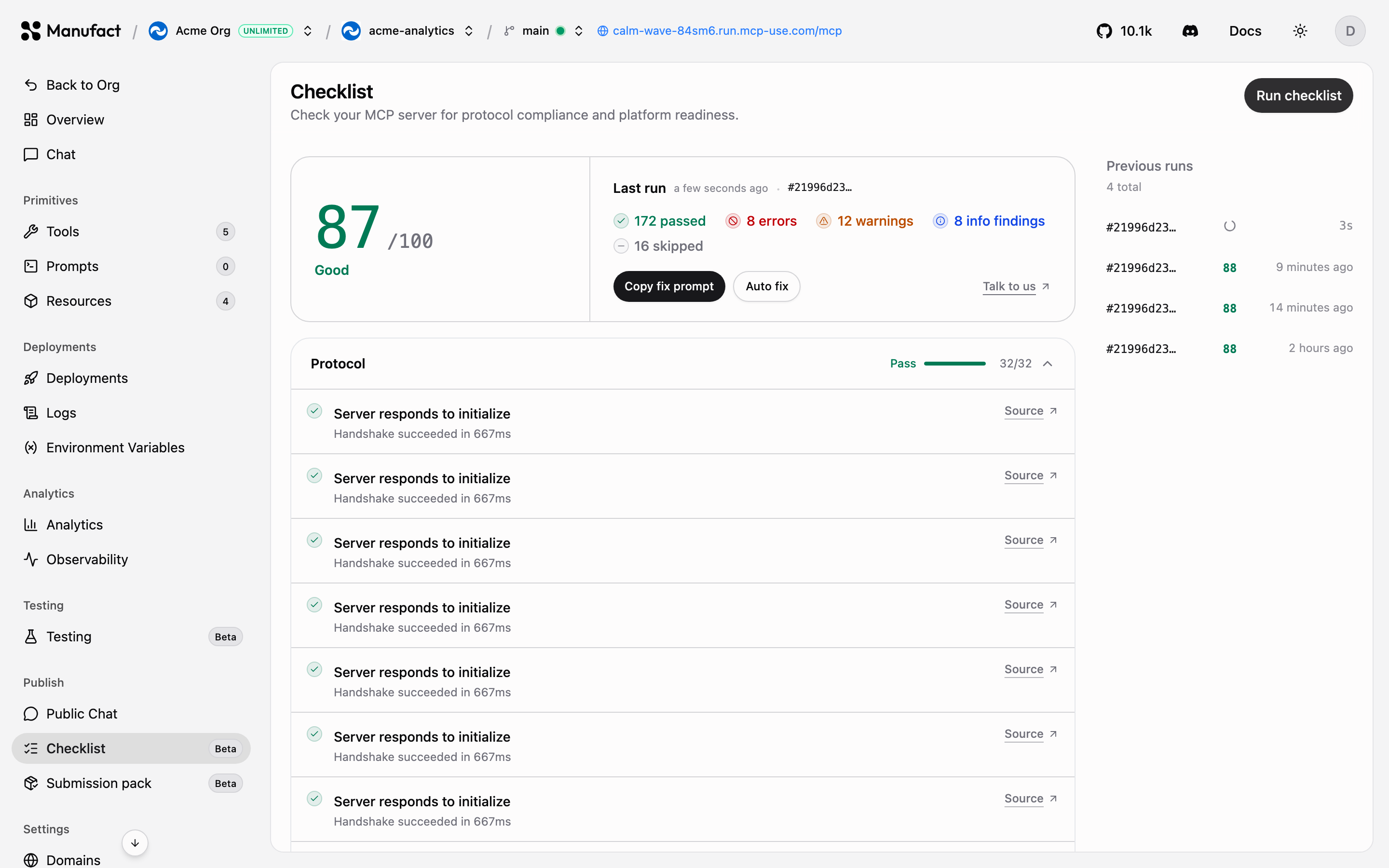2) Each check reports as **passed**, a **warning**, an **error**, or **skipped**, with an explanation. The summary card shows your score and counts by status.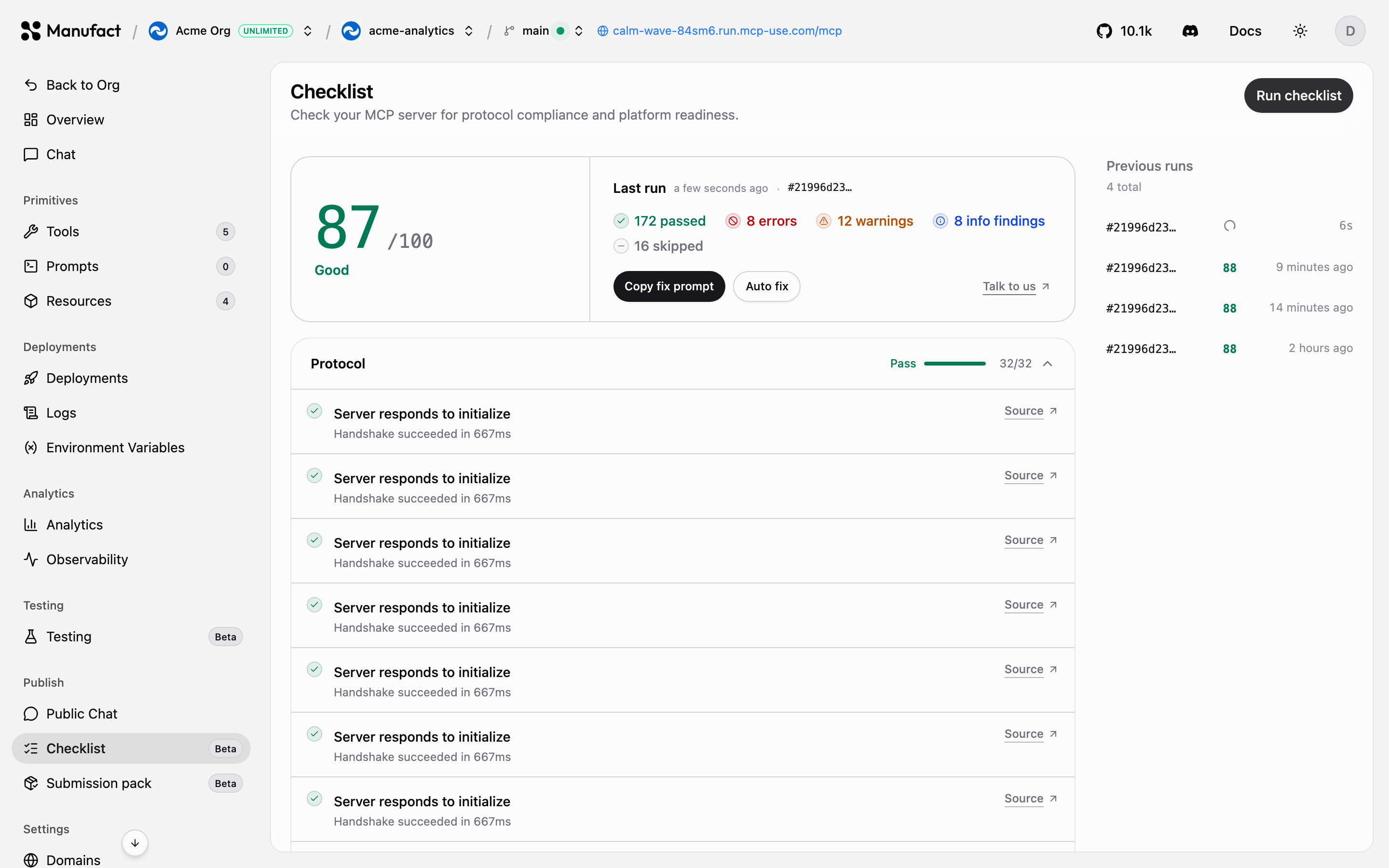3) Expand a category with issues to read **How to fix** guidance for each failed check.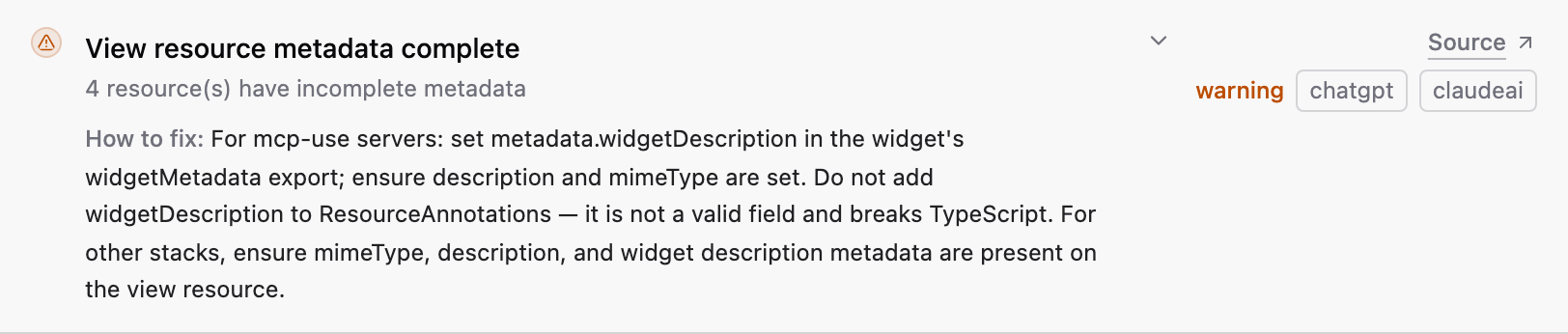4) For fixable issues you can copy a **fix prompt** into your own coding agent, or run the built-in **autofix** flow (requires a connected GitHub repository).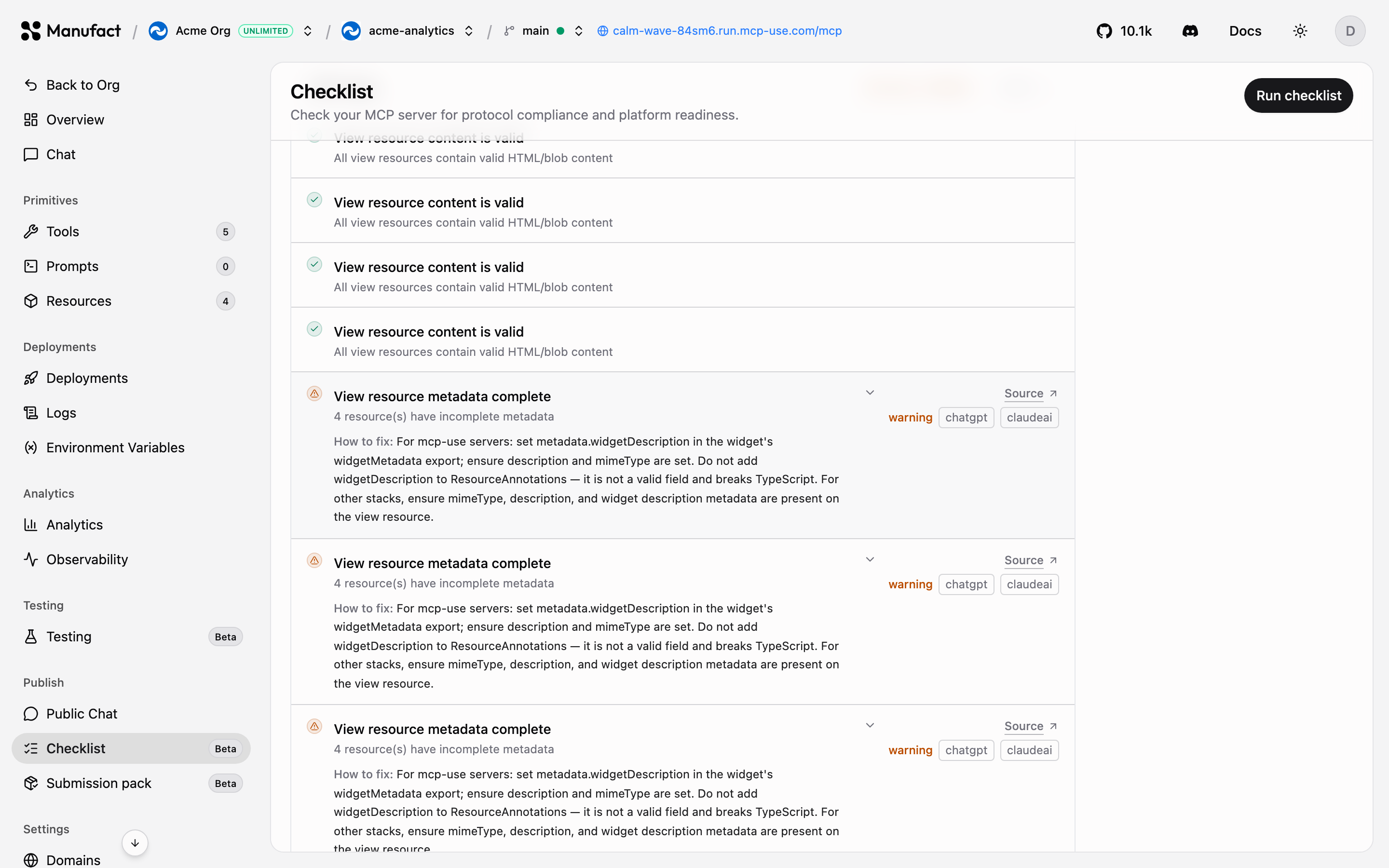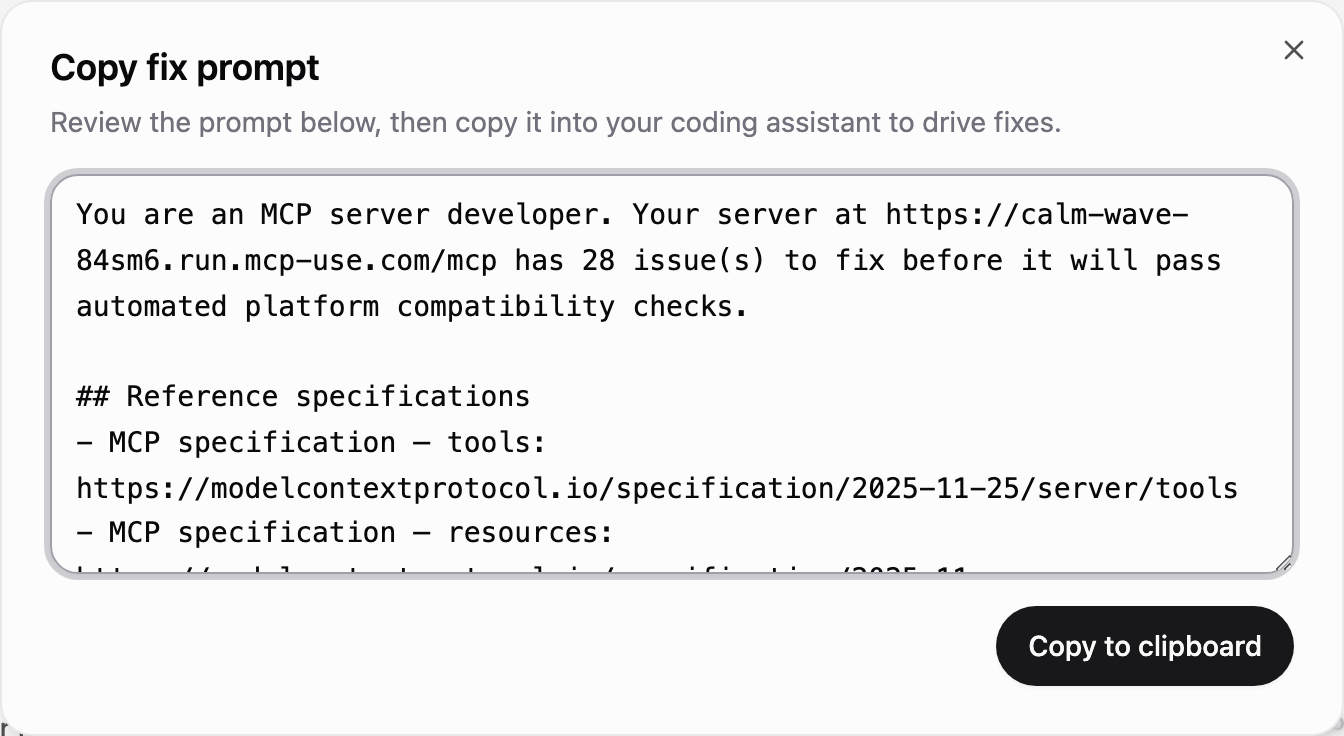Run it again after deploying fixes; runs are kept so you can track progress over time.## Recommended publish flow [#recommended-publish-flow]1) Pass the **Checklist** with no failures.
2) Validate behavior with [test suites](/dashboard/testing) across clients and models.
3) Try it end to end via [Public Chat](/dashboard/public-chat) or your own client setup.
4) Generate a [submission pack](/dashboard/submission-pack) and submit to the app directory.
# Quickstart (/dashboard/quickstart)
This guide walks you through deploying an MCP server from a GitHub repository and connecting it to an AI client.Prefer to have an agent do it? Copy the onboarding prompt and paste it into Cursor, Claude Code, or Codex.## Before you start [#before-you-start]You need:- A [Manufact Cloud account](https://manufact.com/cloud): the Free plan covers your first server.
- A GitHub repository containing an MCP server. Any framework works, [mcp-use](https://docs.mcp-use.com), FastMCP, the official MCP SDKs, or a custom Dockerfile.If you don't have a server yet, you can start from a template or build one with Mango instead, see [Creating servers](/dashboard/servers).## 1. Create an organization [#1-create-an-organization]When you first sign in, the onboarding wizard asks you to create an organization. Organizations own servers, billing, and team members. You can create more organizations later from the organization switcher.## 2. Import your repository [#2-import-your-repository]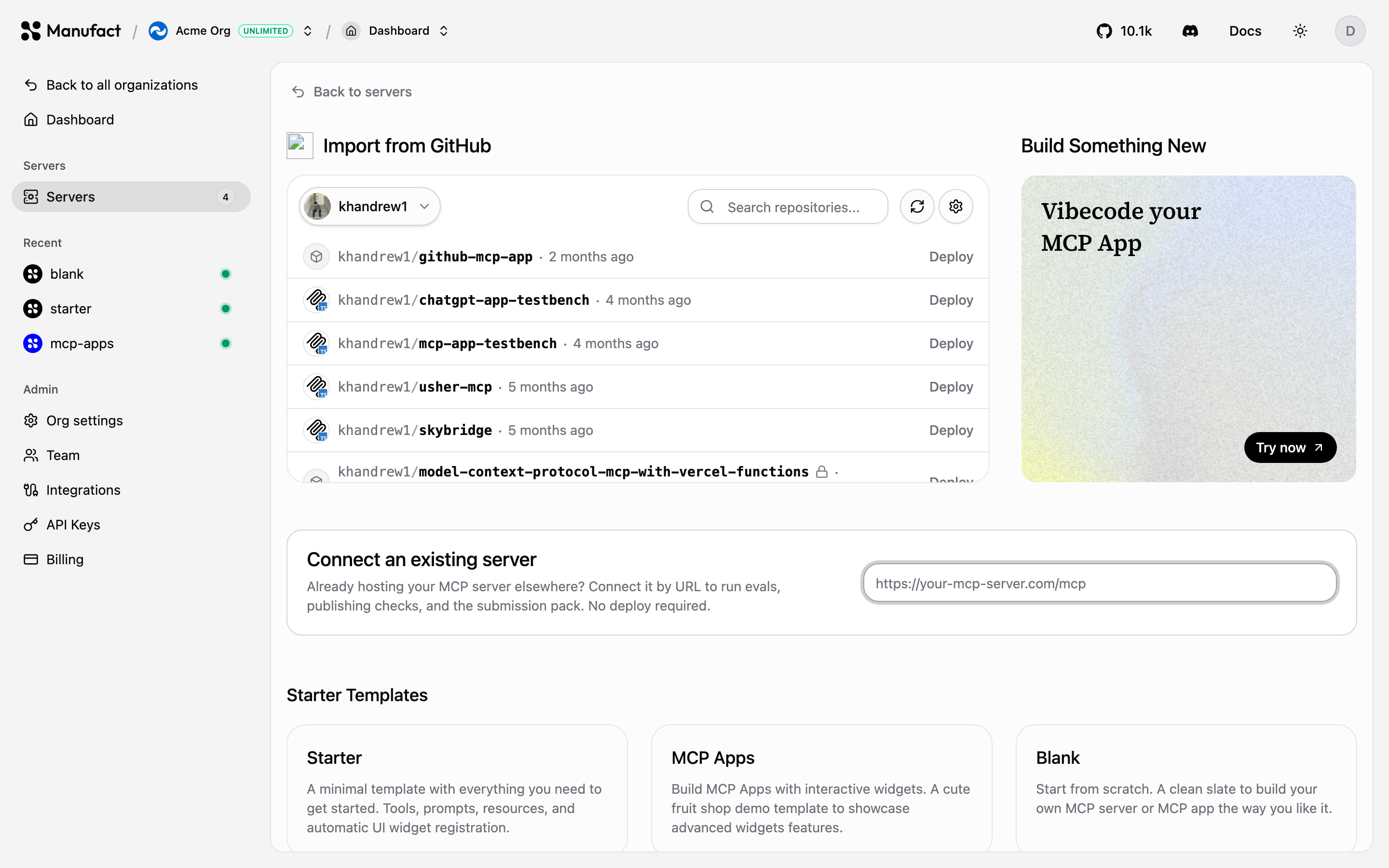1) Go to **Servers** and click **New Server**.
2) Choose **Import from GitHub**.
3) If this is your first deploy, connect the Manufact GitHub App and grant it access to your repository. See [GitHub integration](/dashboard/integrations) for details.
4) Pick the repository you want to deploy.## 3. Configure the deployment [#3-configure-the-deployment]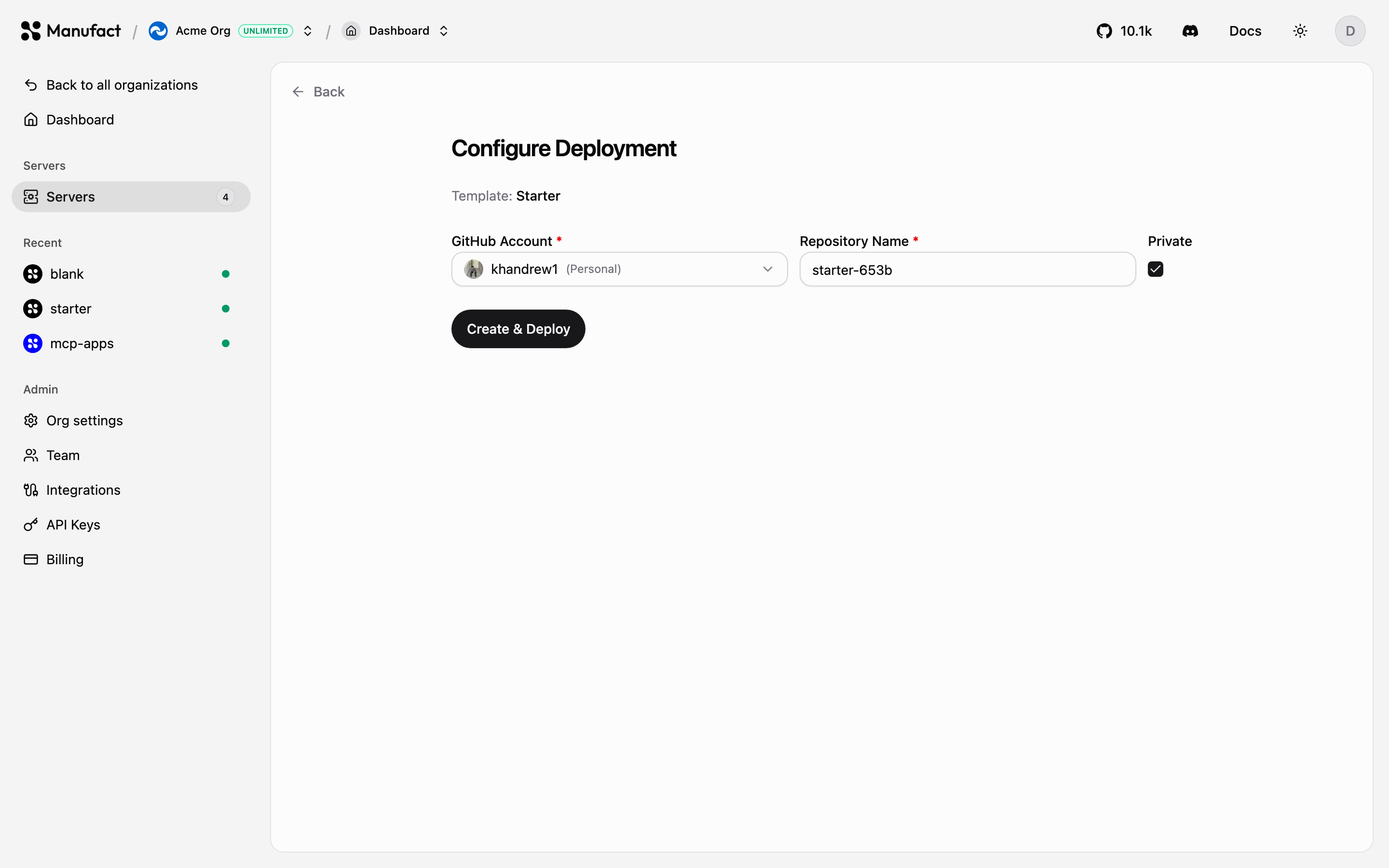On the **Configure Deployment** screen:- **Branch**: the branch to deploy as production (usually `main`).
- **Region**: leave on `AUTO`, or pick US / EU / APAC on the Startup plan and above.
- **Environment variables**: add any secrets or config your server needs. You can also paste the contents of a `.env` file to fill them in at once.
- **Advanced configuration** (optional), set a root directory for monorepos, watch paths, a Dockerfile path, or a framework preset. Manufact auto-detects most setups.Click **Deploy**. The pipeline clones your code, analyzes it, builds it, deploys it, and runs health checks before routing traffic to it, you can follow each step live.## 4. Get your server URL [#4-get-your-server-url]Once the deployment is healthy, your server is available at its gateway URL, shown in the header of every server page:```text
https://.run.mcp-use.com/mcp
```Copy it from the URL chip, or customize the slug and add custom domains on the [Domains](/dashboard/domains) tab.## 5. Connect a client [#5-connect-a-client]Click **Add to client** next to the server URL to get one-click installs and ready-made config snippets for Cursor, VS Code, Claude Desktop, Claude Code, Gemini CLI, Codex CLI, and the mcp-use SDKs. See [Connecting clients](/dashboard/connect-clients).You can also test immediately in the dashboard: the **Chat** tab connects an agent to your server, and **Tools**, **Prompts**, and **Resources** list everything your server exposes.## Next steps [#next-steps]
# Creating servers (/dashboard/servers)
A **server** is the central object in Manufact Cloud: it bundles your deployments, environments, URL, analytics, and publish workflow. Create one from **Servers → New Server**. There are four ways to get a server onto the platform.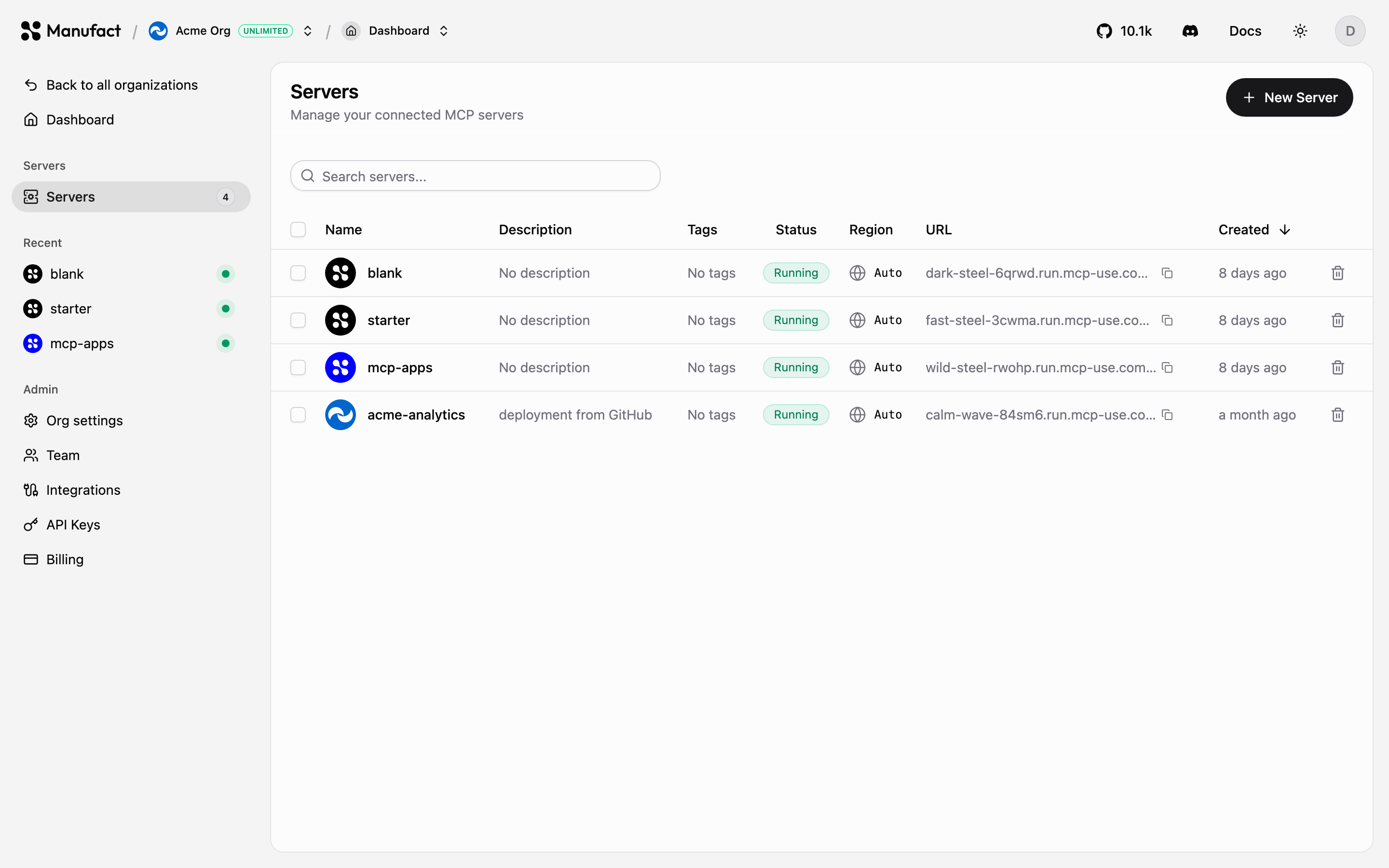## Import from GitHub [#import-from-github]The most common path. Pick a repository through the Manufact GitHub App and configure the deployment, branch, region, environment variables, and optional advanced settings (root directory, watch paths, Dockerfile, framework preset).Manufact detects common MCP frameworks automatically, mcp-use (TypeScript and Python), FastMCP, tmcp, xmcp, Skybridge, and more. If your project doesn't match a preset, point the build at a Dockerfile instead.After the first deploy, every push to the production branch deploys automatically. See [Deployments](/dashboard/deployments).
Deploying from a GitHub organization repository (rather than a personal account) requires the Hobby plan or higher. See [Billing & plans](/dashboard/billing).
## Start from a template [#start-from-a-template]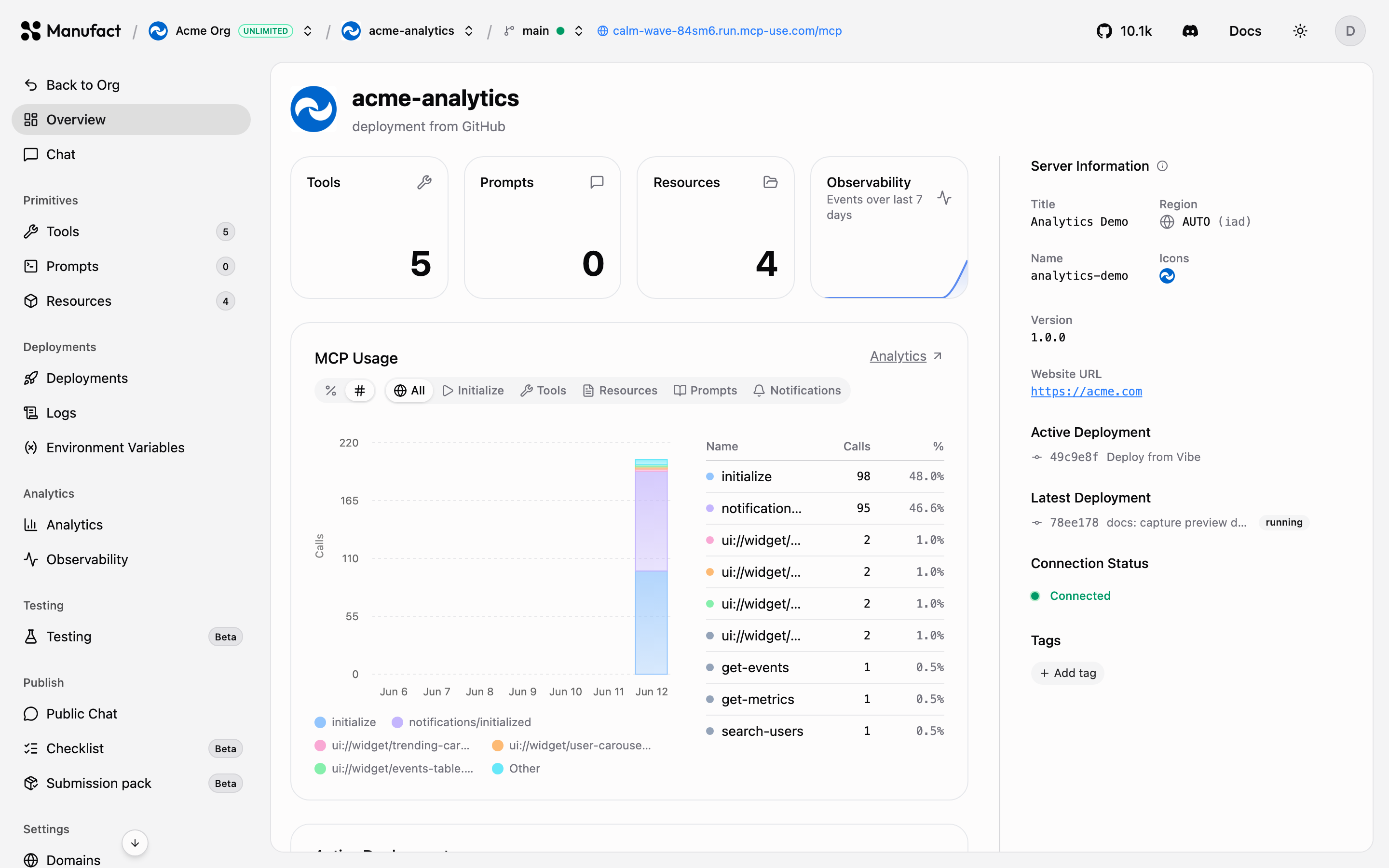The **Templates** library offers ready-made MCP server scaffolds.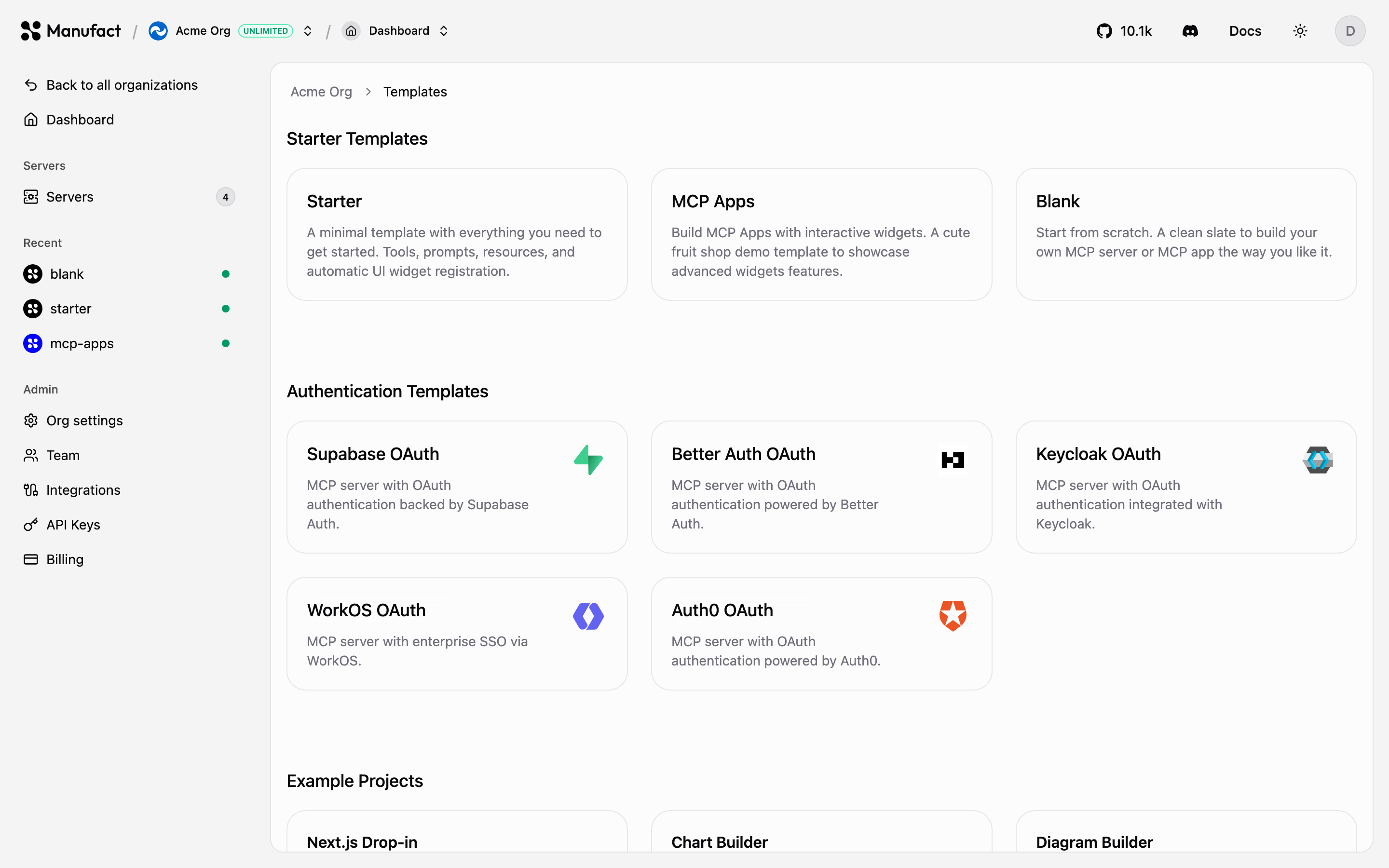Selecting a template creates a new repository from the template in your connected GitHub account or organization and deploys it, so you get a working server you can iterate on immediately.## Vibecode something new [#vibecode-something-new]**Build Something New** opens the vibe-coding builder: describe the server you want and it scaffolds, iterates, and publishes it for you, the first publish creates the server and its deployment, no local setup required.## Connect an existing server [#connect-an-existing-server]Already hosting an MCP server elsewhere? Choose **Connect an existing server** and paste its URL. Manufact proxies it through the gateway, which gives you:- The dashboard **Chat** and inspector tabs (**Tools**, **Prompts**, **Resources**)
- [Testing](/dashboard/testing), the [publish checklist](/dashboard/publish-checks), the [submission pack](/dashboard/submission-pack), and [Public Chat](/dashboard/public-chat)Deployment-dependent features, deployments, runtime logs, environment variables, analytics, observability, public chat, and domains, are only available for Manufact-hosted servers.## Server pages [#server-pages]Every server has the following sections in its sidebar:| Section | What it does |
| ------------------------------- | ---------------------------------------------------------------------------------- |
| **Overview** | Connection status, capability counts, active deployment, recent tool-call activity |
| **Chat** | Talk to your server with an agent, directly in the dashboard |
| **Tools / Prompts / Resources** | Inspect the MCP primitives your server exposes |
| **Deployments** | History, manual triggers, build logs, redeploy |
| **Logs** | Runtime logs from the active deployment |
| **Environment Variables** | Per-environment configuration |
| **Analytics** | Usage & traffic insights |
| **Observability** | Live requests and traces |
| **Testing** | Automated test suites (Beta) |
| **Public Chat** | Hosted, shareable chat for visitors, see [Public Chat](/dashboard/public-chat) |
| **Checklist / Submission pack** | App-directory publish workflow |
| **Domains** | Slug and custom domains |
| **Settings** | Repository, region, build, and danger zone |## Chat [#chat]Use the **Chat** tab to send prompts and verify tool calls against your server without leaving the dashboard.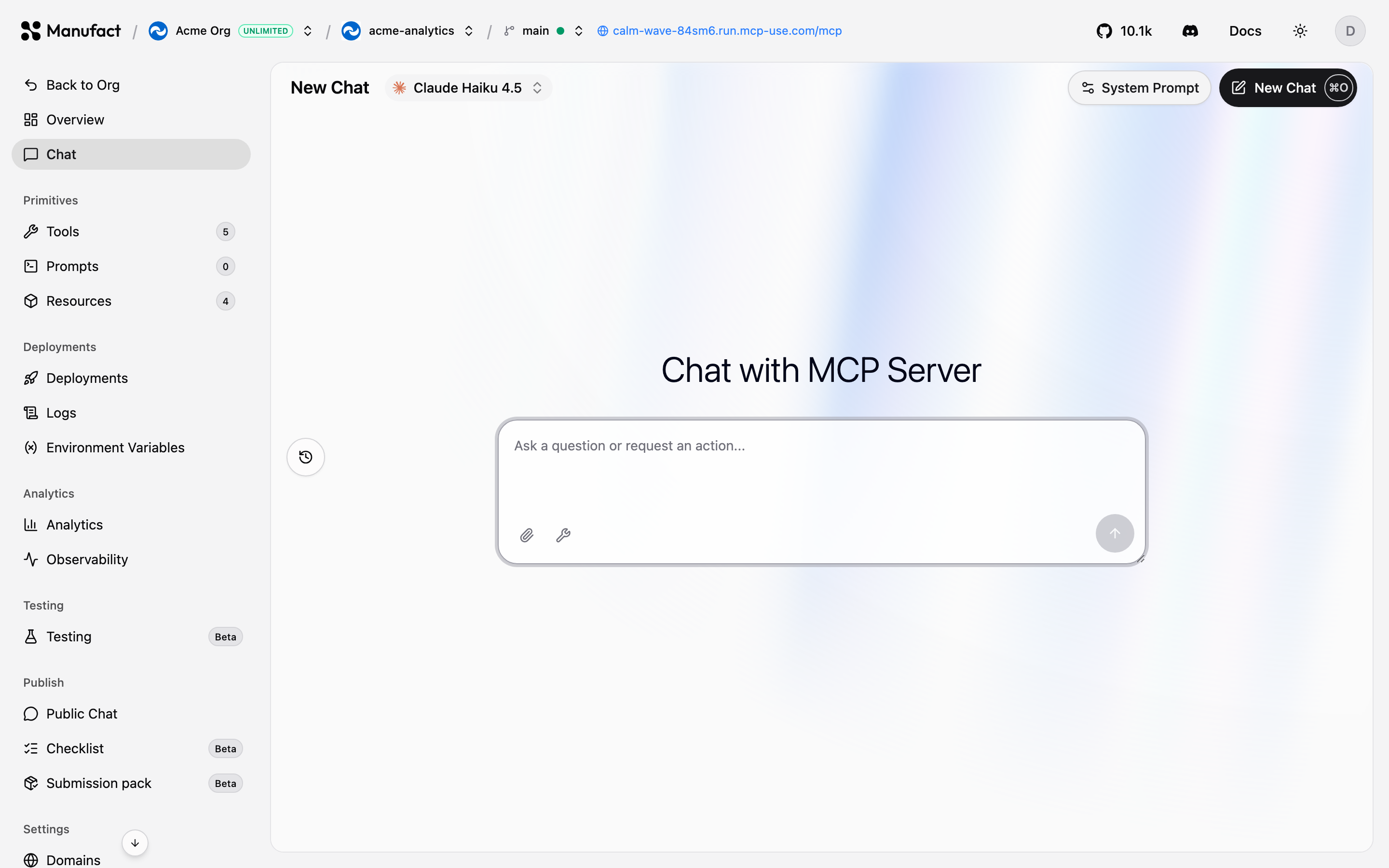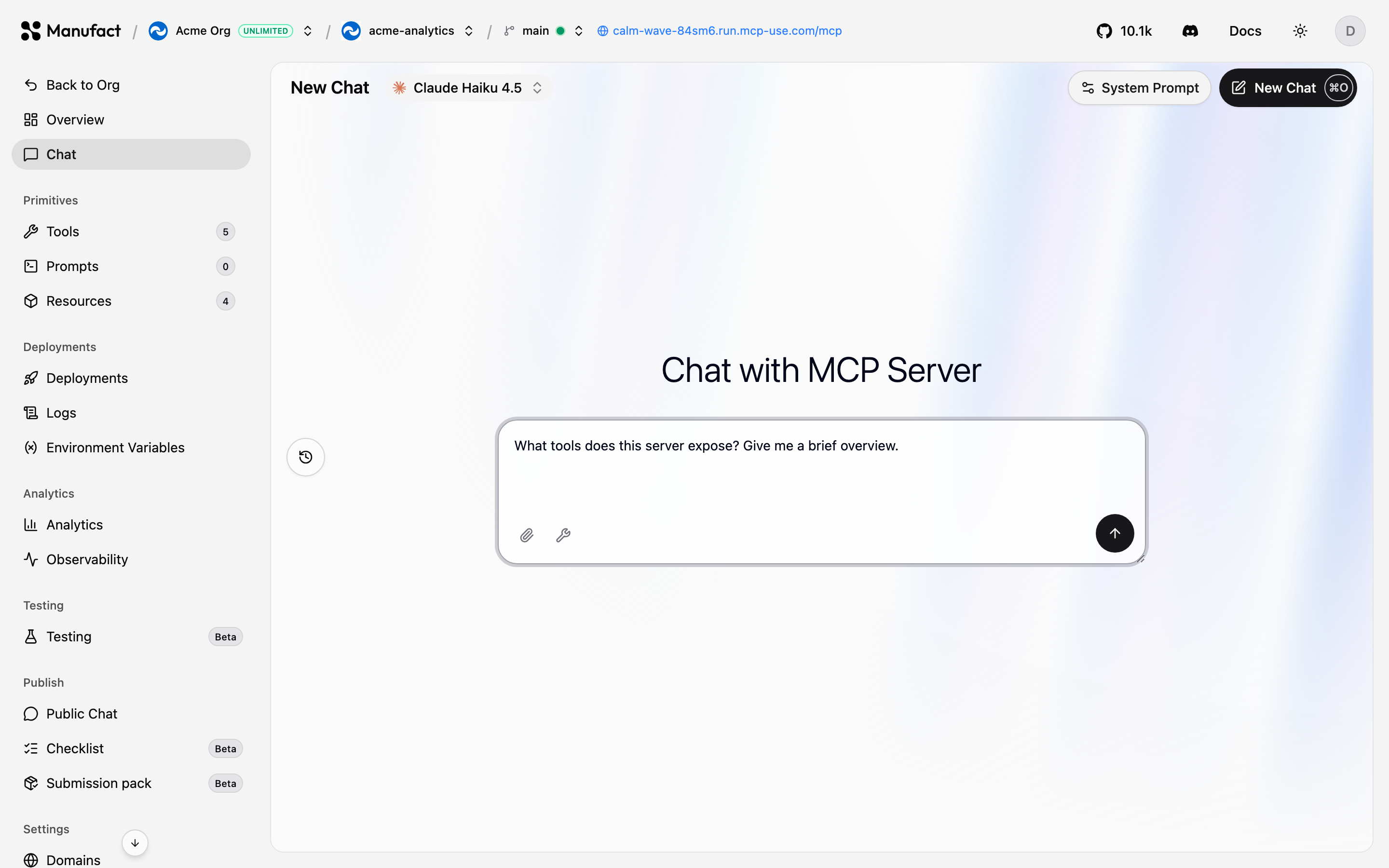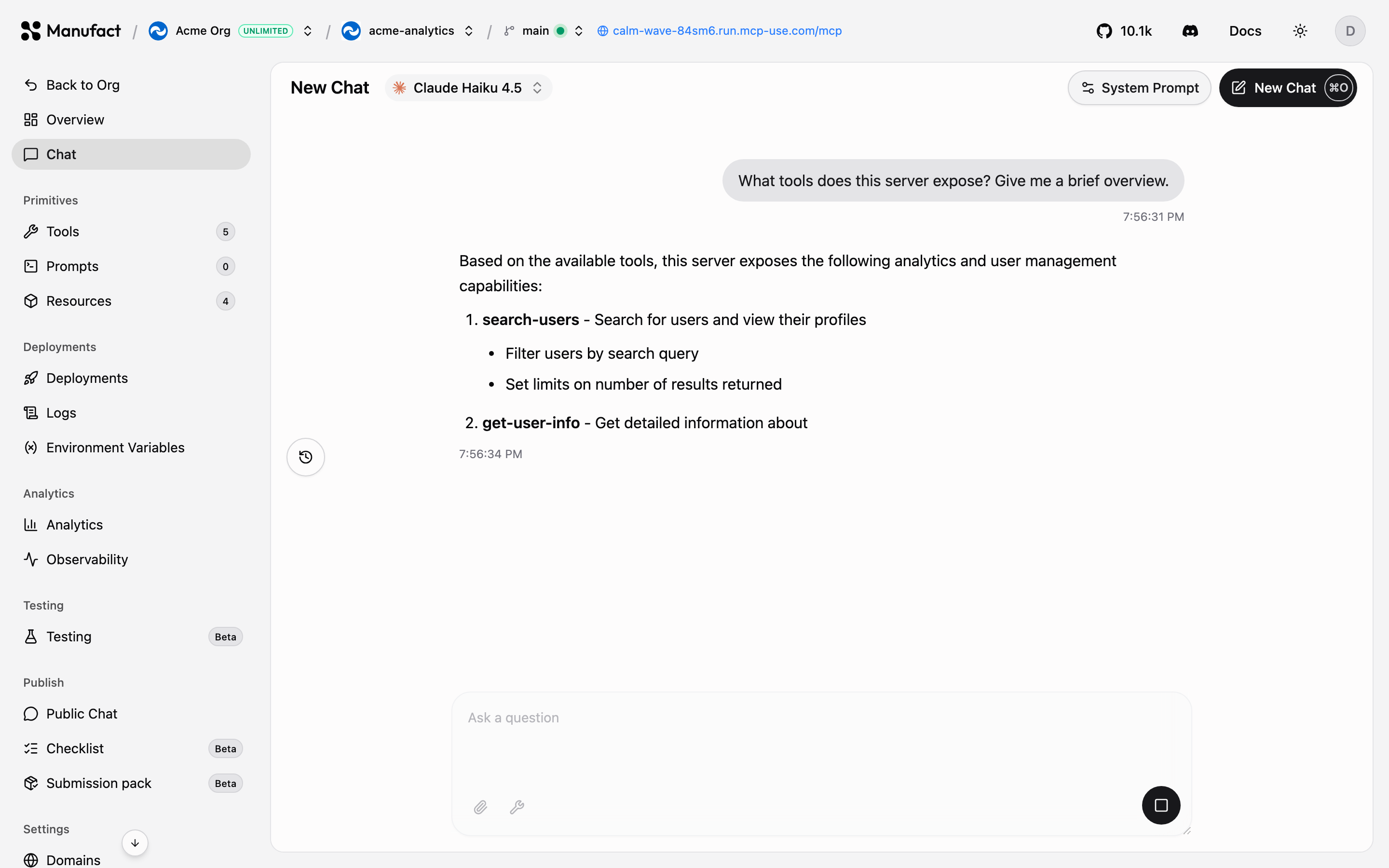
# Server settings (/dashboard/settings)
The **Settings** tab is the control panel for a server's configuration. Most changes require a redeploy to take effect, the dashboard prompts you when that's the case.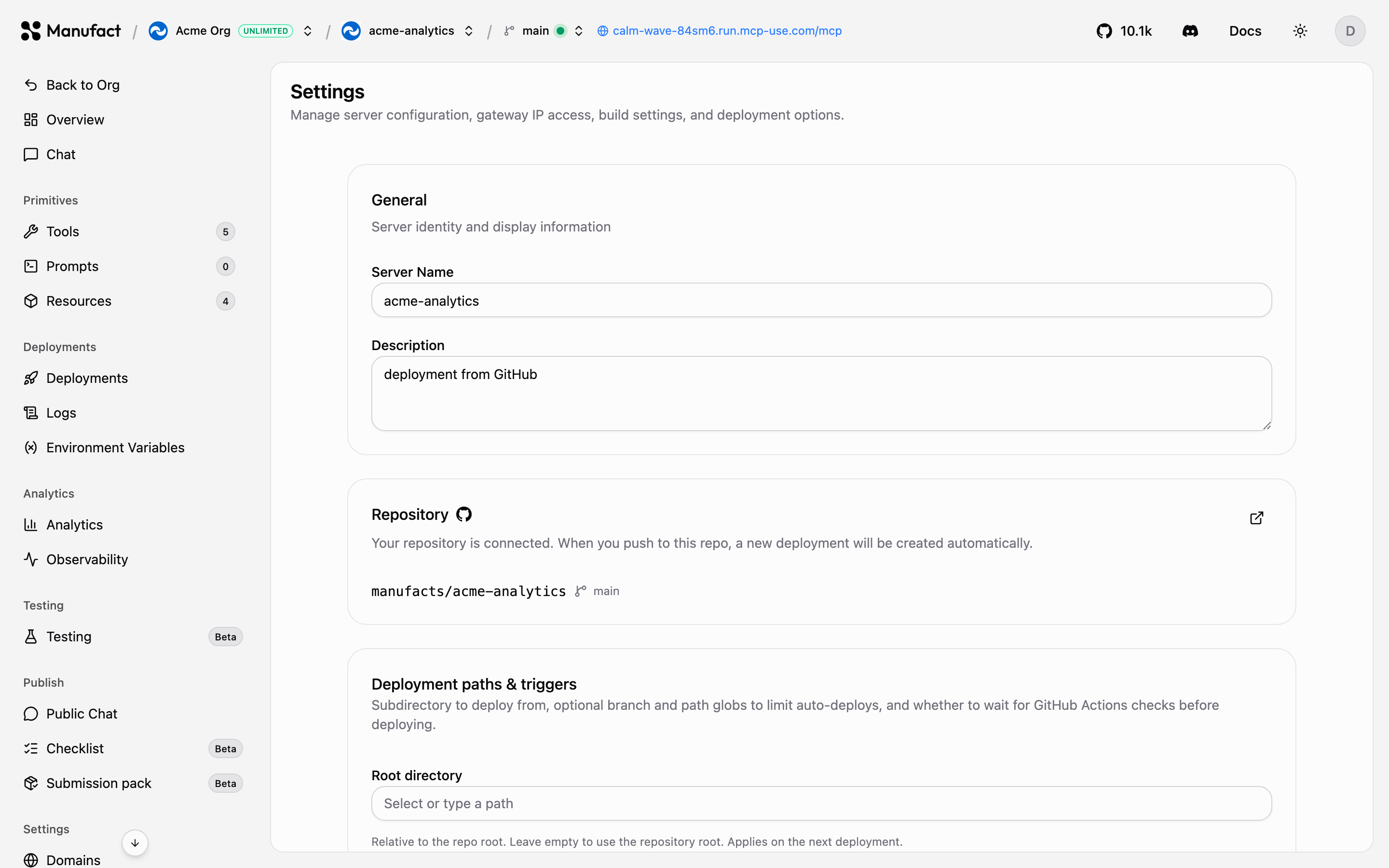## General [#general]Rename the server and update its description. Renaming doesn't change the server's slug, edit that on the [Domains](/dashboard/domains) tab.## Repository [#repository]See and manage the GitHub connection backing your server. For external (URL-connected) servers, this section is replaced by the **External MCP URL** field instead.## Deployment paths & triggers [#deployment-paths--triggers]Fine-tune when and how Git pushes deploy:- **Root directory**: the folder containing your server, for monorepos.
- **Branch allow list (globs)**: which branches are allowed to create deployments. The production branch always deploys.
- **Watch paths (globs)**: only changes under these paths trigger a deploy.
- **Wait for CI**: wait for GitHub checks to pass before building.## Region [#region]Choose where your server runs: **AUTO** (default), **US**, **EU**, or **APAC**. Specific regions require the Startup plan or higher; AUTO picks the best available location.## Deployment resources [#deployment-resources]**Prevent Scale to Zero** keeps your server warm so clients never hit a cold start. Available on paid plans, see [Billing & plans](/dashboard/billing).## Build & runtime settings [#build--runtime-settings]Override the framework preset's **Build Command** and **Start Command** when your project needs custom steps, and set the **Dockerfile Path** and **Port** when building from a Dockerfile.## Server configuration (JSON) [#server-configuration-json]Advanced connection configuration for the dashboard's own client (Chat and inspector tabs): custom headers, OAuth settings, and connection overrides, as a JSON document.## IP allowlist [#ip-allowlist]Restrict which IP addresses can reach your server through the gateway, useful for servers that should only be reachable from your own infrastructure. This section is rolling out gradually and may not be visible on your account yet.## Danger zone [#danger-zone]**Delete Server** permanently removes the server, its deployments, URLs, and analytics. This cannot be undone.
# Submission pack (/dashboard/submission-pack)
When you submit an MCP server to an app directory, for example the ChatGPT App Directory, you need more than a working endpoint. The **Submission pack** tab in the **Publish** section drafts the materials directories ask for, based on your server's actual capabilities. It works for Manufact-hosted and external (URL-connected) servers.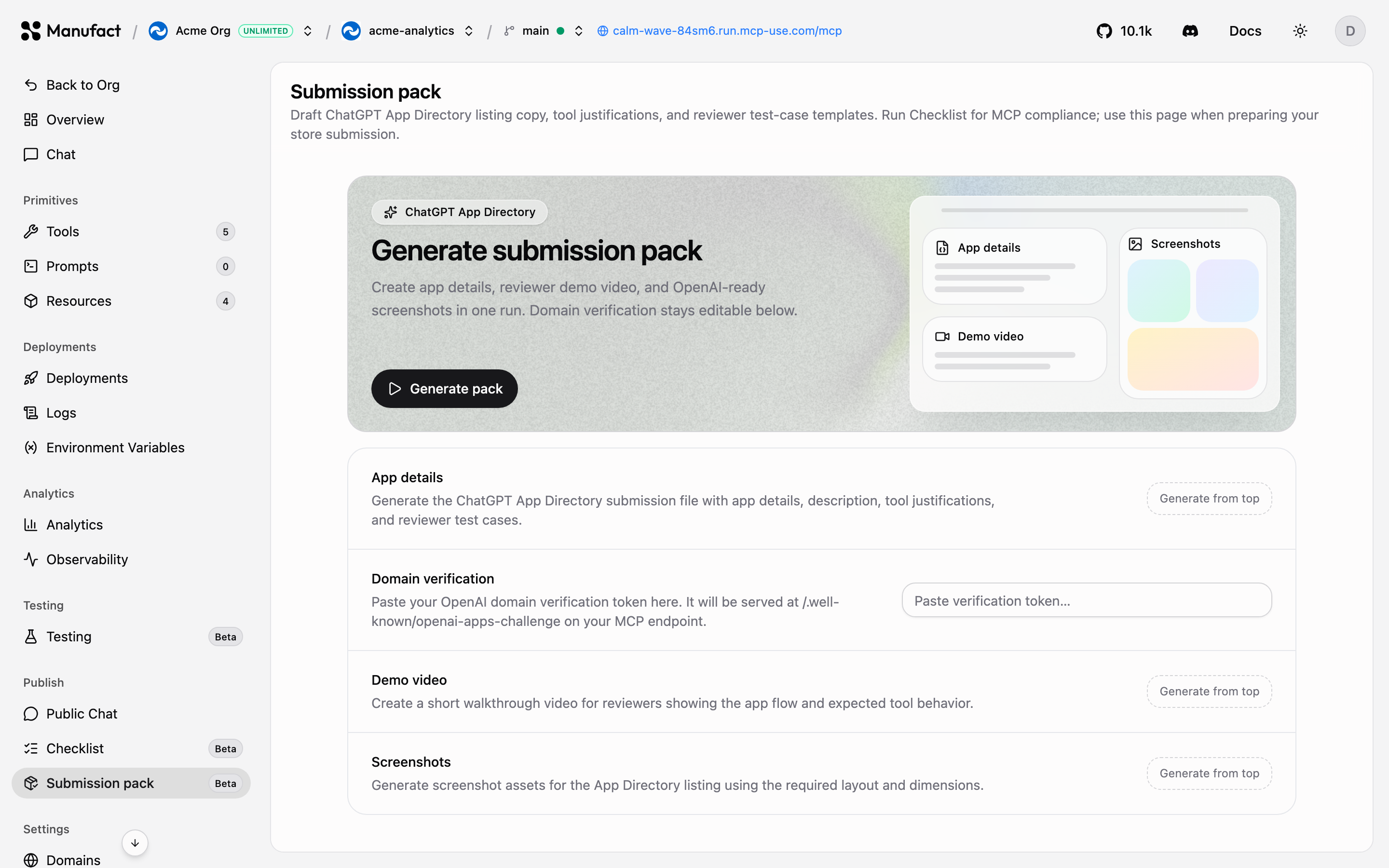## What it generates [#what-it-generates]Open your server and go to **Publish → Submission pack**, then click **Generate pack**. The pack includes:- Directory listing copy (name, descriptions, category)
- **Tool justifications**: why each tool needs the access it requests
- Reviewer **test-case templates** so reviewers can exercise your server quicklyEdit the drafts to match your voice, then paste them into the submission form.## When to use it [#when-to-use-it]Generate the submission pack after your server passes the [publish checklist](/dashboard/publish-checks) and you've validated behavior with [test suites](/dashboard/testing). A typical flow:1) Clear the [Checklist](/dashboard/publish-checks) with no failures.
2) Run [test suites](/dashboard/testing) across clients and models.
3) Try the server via [Public Chat](/dashboard/public-chat) or your own client.
4) Generate the submission pack and submit.
# Team (/dashboard/team)
Everything in Manufact Cloud belongs to an **organization**: servers, billing, integrations, and API keys. The **Team** page is where you manage who has access.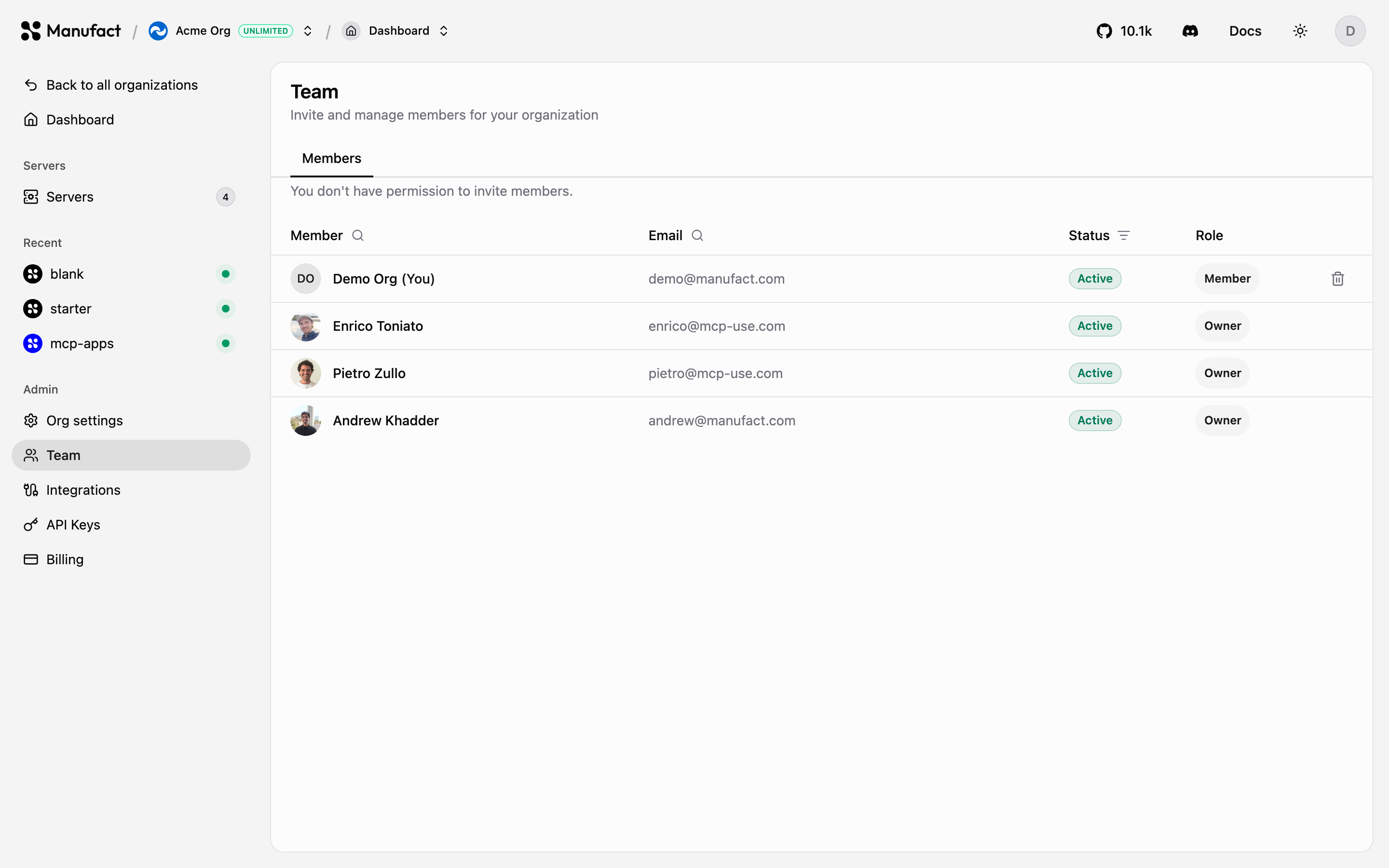## Inviting members [#inviting-members]1. Go to **Team** and enter the email address of the person to invite.
2. Pick a role and send the invitation.
3. Pending invitations are listed until accepted; you can revoke them at any time.
The number of members depends on your plan: 1 on Free, 2 on Hobby, 10 on
Startup, unlimited on Enterprise. See [Billing & plans](/dashboard/billing).
## Roles [#roles]Three built-in roles cover most teams:| Role | Capabilities |
| ---------- | -------------------------------------------------------------- |
| **Owner** | Full control, including billing, deletion, and role management |
| **Admin** | Manage servers, deployments, and members |
| **Member** | Work with servers and deployments |Owners can also define **custom roles** from the **Roles & permissions** panel, with a fine-grained permission matrix.## Multiple organizations [#multiple-organizations]You can belong to any number of organizations and switch between them with the organization switcher in the header. Each organization has its own servers, plan, and team, useful for separating clients, products, or staging/production ownership.## Organization settings [#organization-settings]From **Org settings** you can rename the organization, change its slug, and delete it. Deleting an organization removes all its servers and data permanently.
# Testing (/dashboard/testing)
The **Testing** tab (Beta) runs automated test suites against your server. A suite describes scenarios, prompts and expected behavior, and Manufact executes them across different MCP clients and LLM models, because a server that works in one client can still fail in another.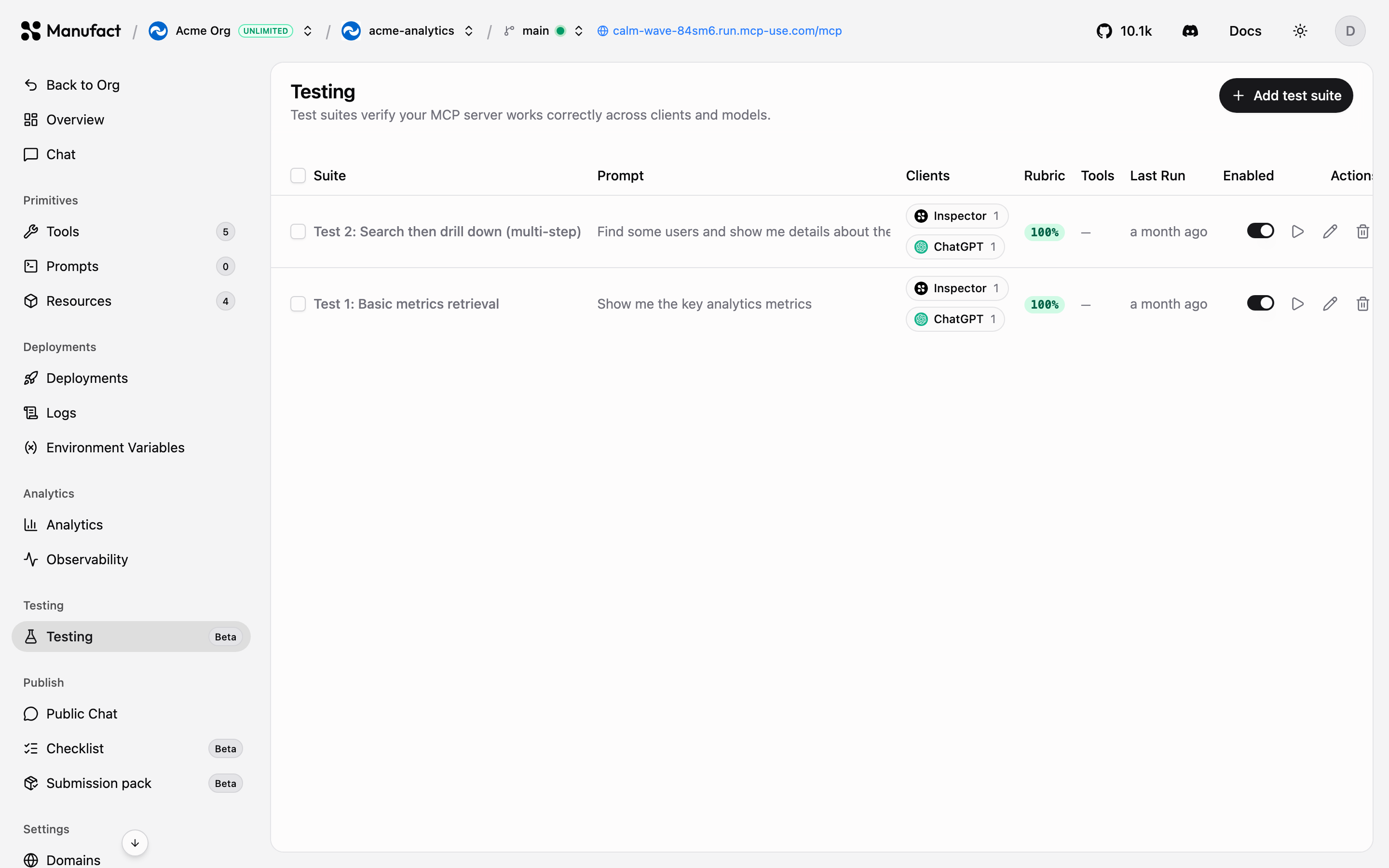## Creating a suite [#creating-a-suite]1) Go to **Testing** and click **Add test suite**.
2) Define the scenarios to test: what to ask, and what a correct response looks like.
3) Pick the clients and models to run against, **Inspector** and **ChatGPT** are available today, with Claude and Cursor coming soon.## Running and reading results [#running-and-reading-results]Run a suite on demand from the list. Open a suite to see run history with pass/fail per client and model, regressions that only affect a specific client or model stand out immediately.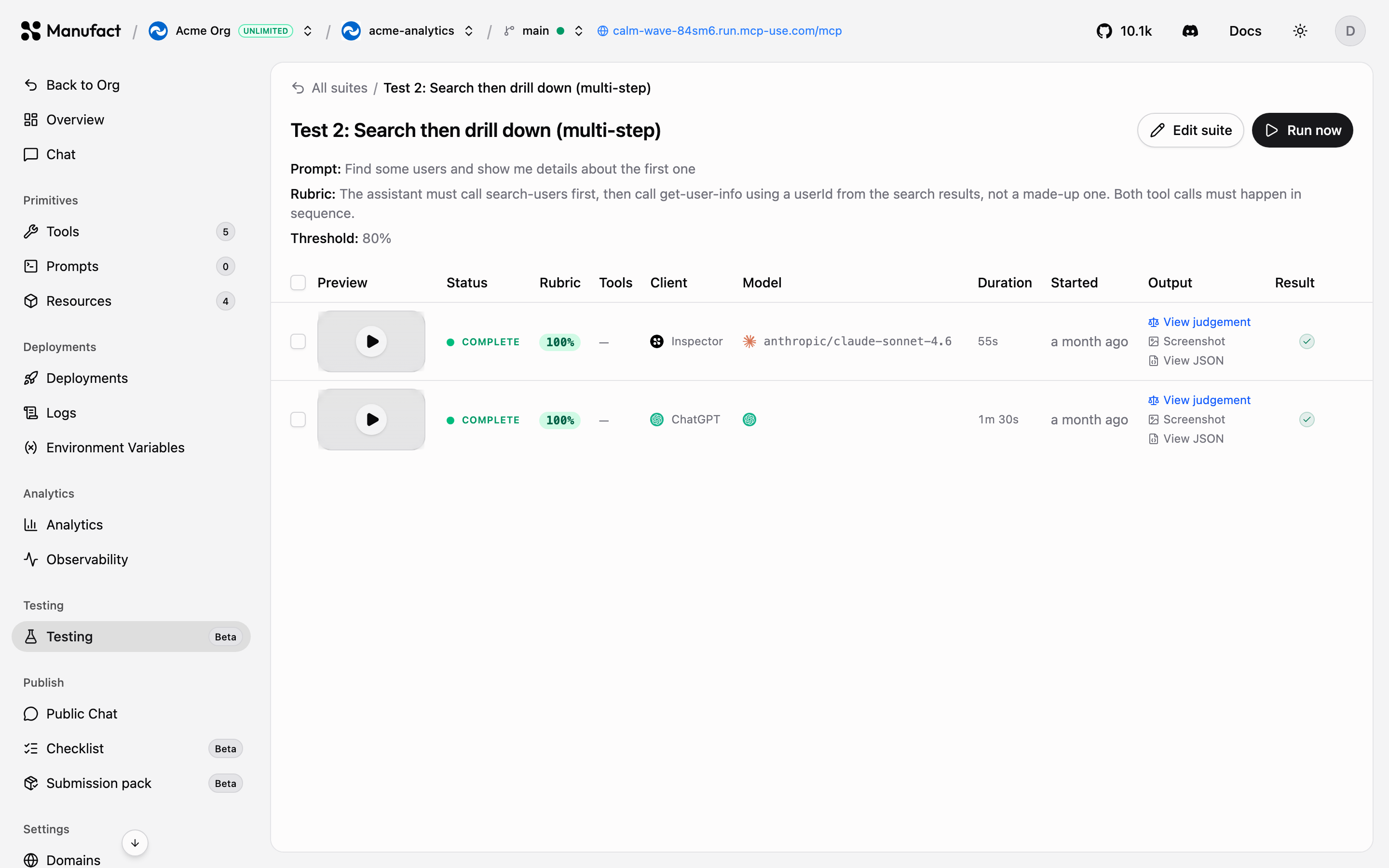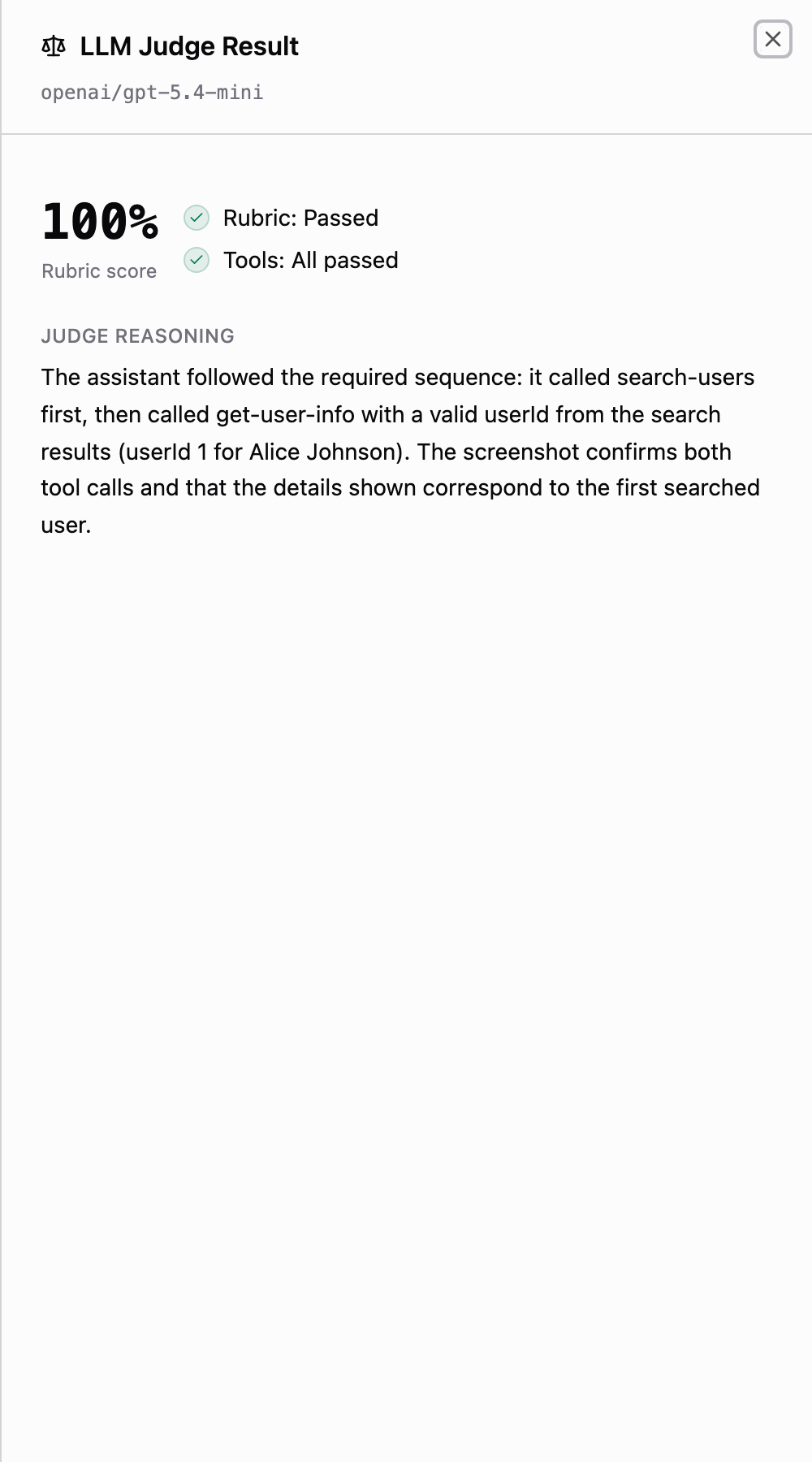## When to run tests [#when-to-run-tests]- **Before publishing**: alongside the [Checklist](/dashboard/publish-checks), to make sure behavior matches your tool descriptions.
- **After changing tool schemas**: renamed tools and changed parameters are the most common source of silent client breakage.
- **When upgrading frameworks**: verify your MCP framework upgrade didn't change wire behavior.Testing works for both Manufact-hosted and external servers.
# build (/cli/build)
```bash
mcp-use build [--with-inspector] [--no-typecheck]
```
Production build: bundles your server, compiles React widgets from `resources/`, type-checks, and writes a `dist/` folder with a `mcp-use.json` manifest.
| Flag | Description |
| ------------------ | ---------------------------------------------- |
| `--with-inspector` | Include the inspector in the production build. |
| `--no-typecheck` | Skip TypeScript type checking. |
Run the result with [`start`](/cli/start).
# client auth (/cli/client-auth)
```bash
mcp-use client auth status
mcp-use client auth refresh
mcp-use client auth logout
```
Manage OAuth credentials for servers connected over HTTP with OAuth.
# client connect (/cli/client-connect)
```bash
# Remote server (runs the OAuth flow on 401)
mcp-use client connect myserver https://.run.mcp-use.com/mcp
# With a bearer token instead of OAuth
mcp-use client connect myserver https://example.com/mcp --auth
# Local stdio server
mcp-use client connect local "node dist/index.js" --stdio
```
Saved servers persist in `~/.mcp-use/cli-sessions.json`. See [`client list`](/cli/client-list) and [`client tools`](/cli/client-tools).
# client interactive (/cli/client-interactive)
```bash
mcp-use client interactive
```
Opens a REPL where you can list and call tools conversationally on a saved server.
# client list (/cli/client-list)
```bash
mcp-use client list
```
Lists servers saved with [`client connect`](/cli/client-connect).
# client prompts (/cli/client-prompts)
```bash
mcp-use client prompts list
mcp-use client prompts get [args...]
```
List and fetch prompts exposed by a saved server.
# client remove (/cli/client-remove)
```bash
mcp-use client remove
```
Removes a server from `~/.mcp-use/cli-sessions.json`.
# client resources (/cli/client-resources)
```bash
mcp-use client resources list
mcp-use client resources read
```
List and read resources exposed by a saved server.
# client screenshot (/cli/client-screenshot)
```bash
mcp-use client screenshot --mcp https://example.com/mcp --tool my_tool --output shot.png
mcp-use client screenshot --tool my_tool --output shot.png
```
Renders a tool's widget headlessly to a PNG. Useful for visual regression checks and documentation. The per-server form reuses the saved session's authentication from [`client connect`](/cli/client-connect).
# client tools (/cli/client-tools)
```bash
mcp-use client tools list
mcp-use client tools describe
mcp-use client tools call [key=value ...]
```
Explore and invoke tools on a saved server. Add `--json` for machine-readable output, handy in scripts and CI.
Connect a server first with [`client connect`](/cli/client-connect).
# deploy (/cli/deploy)
```bash
mcp-use deploy
```
Deploys the current project to Manufact Cloud. By default the CLI deploys **from GitHub**: it can guide you through connecting the GitHub App and creating a repository if needed, then streams the build logs live. The project is linked to its cloud server through `.mcp-use/project.json`, so subsequent `mcp-use deploy` runs redeploy the same server.
## Flags [#flags]
| Flag | Description |
| ----------------------- | ------------------------------------------------------------------------------------------------- |
| `--name ` | Name for the server. |
| `--org ` | Target organization. |
| `--branch ` | Branch to deploy (non-production branches create [preview environments](/dashboard/deployments)). |
| `--root-dir ` | Subdirectory containing the server, for monorepos. |
| `--port ` | Port your server listens on (default `3000`). |
| `--runtime ` | `node` or `python`, auto-detected by default. |
| `--region ` | `US`, `EU`, or `APAC`. |
| `--env KEY=VALUE` | Set environment variable values (repeatable). |
| `--env-file ` | Load environment variables from a file. |
| `--build-command ` | Override the build command. |
| `--start-command ` | Override the start command. |
| `--new` | Force creating a new server instead of redeploying the linked one. |
| `--no-github` | Upload local source as a tarball instead of deploying from GitHub. |
| `--open` | Open the deployment in the browser when it succeeds. |
| `-y, --yes` | Skip confirmation prompts. |
## Examples [#examples]
Deploy the current repository, setting a couple of secrets:
```bash
mcp-use deploy --env OPENAI_API_KEY=sk-... --env DB_URL=postgres://...
```
Deploy a monorepo package to the EU region:
```bash
mcp-use deploy --root-dir packages/my-server --region EU
```
Deploy without GitHub (local source upload):
```bash
mcp-use deploy --no-github --name my-server
```
Deploy a feature branch as a preview:
```bash
mcp-use deploy --branch feat/new-tools
```
After a successful deploy the CLI prints your server's MCP URL, see [Connecting clients](/dashboard/connect-clients) for what to do with it.
# deployments delete (/cli/deployments-delete)
```bash
mcp-use deployments delete [-y]
```
Deletes a deployment. `-y` skips the confirmation prompt.
# deployments get (/cli/deployments-get)
```bash
mcp-use deployments get
```
Shows full deployment details, including the source commit and the deployment's MCP URL.
See also [`deployments logs`](/cli/deployments-logs) and [`deployments restart`](/cli/deployments-restart).
# deployments list (/cli/deployments-list)
```bash
mcp-use deployments list [--limit ] [--skip ] [--sort ]
```
Lists deployments in your active organization. `ls` is an alias.
See [`deployments get`](/cli/deployments-get) for full details on one deployment.
# deployments logs (/cli/deployments-logs)
```bash
mcp-use deployments logs
mcp-use deployments logs --build
mcp-use deployments logs --follow
```
| Flag | Description |
| ---------------- | ---------------------------------------- |
| `--build` | Show build logs instead of runtime logs. |
| `--follow`, `-f` | Stream logs live. |
# deployments restart (/cli/deployments-restart)
```bash
mcp-use deployments restart [--follow] [--branch ]
```
Triggers a new deployment on the same server, the CLI equivalent of **Redeploy** in the dashboard. `--follow` (`-f`) streams the build logs as it runs.
# deployments start (/cli/deployments-start)
```bash
mcp-use deployments start
```
Starts a previously stopped deployment.
# deployments stop (/cli/deployments-stop)
```bash
mcp-use deployments stop
```
Stops a deployment. To bring it back; use [`deployments restart`](/cli/deployments-restart) or [`deployments start`](/cli/deployments-start).
# dev (/cli/dev)
```bash
mcp-use dev [--port ] [--no-open] [--no-hmr] [--tunnel]
```
Starts the dev server with hot module replacement and automatically opens the **MCP Inspector** at `http://localhost:/inspector`, where you can chat with your server and call its tools. No login required.
| Flag | Description |
| ------------------------------------ | -------------------------------------------------------------------- |
| `--port ` | Port to listen on (default `3000`). |
| `--entry ` / `--mcp-dir ` | Point at a custom server entry or an MCP folder inside a larger app. |
| `--no-open` | Don't auto-open the inspector. |
| `--no-hmr` | Restart the process on change instead of HMR. |
| `--tunnel` | Expose the dev server on a public URL so remote clients can connect. |
To scaffold a new project first, use `npx create-mcp-use-app my-app`. When ready to ship; use [`deploy`](/cli/deploy).
# generate-types (/cli/generate-types)
```bash
mcp-use generate-types
```
Generates `.mcp-use/tool-registry.d.ts` from your registered tools, giving you typed `useCallTool` calls in widgets. The dev server keeps this up to date automatically during [`dev`](/cli/dev).
# Manufact CLI (/cli)
We live and breathe MCP. Still, we'll admit it: sometimes you just want a terminal. The CLI is for local development, scripted deploys, and running agents on your machine before they graduate to MCP.
`@mcp-use/cli` is the command-line companion to Manufact Cloud and the [mcp-use](https://docs.mcp-use.com) framework: build and run MCP servers locally, deploy them to Manufact Cloud, and manage servers, deployments, and environment variables without leaving the terminal.
## Installation [#installation]
No install needed, the [mcp-use](https://docs.mcp-use.com) package forwards to the CLI, so you can run commands directly:
```bash
npx mcp-use
```
For frequent use, install the CLI globally:
```bash
npm install -g @mcp-use/cli
```
Both expose the same `mcp-use` binary; if your project already depends on `mcp-use`, the command is available in your scripts as-is. Requires Node.js `^20.19.0` or `>=22.12.0`.
## Quick tour [#quick-tour]
```bash
# Authenticate with Manufact Cloud
mcp-use login
# Run your MCP server locally with hot reload + inspector
mcp-use dev
# Deploy it to Manufact Cloud
mcp-use deploy
# Watch it run
mcp-use deployments logs --follow
```
## Command reference [#command-reference]
Each command has its own page in the sidebar, grouped by area. Start with [`login`](/cli/login) for cloud commands, or [`dev`](/cli/dev) for local development.
| Area | Commands |
| ------------------------- | ----------------------------------------------------------------------------------------------------------------------------------------------------------------------------------------------------------------------------------------------------------- |
| **Authentication** | [`login`](/cli/login), [`logout`](/cli/logout), [`whoami`](/cli/whoami) |
| **Organization** | [`org list`](/cli/org-list), [`org switch`](/cli/org-switch), [`org current`](/cli/org-current) |
| **Deploy** | [`deploy`](/cli/deploy) |
| **Servers** | [`servers list`](/cli/servers-list), [`servers get`](/cli/servers-get), [`servers update`](/cli/servers-update), [`servers delete`](/cli/servers-delete) |
| **Environment variables** | [`servers env list`](/cli/servers-env-list), [`add`](/cli/servers-env-add), [`update`](/cli/servers-env-update), [`remove`](/cli/servers-env-remove) |
| **Deployments** | [`deployments list`](/cli/deployments-list), [`get`](/cli/deployments-get), [`restart`](/cli/deployments-restart), [`logs`](/cli/deployments-logs), [`stop`](/cli/deployments-stop), [`start`](/cli/deployments-start), [`delete`](/cli/deployments-delete) |
| **Local development** | [`dev`](/cli/dev), [`build`](/cli/build), [`start`](/cli/start), [`generate-types`](/cli/generate-types), [`skills add`](/cli/skills-add) |
| **Terminal client** | [`client connect`](/cli/client-connect), [`list`](/cli/client-list), [`tools`](/cli/client-tools), [`interactive`](/cli/client-interactive), [`screenshot`](/cli/client-screenshot) |
## Configuration [#configuration]
The CLI stores its state under `~/.mcp-use/`:
| File | Purpose |
| ------------------------------ | ------------------------------------------------------------------------- |
| `~/.mcp-use/config.json` | API key and active organization (written by `login` and `org switch`) |
| `~/.mcp-use/cli-sessions.json` | Servers saved with `client connect` |
| `.mcp-use/project.json` | Per-project link to its cloud server and deployment (written by `deploy`) |
A `.env` file in the current directory is loaded automatically on every command.
## Environment variables [#environment-variables]
| Variable | Purpose | Default |
| ----------------- | --------------------------------------------------- | ---------------------------------- |
| `MCP_USE_API_KEY` | API key for non-interactive login (CI) | - |
| `MCP_API_URL` | Manufact Cloud API base | `https://cloud.mcp-use.com/api/v1` |
| `MCP_WEB_URL` | Web app used for the device login flow | `https://manufact.com` |
| `PORT` | Port for `mcp-use start` when `--port` isn't passed | `3000` |
# login (/cli/login)
```bash
mcp-use login
```
Runs the OAuth device flow: the CLI prints a verification URL and code, opens your browser, and waits for approval. After login it creates a persistent API key and, if you belong to multiple organizations, prompts you to pick the active one.
Credentials are stored in `~/.mcp-use/config.json`. Cloud commands (`deploy`, `servers`, `deployments`, `org`) require authentication.
## Flags [#flags]
| Flag | Description |
| ------------------------ | ----------------------------------------------------------------------------------------- |
| `--api-key ` | Skip the browser flow and save an API key directly, for CI. Also reads `MCP_USE_API_KEY`. |
| `--org ` | Select the active organization non-interactively. |
| `--device-code ` | Use a pre-approved device code (used by web onboarding). |
## Example (CI) [#example-ci]
Create a key on the [API Keys page](/dashboard/api-keys), then:
```bash
mcp-use login --api-key mcp_... --org my-org
```
# logout (/cli/logout)
```bash
mcp-use logout
```
Deletes the local credentials file (`~/.mcp-use/config.json`). The API key itself is not revoked, manage keys on the [API Keys page](/dashboard/api-keys).
# org current (/cli/org-current)
```bash
mcp-use org current
```
Prints the slug and name of the organization cloud commands will target by default.
See also [`org list`](/cli/org-list) and [`org switch`](/cli/org-switch).
# org list (/cli/org-list)
```bash
mcp-use org list
```
Lists organizations you belong to, marking the active one. Cloud commands operate in the context of this organization unless you pass `--org ` for a single invocation.
See also [`org switch`](/cli/org-switch) and [`org current`](/cli/org-current).
# org switch (/cli/org-switch)
```bash
mcp-use org switch
```
Prompts you to pick a new active organization. The selection is saved to `~/.mcp-use/config.json` and used by subsequent cloud commands.
See also [`org list`](/cli/org-list) and [`org current`](/cli/org-current).
# servers delete (/cli/servers-delete)
```bash
mcp-use servers delete [-y]
```
Deletes the server **and all its deployments**. `rm` is an alias; `-y` skips the confirmation prompt.
# servers env add (/cli/servers-env-add)
```bash
mcp-use servers env add KEY=VALUE --server [--env production,preview] [--sensitive]
```
Adds an environment variable. The `--env` flag selects which environments it applies to (`production`, `preview`, `development`); `--branch` scopes it to one preview branch.
Changes take effect on the next deployment, trigger one with [`deployments restart`](/cli/deployments-restart) or [`deploy`](/cli/deploy).
# servers env list (/cli/servers-env-list)
```bash
mcp-use servers env list --server [--branch ] [--show-values]
```
Lists environment variables for a server. Values are masked unless `--show-values` is passed.
The `--branch` flag scopes the list to one preview branch. See [`servers env add`](/cli/servers-env-add) to create variables.
# servers env remove (/cli/servers-env-remove)
```bash
mcp-use servers env remove KEY --server [--branch ]
```
Removes an environment variable. Changes take effect on the next deployment.
# servers env update (/cli/servers-env-update)
```bash
mcp-use servers env update KEY --server --value [--sensitive|--no-sensitive]
```
Updates an existing variable's value. Changes take effect on the next deployment.
# servers get (/cli/servers-get)
```bash
mcp-use servers get
```
Shows the server's details and its recent deployments.
See also [`servers list`](/cli/servers-list) and [`deployments list`](/cli/deployments-list).
# servers list (/cli/servers-list)
```bash
mcp-use servers list [--limit ] [--skip ] [--sort ]
```
Lists servers in your active organization. `ls` is an alias. Sortable fields: `createdAt`, `updatedAt`, `name`.
Pass `--org ` to target a different organization without switching. See [`servers get`](/cli/servers-get) for full details on one server.
# servers update (/cli/servers-update)
```bash
mcp-use servers update [flags]
```
At least one flag is required:
| Flag | Description |
| ----------------------- | ------------------------------------------------ |
| `--name ` | Rename the server. |
| `--description ` | Update the description. |
| `--branch ` | Change the production branch. |
| `--build-command ` | Override the build command (pass `""` to clear). |
| `--start-command ` | Override the start command (pass `""` to clear). |
Changes that affect the running deployment take effect on the next deploy; use [`deploy`](/cli/deploy) or [`deployments restart`](/cli/deployments-restart).
# skills add (/cli/skills-add)
```bash
mcp-use skills add
```
Downloads the mcp-use agent skills into your project (`.cursor/skills`, `.claude/skills`, `.agent/skills`) so coding agents like Cursor and Claude Code get framework-specific guidance.
`skills install` is an alias for the same command.
# start (/cli/start)
```bash
mcp-use start [--port ] [--tunnel]
```
Runs the production build from `dist/`. Respects the `PORT` environment variable when `--port` isn't passed.
Build first with [`build`](/cli/build).
# whoami (/cli/whoami)
```bash
mcp-use whoami
```
Shows your email, user ID, a masked API key, and the active organization.
# cancel_org_invitation (/mcp/cancel-org-invitation)
Cancels a pending invitation. Marked **destructive**: clients may ask for confirmation before running it.
## Parameters [#parameters]
| Parameter | Type | Required | Description |
| ---------------- | ------ | -------- | ------------------------------------------------------------------------------------------------- |
| `organizationId` | string | Yes | The organization the invitation belongs to. From [`list_organizations`](/mcp/list-organizations). |
| `invitationId` | string | Yes | The invitation to cancel. From [`list_org_invitations`](/mcp/list-org-invitations). |
## Returns [#returns]
A confirmation message: `Invitation cancelled.`
# deploy (/mcp/deploy)
Deploys a GitHub repository to Manufact Cloud. This is the tool to use when a user says "deploy this repo" or "deploy the current project"; the agent should infer `repoFullName` from the local git remote when possible.
The tool checks whether the repository is already connected to a server in the organization:
* **Already connected** → it redeploys that server.
* **Not connected** → it creates a new GitHub-backed server and starts the initial deployment.
It does not accept a `serverId`; use [`redeploy`](/mcp/redeploy) when the user identified a specific existing server.
## Parameters [#parameters]
| Parameter | Type | Required | Description |
| ------------------------------- | -------------------------------- | -------- | ----------------------------------------------------------------------------------------------------------------------------------------------- |
| `organizationId` | string | Yes | Organization to deploy into. From [`list_organizations`](/mcp/list-organizations). |
| `repoFullName` | string | Yes | GitHub repository in `owner/repo` format. |
| `branch` | string | No | Branch to deploy. Defaults to the server's production branch for existing servers, `main` for new ones. |
| `installationId` | string | No | GitHub installation to use. Only needed when the repo is accessible from multiple installations (the tool resolves it automatically otherwise). |
| `name` | string | No | Display name for a new server (defaults to the repo name). |
| `description` | string | No | Description for a new server. |
| `rootDir` | string | No | Repository subdirectory to build from. |
| `port` | number | No | Application port (1–65535). |
| `buildCommand` / `startCommand` | string | No | Command overrides for a new server. |
| `dockerfilePath` | string | No | Non-default Dockerfile path. |
| `env` | record | No | Environment variables for a new server. |
| `buildSecrets` | string\[] | No | Keys from `env` to treat as build-only secrets. |
| `region` | `AUTO` \| `US` \| `EU` \| `APAC` | No | Compute region for a new server. |
| `watchPaths` | string\[] | No | Glob patterns limiting which repo changes trigger auto-deploy. |
| `waitForCi` | boolean | No | Whether auto-deploys wait for GitHub check runs. |
## Returns [#returns]
Either `action: "redeployed_existing_server"` with the matched server and new deployment, or `action: "created_server_and_deployed"` with the created server and its initial deployment.
If multiple servers are connected to the same repository, the tool returns an error listing the matches; use [`redeploy`](/mcp/redeploy) with the right `serverId` instead.
# get_deployment_build_logs (/mcp/get-deployment-build-logs)
Returns build logs for a deployment, the output of the build pipeline. Defaults to the last 100 lines. Read-only.
There are two modes:
* **Tail** (default, or with `lines`), return the last N lines.
* **Offset streaming** (with `offset`, no `lines`), stream forward from a character offset. Use a previous response's `nextOffset` to resume following an in-flight build.
`lines` takes precedence if both are set.
## Parameters [#parameters]
| Parameter | Type | Required | Description |
| ---------------- | ------ | -------- | -------------------------------------------------------------------------------------------- |
| `organizationId` | string | Yes | Organization that owns the deployment. From [`list_organizations`](/mcp/list-organizations). |
| `deploymentId` | string | Yes | The deployment whose build logs you want. From [`list_deployments`](/mcp/list-deployments). |
| `lines` | number | No | Return only the last N lines (1–5000, default 100). |
| `offset` | number | No | Character offset to stream forward from. Ignored if `lines` is set. |
## Returns [#returns]
The log text plus the build `status` when available. Tail mode includes `returnedLines` and `totalLength`; offset mode includes pagination info with `nextOffset`.
## Typical use [#typical-use]
Debugging a failed deployment: find it with [`list_deployments`](/mcp/list-deployments) (`status: "failed"`), then read its build logs here.
# get_deployment_runtime_logs (/mcp/get-deployment-runtime-logs)
Returns runtime logs for a deployment, what the server writes to stdout/stderr while serving traffic. Defaults to the most recent 100 lines. Read-only.
Pass `query` to filter the fetched tail to lines containing a substring (case-insensitive), useful for finding specific errors without pulling huge tails.
## Parameters [#parameters]
| Parameter | Type | Required | Description |
| ---------------- | ------ | -------- | ----------------------------------------------------------------------------------------------- |
| `organizationId` | string | Yes | Organization that owns the deployment. From [`list_organizations`](/mcp/list-organizations). |
| `deploymentId` | string | Yes | The deployment whose logs you want. From [`list_deployments`](/mcp/list-deployments). |
| `lines` | number | No | How many tail lines to fetch (1–5000, default 100). |
| `query` | string | No | Case-insensitive substring filter, applied to the fetched tail, matches are bounded by `lines`. |
## Returns [#returns]
The log text (ANSI codes stripped) plus `lines`; with `query`, also `matchedLines` and `scannedLines`.
## Related [#related]
* [`get_deployment_build_logs`](/mcp/get-deployment-build-logs): for build-time output
# get_deployment (/mcp/get-deployment)
Returns full details for one deployment: core fields (`id`, `status`, `serverId`, `domain`, `port`, timestamps, `error`, `mcpUrl`), git commit info, and source configuration (repo, branch, `rootDir`, runtime, `buildCommand`, `startCommand`). Read-only.
For log streams use [`get_deployment_build_logs`](/mcp/get-deployment-build-logs) and [`get_deployment_runtime_logs`](/mcp/get-deployment-runtime-logs).
## Parameters [#parameters]
| Parameter | Type | Required | Description |
| ---------------- | ------ | -------- | --------------------------------------------------------------------------------------------- |
| `deploymentId` | string | Yes | The deployment to retrieve. From [`list_deployments`](/mcp/list-deployments). |
| `organizationId` | string | Yes | Organization the deployment belongs to. From [`list_organizations`](/mcp/list-organizations). |
## Typical use [#typical-use]
Check why a deployment failed (`status` + `error`), or grab a deployment's `mcpUrl` to connect a client to it.
# get_observability_overview (/mcp/get-observability-overview)
Returns an observability overview for one server: `totalEvents`, `successEvents`, `errorEvents`, `avgDuration` (ms), `avgRequestSize`, and `avgResponseSize`, aggregated over a time window. Read-only.
In MCP Apps-capable clients this renders the **gateway-metrics widget**: a live metrics card instead of raw JSON.
## Parameters [#parameters]
| Parameter | Type | Required | Description |
| ---------------- | ------ | -------- | --------------------------------------------------------------------------------------------- |
| `organizationId` | string | Yes | The organization the server belongs to. From [`list_organizations`](/mcp/list-organizations). |
| `serverId` | string | Yes | The server to query. From [`list_servers`](/mcp/list-servers). |
| `startTime` | string | No | ISO 8601 lower bound (inclusive). Defaults to the last 24 hours. |
## Related [#related]
* [`list_server_events`](/mcp/list-server-events): the underlying request stream
* [`get_server_tool_breakdown`](/mcp/get-server-tool-breakdown) / [`get_server_client_breakdown`](/mcp/get-server-client-breakdown): per-tool and per-client splits
# get_organization_stats (/mcp/get-organization-stats)
Returns summary counts for an organization: server count, deployment count, gateway tool-call count, and distinct MCP session count. Read-only.
It does not return the server roster; use [`list_servers`](/mcp/list-servers) for that.
## Parameters [#parameters]
| Parameter | Type | Required | Description |
| ---------------- | ------ | -------- | ------------------------------------------------------------------------------------ |
| `organizationId` | string | Yes | The organization to summarize. From [`list_organizations`](/mcp/list-organizations). |
## Returns [#returns]
```json
{
"organizationId": "...",
"serverCount": 4,
"deploymentCount": 23,
"gateway": { "toolCallCount": 1582, "distinctMcpSessionCount": 214 }
}
```
Gateway counts fall back to zeros if observability data is unavailable.
# get_server_client_breakdown (/mcp/get-server-client-breakdown)
Returns a breakdown of which MCP clients connect to a server, `clientName`, `clientVersion`, `protocol`, `sessionCount`, `requestCount`, plus a timeline of request counts per client per time bucket. Results are capped to the top 10 clients by request count. Read-only.
In MCP Apps-capable clients this renders the **client-breakdown widget**: a chart of clients over time.
## Parameters [#parameters]
| Parameter | Type | Required | Description |
| ---------------- | ---------------------------------------------------------- | -------- | --------------------------------------------------------------------------------------------- |
| `organizationId` | string | Yes | The organization the server belongs to. From [`list_organizations`](/mcp/list-organizations). |
| `serverId` | string | Yes | The server to query. From [`list_servers`](/mcp/list-servers). |
| `timeRange` | `"24h"` \| `"7d"` \| `"30d"` \| `"90d"` | No | Window to aggregate (default `24h`). |
| `granularity` | `"minute"` \| `"hour"` \| `"day"` \| `"week"` \| `"month"` | No | Timeline bucket size (default `hour` for 24h, `day` otherwise). |
## Related [#related]
* [`get_server_tool_breakdown`](/mcp/get-server-tool-breakdown): what those clients are calling
# get_server_domain (/mcp/get-server-domain)
Returns a server's main custom domain with its verification state: `domain`, `verified`, `status`, `sslStatus`, `cnameTarget`, and `verificationErrors`. Read-only.
The main domain lives on the server; preview domains live on individual deployments.
## Parameters [#parameters]
| Parameter | Type | Required | Description |
| ---------------- | ------ | -------- | --------------------------------------------------------------------------------------------- |
| `serverId` | string | Yes | The server whose domain to retrieve. From [`list_servers`](/mcp/list-servers). |
| `organizationId` | string | Yes | The organization the server belongs to. From [`list_organizations`](/mcp/list-organizations). |
## Typical use [#typical-use]
Troubleshooting a custom domain: check `verificationErrors` and `cnameTarget` against your DNS setup. See [Domains](/dashboard/domains) for the full setup flow.
# get_server_tool_breakdown (/mcp/get-server-tool-breakdown)
Returns a breakdown of tool, resource, and prompt calls on a server over the last 24 hours, bucketed hourly. Methods are aggregated with per-bucket counts, sorted by total calls. Read-only.
In MCP Apps-capable clients this renders the **tool-breakdown widget**: a chart of calls per method.
## Parameters [#parameters]
| Parameter | Type | Required | Description |
| ---------------- | ------ | -------- | --------------------------------------------------------------------------------------------- |
| `organizationId` | string | Yes | The organization the server belongs to. From [`list_organizations`](/mcp/list-organizations). |
| `serverId` | string | Yes | The server to query. From [`list_servers`](/mcp/list-servers). |
The window is fixed at 24 hours with hourly buckets.
## Related [#related]
* [`get_server_client_breakdown`](/mcp/get-server-client-breakdown): who is calling
* [`list_server_events`](/mcp/list-server-events): the raw call stream
# get_server (/mcp/get-server)
Returns core details for one server: `id`, `slug`, `name`, `description`, `tags`, `status`, `latestDeploymentStatus`, `activeDeploymentId`, `repoFullName`, `productionBranch`, and `deploymentCount`. Read-only.
It does not include the full deployment history, domains, or internal provider config; use [`list_deployments`](/mcp/list-deployments) and [`get_server_domain`](/mcp/get-server-domain) for those.
## Parameters [#parameters]
| Parameter | Type | Required | Description |
| ---------------- | ------ | -------- | --------------------------------------------------------------------------------------------- |
| `serverId` | string | Yes | The server to retrieve. From [`list_servers`](/mcp/list-servers). |
| `organizationId` | string | Yes | The organization the server belongs to. From [`list_organizations`](/mcp/list-organizations). |
## Related [#related]
* [`update_server`](/mcp/update-server): change deploy config or metadata
* [`redeploy`](/mcp/redeploy): trigger a new deployment
# Manufact MCP server (/mcp)
Manufact Cloud is itself controllable over MCP. The official **Manufact Cloud MCP server** exposes the platform, organizations, servers, deployments, logs, and observability, as MCP tools, so you can manage everything from Cursor, Claude, or any other MCP client.
```text
https://mcp.manufact.com/mcp
```
## Connecting [#connecting]
Add the server to your client with the standard remote MCP configuration:
```json
{
"mcpServers": {
"manufact-cloud": {
"url": "https://mcp.manufact.com/mcp"
}
}
}
```
The transport is Streamable HTTP. Authentication uses **OAuth**: on first connection your client runs the standard MCP OAuth flow and you log in with your Manufact Cloud account. Tools then act with your own permissions, the same role-based access you have in the dashboard.
## What you can do [#what-you-can-do]
| | Example prompts |
| ------------- | ------------------------------------------------------------------------------------------- |
| **Deploy** | "Deploy this repo to Manufact Cloud", "Redeploy my-server from the main branch" |
| **Debug** | "Why did the latest deployment of my-server fail?", "Show runtime logs filtered for errors" |
| **Monitor** | "How much traffic did my-server get this week?", "Which clients call it most?" |
| **Configure** | "Change the start command and redeploy", "Is my custom domain verified?" |
| **Team** | "Invite [jane@example.com](mailto:jane@example.com) to my org as admin" |
Each of the 20 tools has its own reference page in the sidebar, grouped by area. Start with [`list_organizations`](/mcp/list-organizations), the entry point for every session.
## Design [#design]
The server follows a **composable, minimal-tool** design: each tool returns a narrow, allowlisted projection, and IDs chain across tools.
```text
list_organizations → organizationId
→ list_servers → serverId
→ list_deployments → deploymentId
→ get_deployment_runtime_logs
```
Agents are expected to chain these small calls rather than receive one giant response. A `manufact://info` resource describes the catalog and this flow, so agents can orient themselves.
## Widgets [#widgets]
The four analytics tools render **interactive widgets** (charts and tables) in clients that support MCP Apps, gateway metrics, event streams, client breakdowns, and tool breakdowns appear as live UI instead of raw JSON.
## Built with mcp-use [#built-with-mcp-use]
The server is built with the [mcp-use framework](https://docs.mcp-use.com) and hosted on Manufact Cloud itself, the same workflow described in the [Dashboard docs](/dashboard) and deployable with the [CLI](/cli).
# invite_org_member (/mcp/invite-org-member)
Sends an email invitation to join an organization with the given role.
## Parameters [#parameters]
| Parameter | Type | Required | Description |
| ---------------- | ------------------------------------ | -------- | ----------------------------------------------------------------------------------------------- |
| `organizationId` | string | Yes | The organization to invite the member to. From [`list_organizations`](/mcp/list-organizations). |
| `email` | string | Yes | Email address to invite. |
| `role` | `"owner"` \| `"admin"` \| `"member"` | Yes | Role for the invited member. |
## Returns [#returns]
The created invitation: `id`, `email`, `role`, `status`, `organizationId`, and `expiresAt`.
## Related [#related]
* [`list_org_invitations`](/mcp/list-org-invitations): see pending invitations
* [`cancel_org_invitation`](/mcp/cancel-org-invitation): revoke one
# list_deployments (/mcp/list-deployments)
Lists deployments as compact rows: `id`, `name`, `status`, `serverId`, `gitBranch`, `createdAt`. Paginated server-side. Read-only.
This is the source of truth for `deploymentId`. Pass `serverId` to scope to one server, and filter by `status` (for example `failed`) when the user describes a deployment rather than naming it.
## Parameters [#parameters]
| Parameter | Type | Required | Description |
| ---------------- | ------ | -------- | ---------------------------------------------------------------------------------------- |
| `organizationId` | string | Yes | Organization to scope the request. From [`list_organizations`](/mcp/list-organizations). |
| `serverId` | string | No | Filter to one server's deployments. From [`list_servers`](/mcp/list-servers). |
| `status` | string | No | Filter by deployment status (e.g. `running`, `failed`). |
| `limit` | number | No | Max deployments to return (1–200, default 25). |
| `offset` | number | No | Number of deployments to skip (default 0). |
## Returns [#returns]
A `deployments` array plus a `pagination` object with the effective limit, offset, total matches, and returned count.
## Related [#related]
* [`get_deployment`](/mcp/get-deployment): full details for one deployment
* [`get_deployment_build_logs`](/mcp/get-deployment-build-logs) / [`get_deployment_runtime_logs`](/mcp/get-deployment-runtime-logs): logs
# list_org_invitations (/mcp/list-org-invitations)
Lists pending invitations for an organization. Read-only.
## Parameters [#parameters]
| Parameter | Type | Required | Description |
| ---------------- | ------ | -------- | ----------------------------------------------------------------------------------------------- |
| `organizationId` | string | Yes | The organization to list invitations for. From [`list_organizations`](/mcp/list-organizations). |
## Returns [#returns]
```json
{
"invitations": [
{
"id": "...",
"email": "jane@example.com",
"role": "admin",
"status": "pending",
"expiresAt": "..."
}
]
}
```
## Related [#related]
* [`invite_org_member`](/mcp/invite-org-member): send a new invitation
* [`cancel_org_invitation`](/mcp/cancel-org-invitation): cancel a pending one
# list_organizations (/mcp/list-organizations)
Lists organizations you can access, as minimal rows: `id`, `name`, `slug`, and your `role`. Read-only.
This is the source of truth for `organizationId`, which every other tool in this server requires; call it first in any session.
## Parameters [#parameters]
None.
## Returns [#returns]
```json
{
"organizations": [
{ "id": "...", "name": "Acme", "slug": "acme", "role": "owner" }
]
}
```
## Related [#related]
* [`get_organization_stats`](/mcp/get-organization-stats): counts for one organization
* [`list_servers`](/mcp/list-servers): the servers inside an organization
# list_server_events (/mcp/list-server-events)
Returns the gateway request log for a server, newest first. Each row includes method, path, status code, duration, client name/version, country, and error details when present. Read-only.
Pagination is **cursor-based**, not offset: call again with `cursorTime` set to the previous response's `nextCursor` to page back further in time.
In MCP Apps-capable clients this renders the **gateway-events widget**: an interactive event table.
## Parameters [#parameters]
| Parameter | Type | Required | Description |
| ---------------- | ---------------------------------------------- | -------- | --------------------------------------------------------------------------------------------- |
| `organizationId` | string | Yes | The organization the server belongs to. From [`list_organizations`](/mcp/list-organizations). |
| `serverId` | string | Yes | The server to query. From [`list_servers`](/mcp/list-servers). |
| `startTime` | string | No | ISO 8601 lower bound (inclusive). Defaults to the last 24 hours. |
| `limit` | number | No | Max events to return (1–100, default 25). |
| `cursorTime` | string | No | ISO 8601 exclusive upper bound, pass the previous response's `nextCursor`. |
| `status` | `"success"` \| `"error"` \| `"4xx"` \| `"5xx"` | No | Filter by outcome. |
| `mcpOnly` | boolean | No | Only return MCP protocol events (default false). |
## Typical use [#typical-use]
Drill into errors: filter with `status: "error"`, inspect the failing requests, then match timestamps against [`get_deployment_runtime_logs`](/mcp/get-deployment-runtime-logs).
# list_servers (/mcp/list-servers)
Lists the MCP servers in an organization as compact rows: `id`, `slug`, `name`, `status`, `tags`. Offset-paginated. Read-only.
This is the source of truth for `serverId`. For full details use [`get_server`](/mcp/get-server); for deployment history use [`list_deployments`](/mcp/list-deployments) with `serverId`.
## Parameters [#parameters]
| Parameter | Type | Required | Description |
| ---------------- | ------ | -------- | --------------------------------------------------------------------------------------------- |
| `organizationId` | string | Yes | The organization whose servers to list. From [`list_organizations`](/mcp/list-organizations). |
| `limit` | number | No | Max servers to return (1–100, upstream default 50). |
| `skip` | number | No | Number of servers to skip (default 0). |
| `sort` | enum | No | `createdAt:asc/desc`, `updatedAt:asc/desc`, or `name:asc/desc`. |
## Returns [#returns]
```json
{
"items": [{ "id": "...", "slug": "my-server", "name": "My Server", "status": "..." }],
"total": 12,
"limit": 50,
"skip": 0,
"hasMore": false
}
```
When `hasMore` is true, the response includes `nextSkip` for the next page.
# redeploy (/mcp/redeploy)
Triggers a new deployment of an existing server by `serverId`, the MCP equivalent of the dashboard's **Redeploy** button.
Use this when the user identified a specific existing server. For deploying a GitHub repository or the current project; use [`deploy`](/mcp/deploy) instead.
## Parameters [#parameters]
| Parameter | Type | Required | Description |
| ---------------- | ------ | -------- | ---------------------------------------------------------------------------------------- |
| `organizationId` | string | Yes | Organization that owns the server. From [`list_organizations`](/mcp/list-organizations). |
| `serverId` | string | Yes | The server to deploy. From [`list_servers`](/mcp/list-servers). |
| `branch` | string | No | Branch to deploy. Defaults to the server's production branch. |
## Returns [#returns]
The created deployment with `action: "redeployed_existing_server"`. Follow its progress with [`get_deployment`](/mcp/get-deployment) and [`get_deployment_build_logs`](/mcp/get-deployment-build-logs).
# stop_deployment (/mcp/stop-deployment)
Stops a running deployment, taking it offline. Marked **destructive**: clients may ask for confirmation before running it.
To bring the server back up afterwards, call [`redeploy`](/mcp/redeploy) to trigger a new deployment.
## Parameters [#parameters]
| Parameter | Type | Required | Description |
| ---------------- | ------ | -------- | -------------------------------------------------------------------------------------------- |
| `organizationId` | string | Yes | Organization that owns the deployment. From [`list_organizations`](/mcp/list-organizations). |
| `deploymentId` | string | Yes | The deployment to stop. From [`list_deployments`](/mcp/list-deployments). |
## Returns [#returns]
The deployment's updated state.
# update_server (/mcp/update-server)
Updates a server's deploy configuration (start command, build command, port, Dockerfile path, root dir) and/or metadata (name, description, tags, production branch).
Deploy-config fields are **merged** into the existing configuration, only the fields you pass change, the rest are preserved. Config changes don't take effect until the next deployment, so pass `redeploy: true` to trigger one immediately.
A common use: fix a broken start command (for example, set `startCommand` to a `uvicorn` command for a Python MCP server) and redeploy in one call.
## Parameters [#parameters]
| Parameter | Type | Required | Description |
| ------------------ | --------- | -------- | -------------------------------------------------------------------------------------------- |
| `organizationId` | string | Yes | The organization that owns the server. From [`list_organizations`](/mcp/list-organizations). |
| `serverId` | string | Yes | The server to update. From [`list_servers`](/mcp/list-servers). |
| `startCommand` | string | No | Process start command for the deploy pipeline. |
| `buildCommand` | string | No | Build command. Pass an empty string to clear it. |
| `port` | number | No | Application port the server listens on (1–65535). |
| `dockerfilePath` | string | No | Path to a non-default Dockerfile, relative to the root dir. |
| `rootDir` | string | No | Repository subdirectory to build from. |
| `name` | string | No | Server display name. |
| `description` | string | No | Server description. |
| `tags` | string\[] | No | Replacement set of server tags. |
| `productionBranch` | string | No | Git branch deployed for the production environment. |
| `redeploy` | boolean | No | When true, trigger a new deployment after saving (default false). |
## Returns [#returns]
The updated server, plus the new deployment when `redeploy` is true.