

Connecting clients
Connect your MCP server to Cursor, VS Code, Claude, Gemini CLI, Codex CLI, and the mcp-use SDKs.
Once deployed, your server speaks MCP over HTTP at its gateway URL. Any MCP-compatible client can connect to it. The dashboard generates the exact configuration for each one.
Add to client
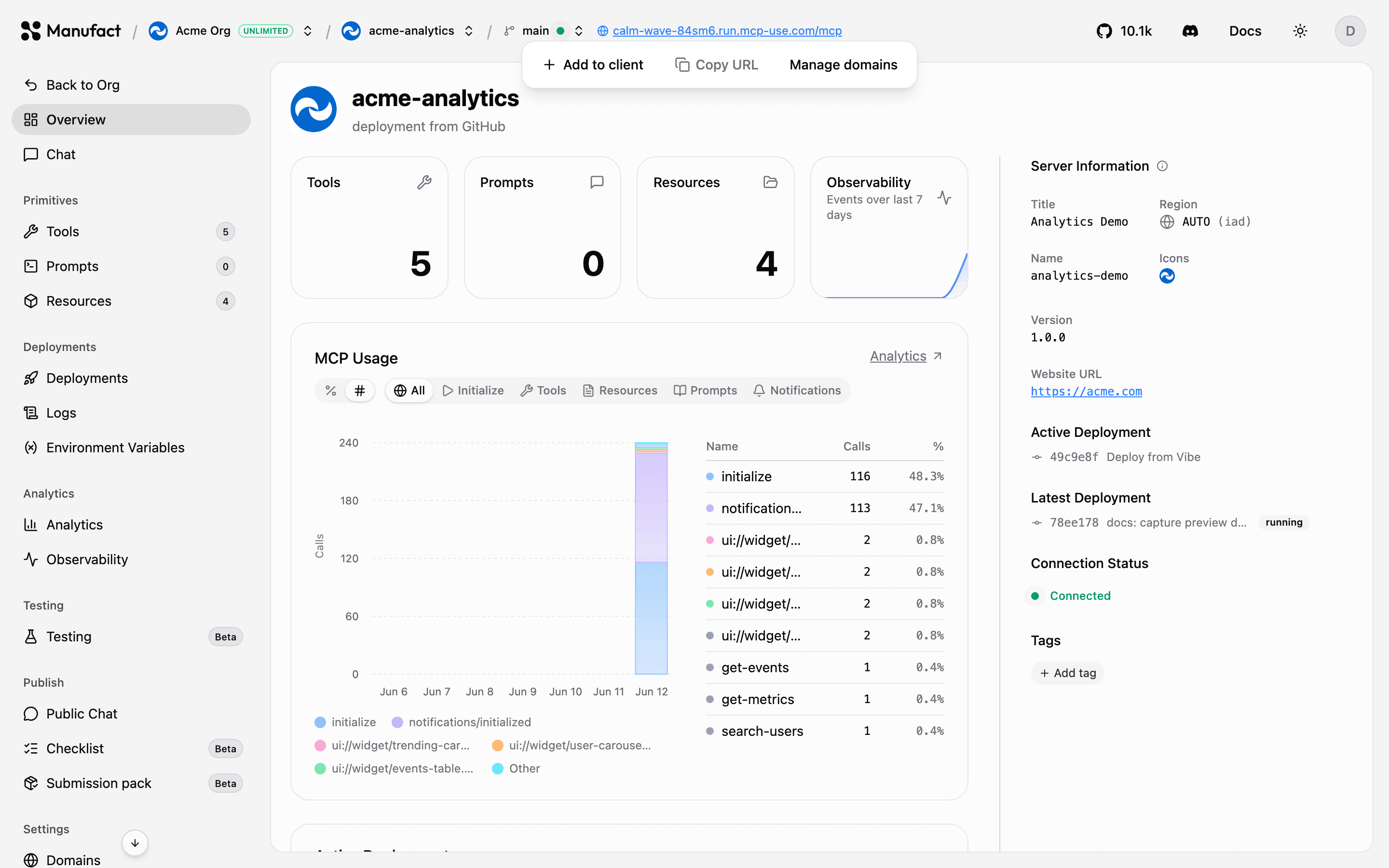
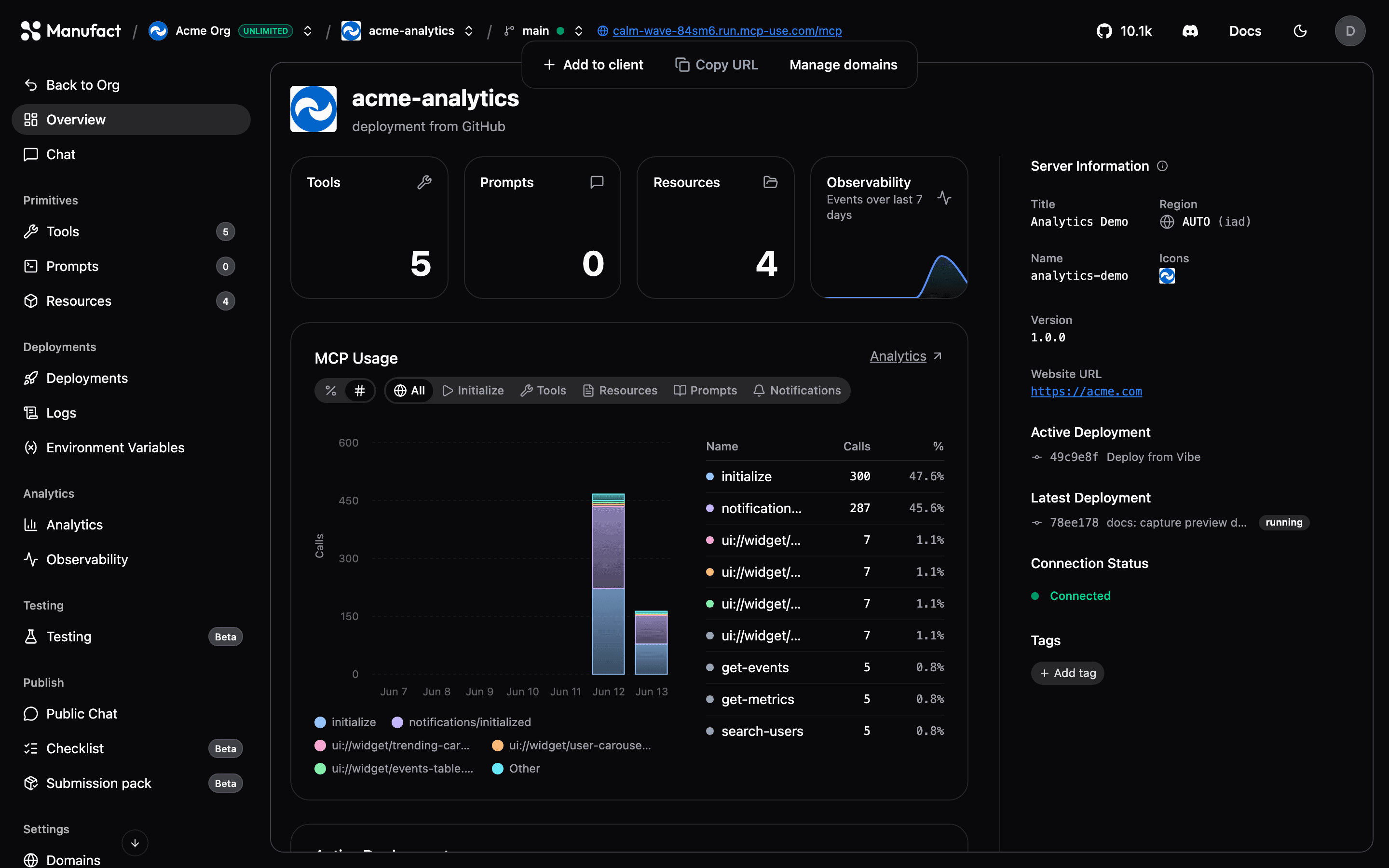
On any server page, click the URL chip in the header, then Add to client.
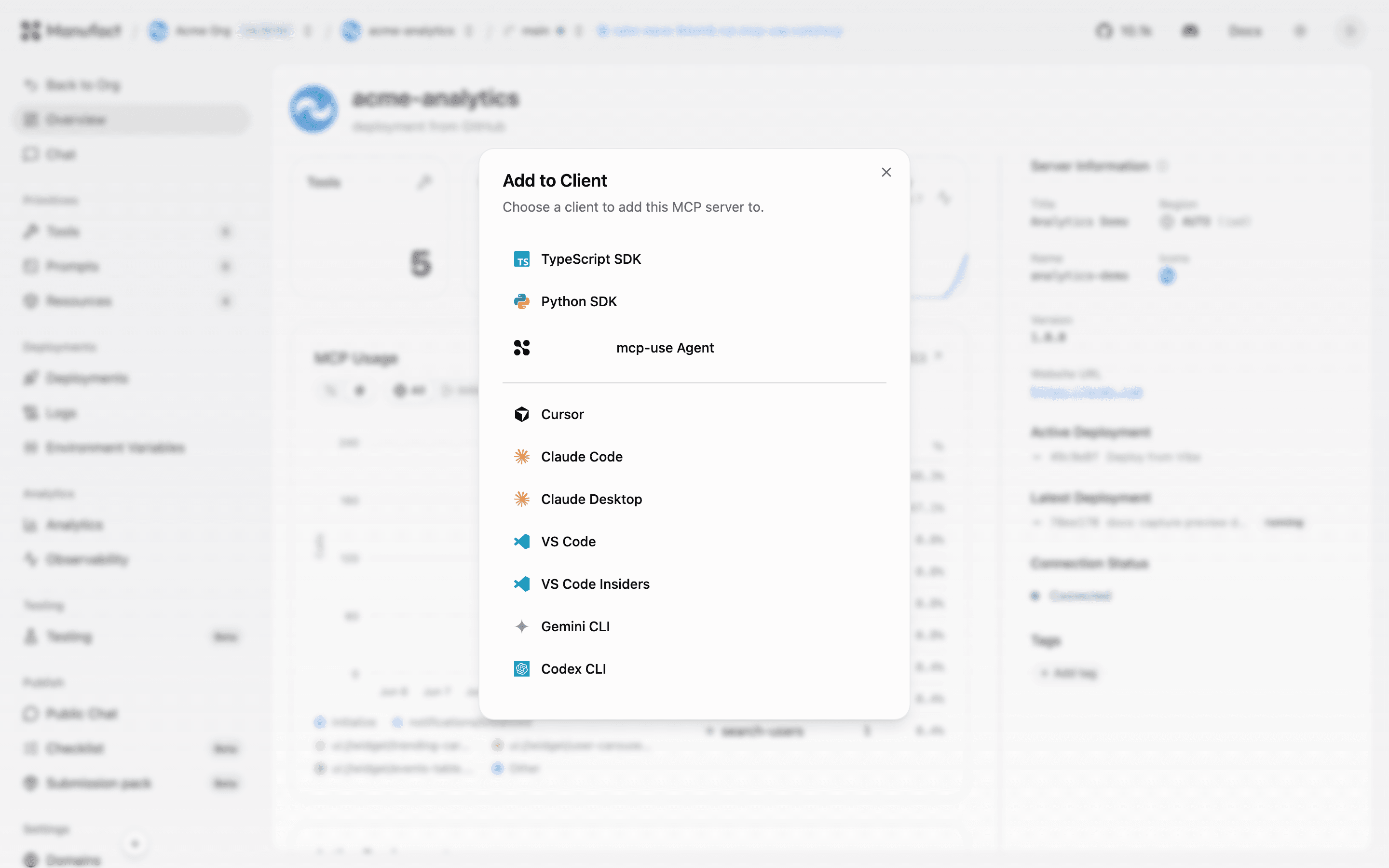
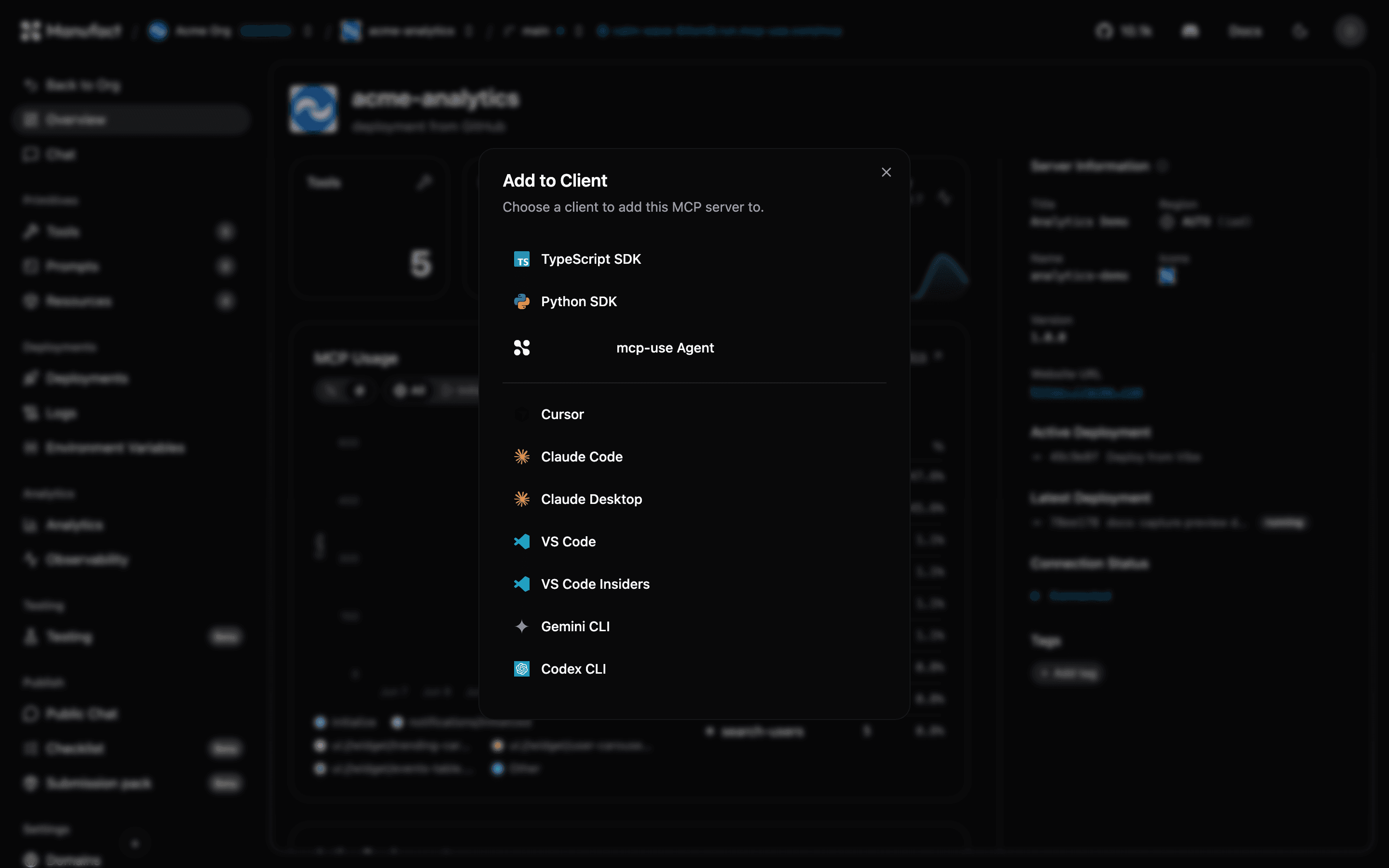
You get one-click installs or copy-paste configuration for:
- Editors: Cursor, VS Code, VS Code Insiders
- Claude: Claude Desktop and Claude Code
- CLI agents: Gemini CLI, Codex CLI
- SDKs: TypeScript and Python snippets using mcp-use
- mcp-use Agent: attach the server to a hosted agent directly
Manual configuration
If your client isn't listed, use the standard MCP remote-server config with your gateway URL:
{
  "mcpServers": {
    "my-server": {
      "url": "https://<your-slug>.run.mcp-use.com/mcp"
    }
  }
}
Connecting from code
With the mcp-use TypeScript SDK:
import { MCPClient } from 'mcp-use';

const client = new MCPClient({
  mcpServers: {
    myServer: { url: 'https://<your-slug>.run.mcp-use.com/mcp' },
  },
});
See the mcp-use documentation for agents, tool calling, and the Python equivalent.
Authentication
If your server requires OAuth, clients go through the standard MCP OAuth flow automatically. The dashboard has a separate OAuth connection for Chat, inspection, and testing. Use Authenticate in the server header to connect a recommended test account. Disconnect clears the dashboard credentials without deleting the server; use Re-authenticate after disconnecting or when tokens expire. Expired credentials also surface on the org Dashboard under Needs Attention.
Testing before you share
Use the server's Chat tab to talk to it with an agent, and the Tools, Prompts, and Resources tabs to verify everything is exposed as expected, the same inspector that powers mcp-use, embedded in the dashboard.