

Public Chat
Give your MCP server a hosted, shareable chat interface.
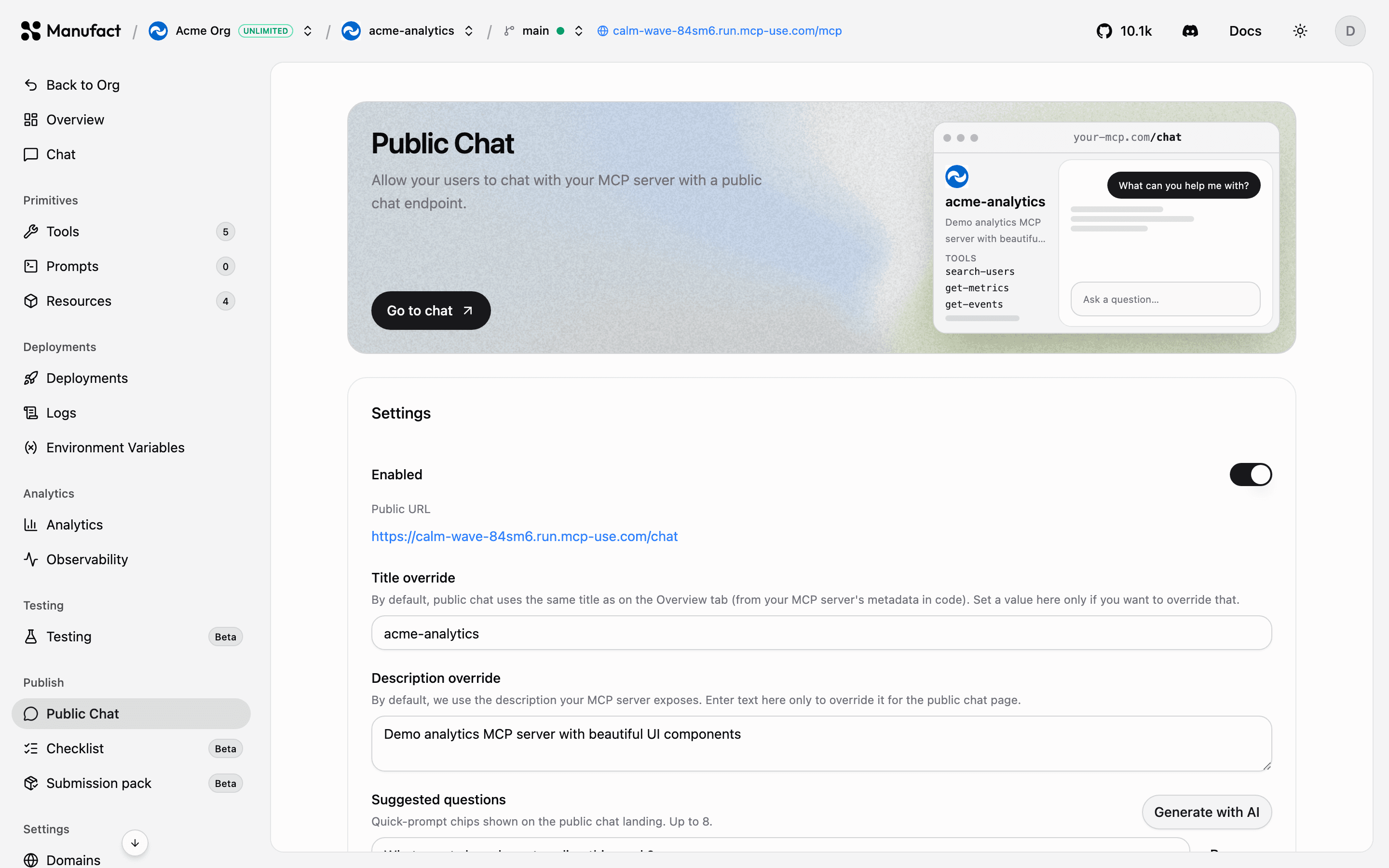
Public Chat turns your server into a product anyone can try from a browser, no MCP client required. In the dashboard, open your server and go to Publish → Public Chat to configure it.
Public Chat requires the Hobby plan or higher.
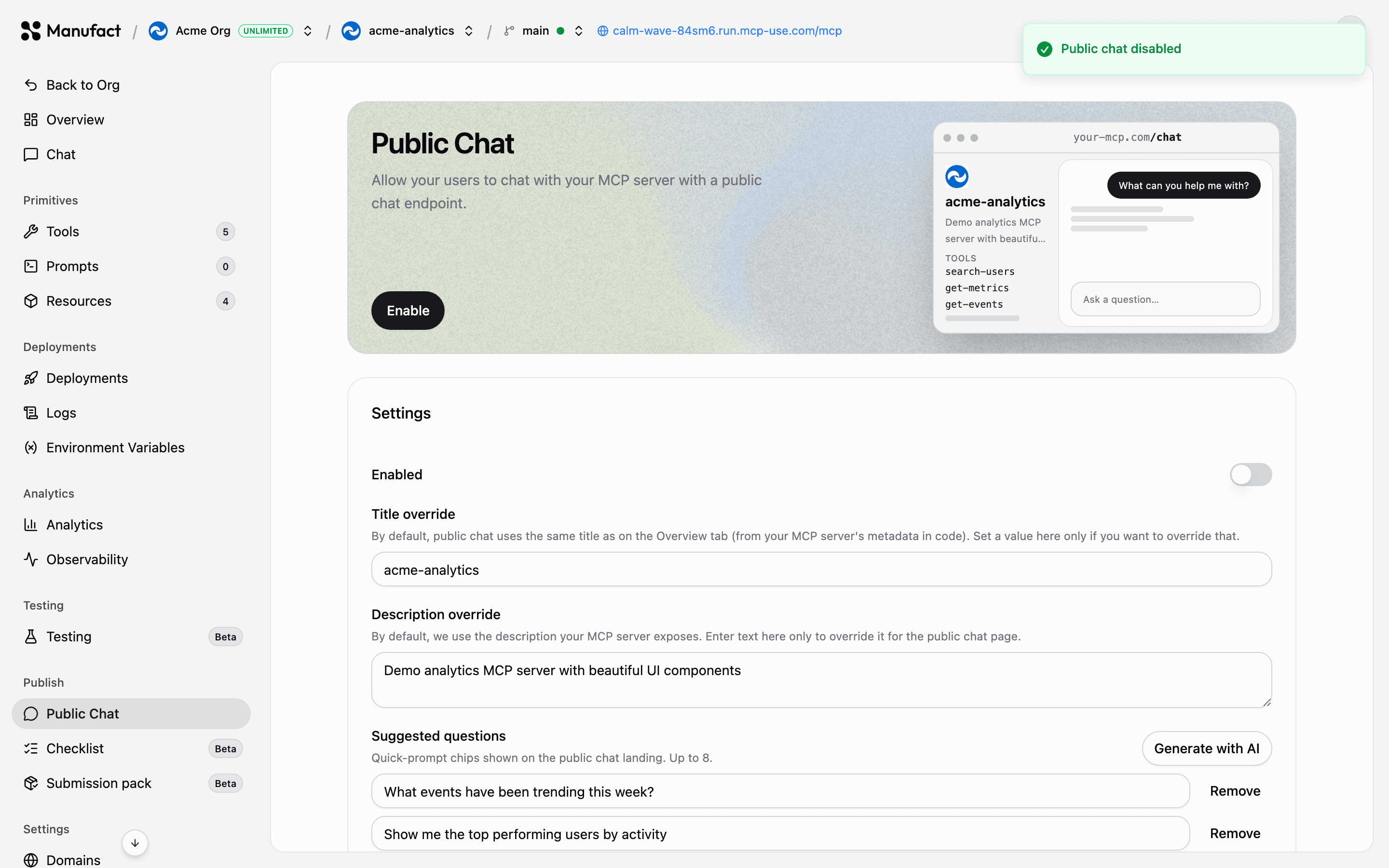
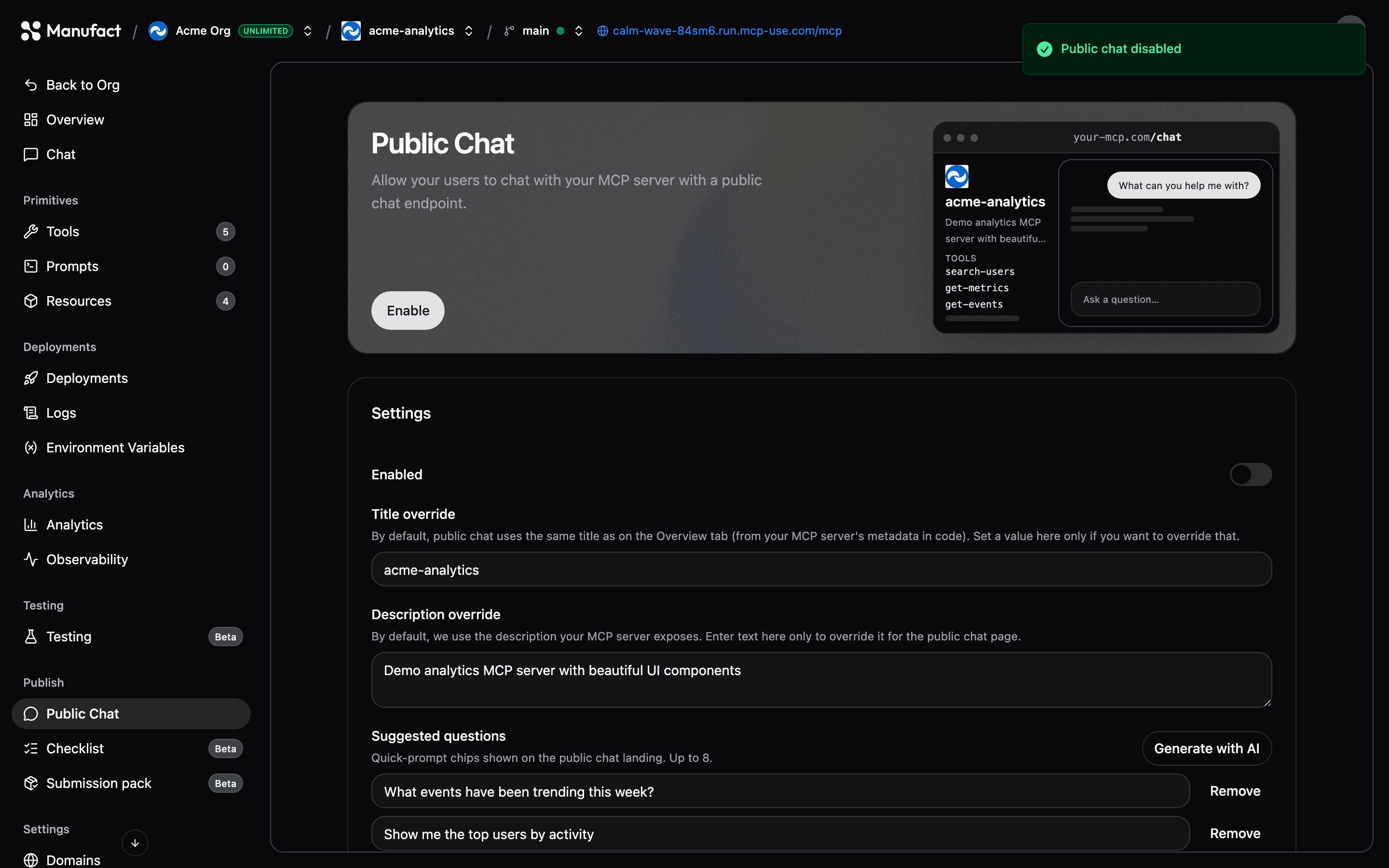
Enabling Public Chat
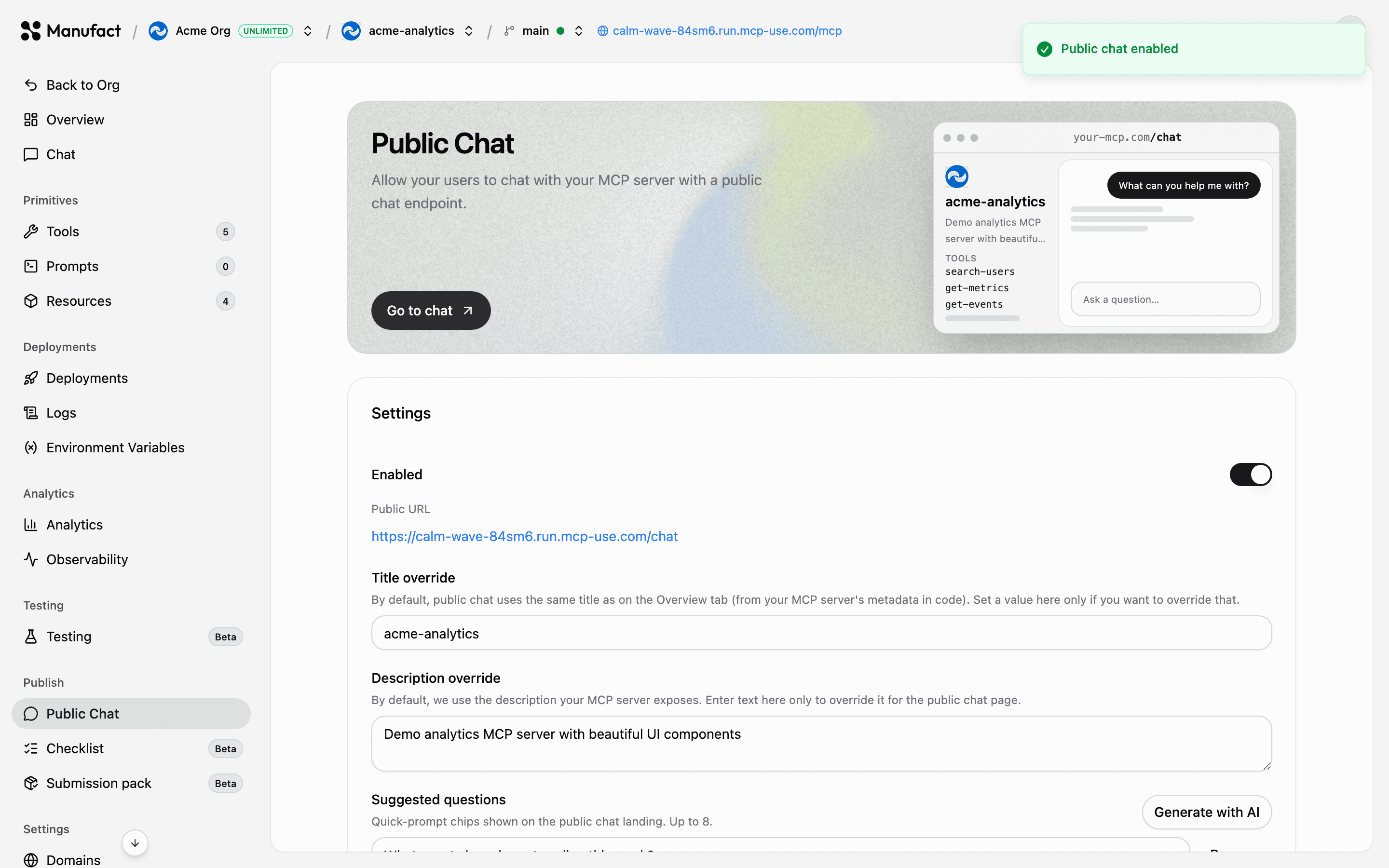
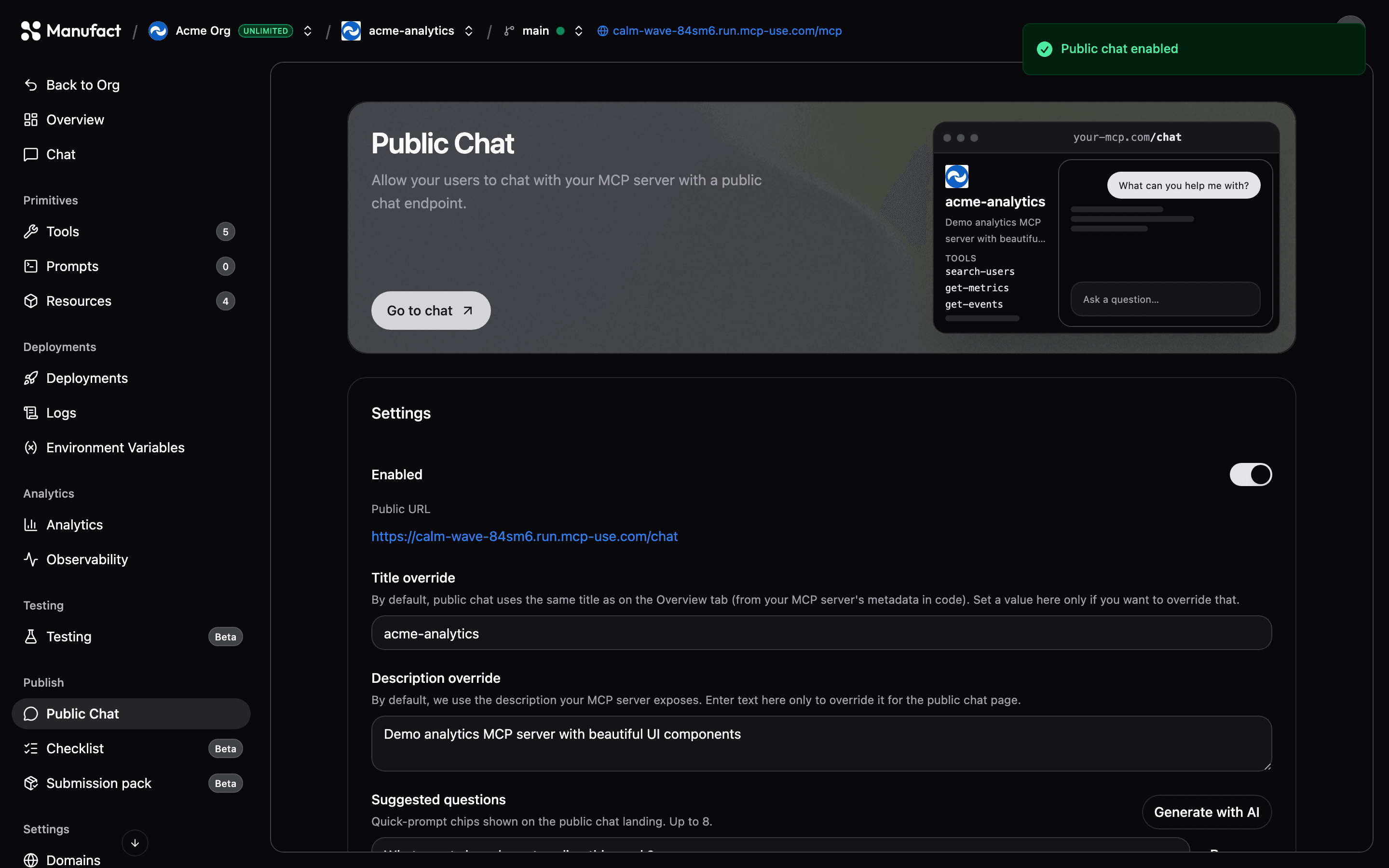
- Toggle Public Chat on.
- Set a title and description override for the chat page.
- Optionally add suggested questions (up to 8) that appear as starter prompts; there's an AI button to generate them from your server's capabilities.
SEO metadata
The SEO Metadata card controls how your public chat page appears in search results and when shared on social networks:
- Title and description — override the defaults pulled from your server's MCP metadata.
- Generate with AI — drafts title and description from your server's tools and capabilities (also runs automatically the first time you enable Public Chat if both fields are empty).
- OG image — upload a custom 1200×630 image, or use the auto-generated dynamic preview. Reset to revert to the default.
- Google-style preview — shows how the page will look in search snippets before you publish.
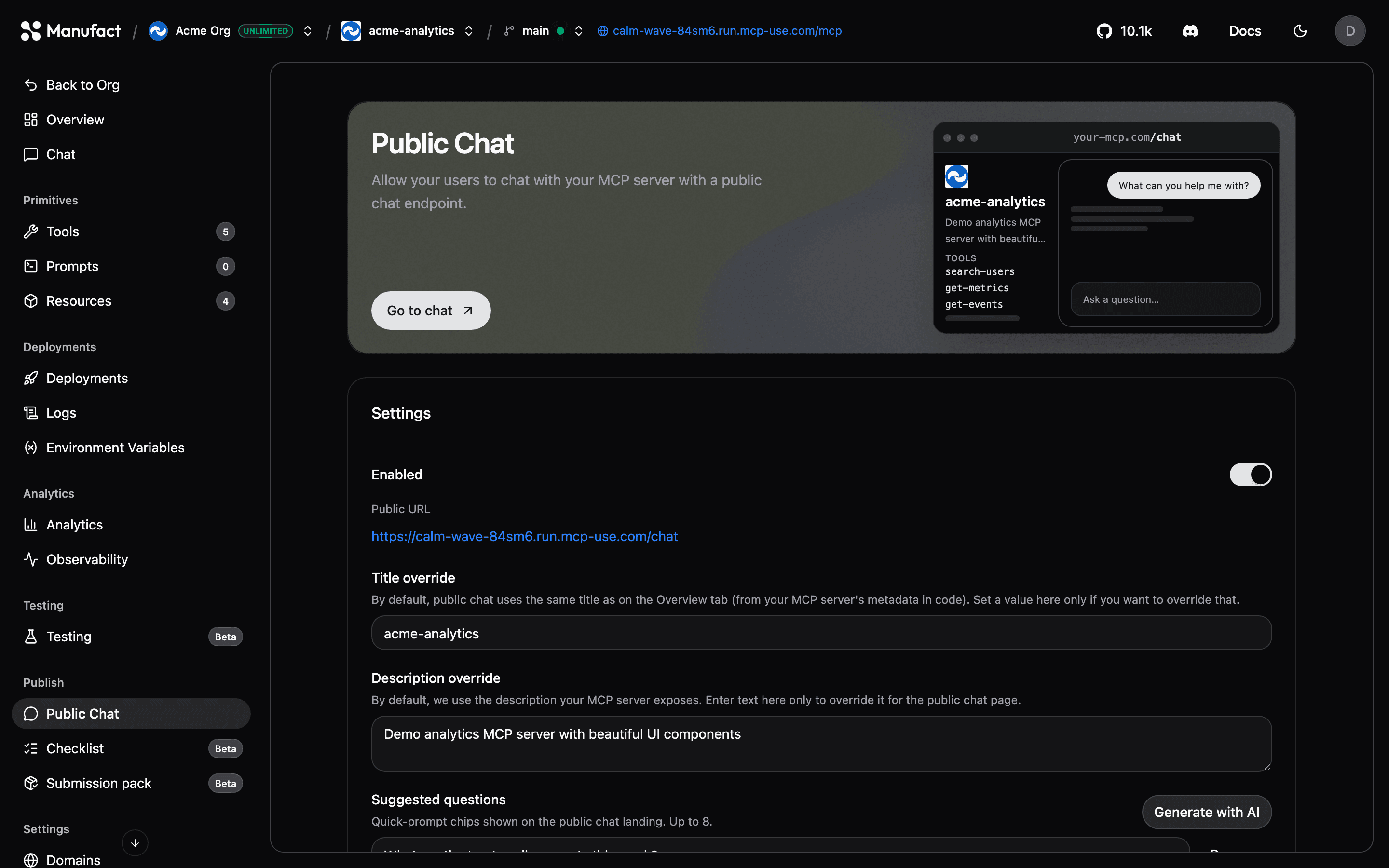
The tab shows a live preview of the page, and once enabled your chat is available at your server's URL with a /chat path:
https://<slug>.run.mcp-use.com/chatVerified custom domains work too: https://<your-domain>/chat.
Public transcripts
The Public transcripts table lists chat threads so you can see how visitors actually use your server: which questions they ask and which tools the agent invoked to answer them.
Servers that require authentication
If your server needs credentials, think carefully before exposing it through Public Chat: visitors interact with it using the server's configured access. The dashboard shows a security warning banner for this case.
When to use it
- Demos: share a working MCP server with stakeholders or on social media.
- Docs: let users try your tools before installing them in a client.
- Validation: watch real conversations to refine tool names and descriptions before publish checks or generating a submission pack.