

Onboarding
First-run wizard — create your organization, pick a path, and get your first MCP server connected.
When you first sign in to Manufact Cloud, an onboarding wizard walks you through workspace setup and your first server. You can also reach the same flows later from Servers → New Server and the Quickstart.
Who sees it
- New accounts land on
/onboardingafter sign-up or checkout - Returning users with an organization may skip organization creation; the wizard advances to invite members or goal selection
- Each step has Skip (go to the dashboard) and Back where applicable
Wizard steps
| Step | Screen | Notes |
|---|---|---|
| 0 | Company website / organization | Creates or updates your organization name from your company domain. Skipped when you already have a named org |
| 1 | Invite members | Shown when your plan allows team invites; optional |
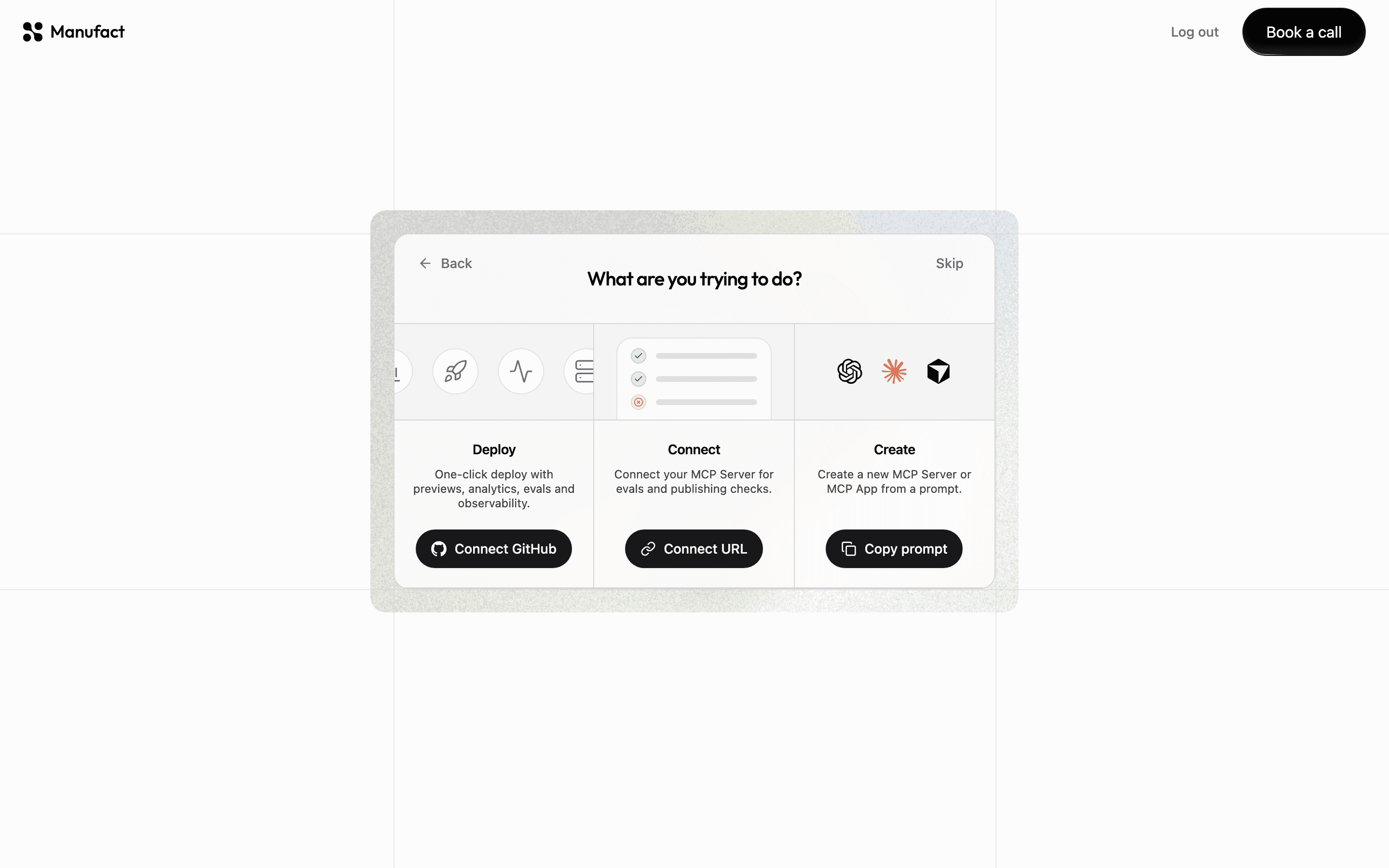
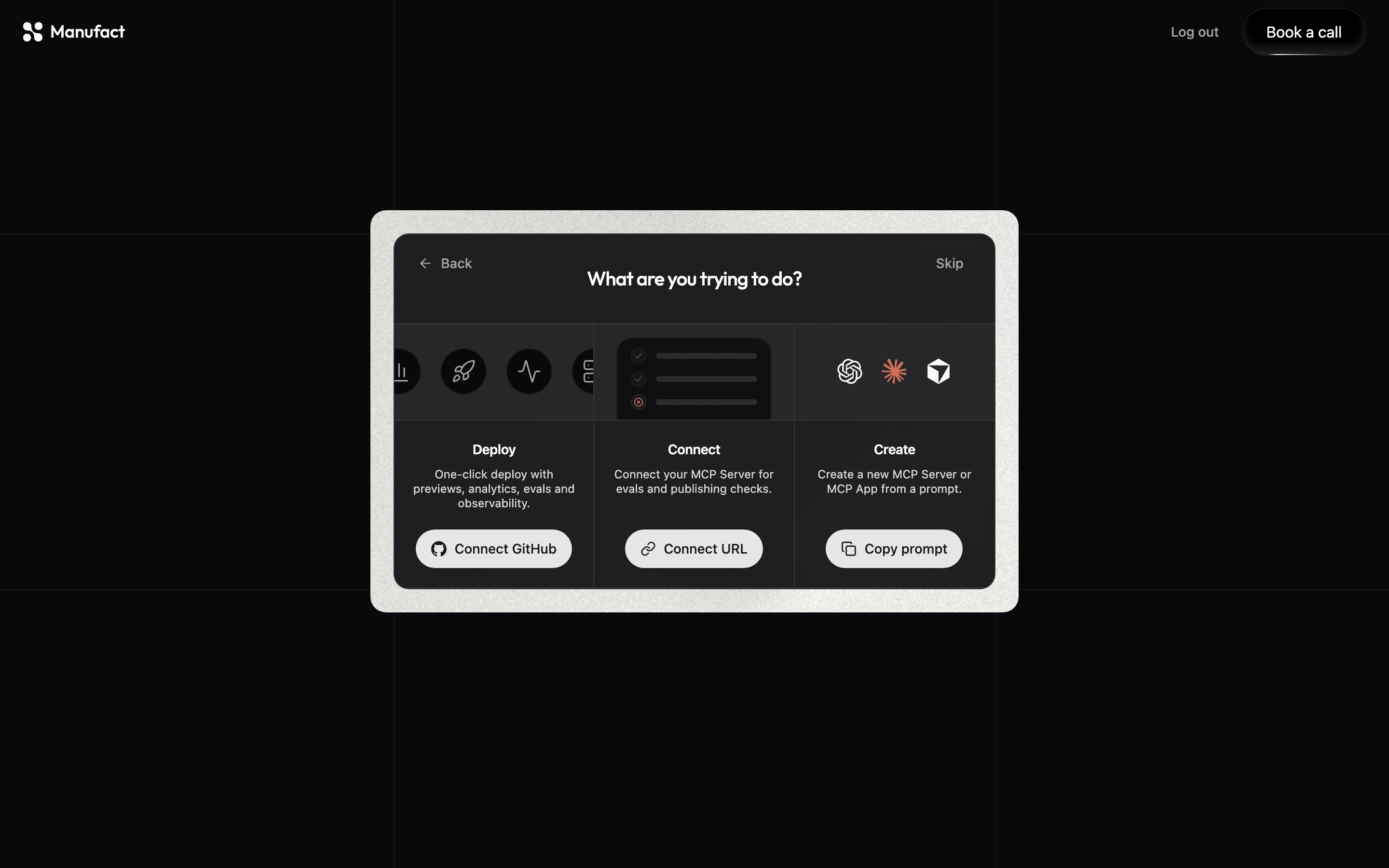
| 2 | What are you trying to do? | Choose Deploy, Connect, or Create — see below |
| 3+ | Path-specific | Depends on the tile you pick |
Deploy
Best for: hosting on Manufact with GitHub, preview environments, analytics, and observability.
- On What are you trying to do?, pick Deploy.
- Connect GitHub (or Select Repository if already connected).
- Choose a repository and configure the deployment (branch, region, environment variables).
- Click Deploy and wait for the pipeline to finish.
This path matches Quickstart steps 2–4. After a successful deploy you land on the server overview or dashboard.
Connect
Best for: a server you already host elsewhere — evals, publish checks, and submission pack without a Manufact deployment.
- On What are you trying to do?, pick Connect.
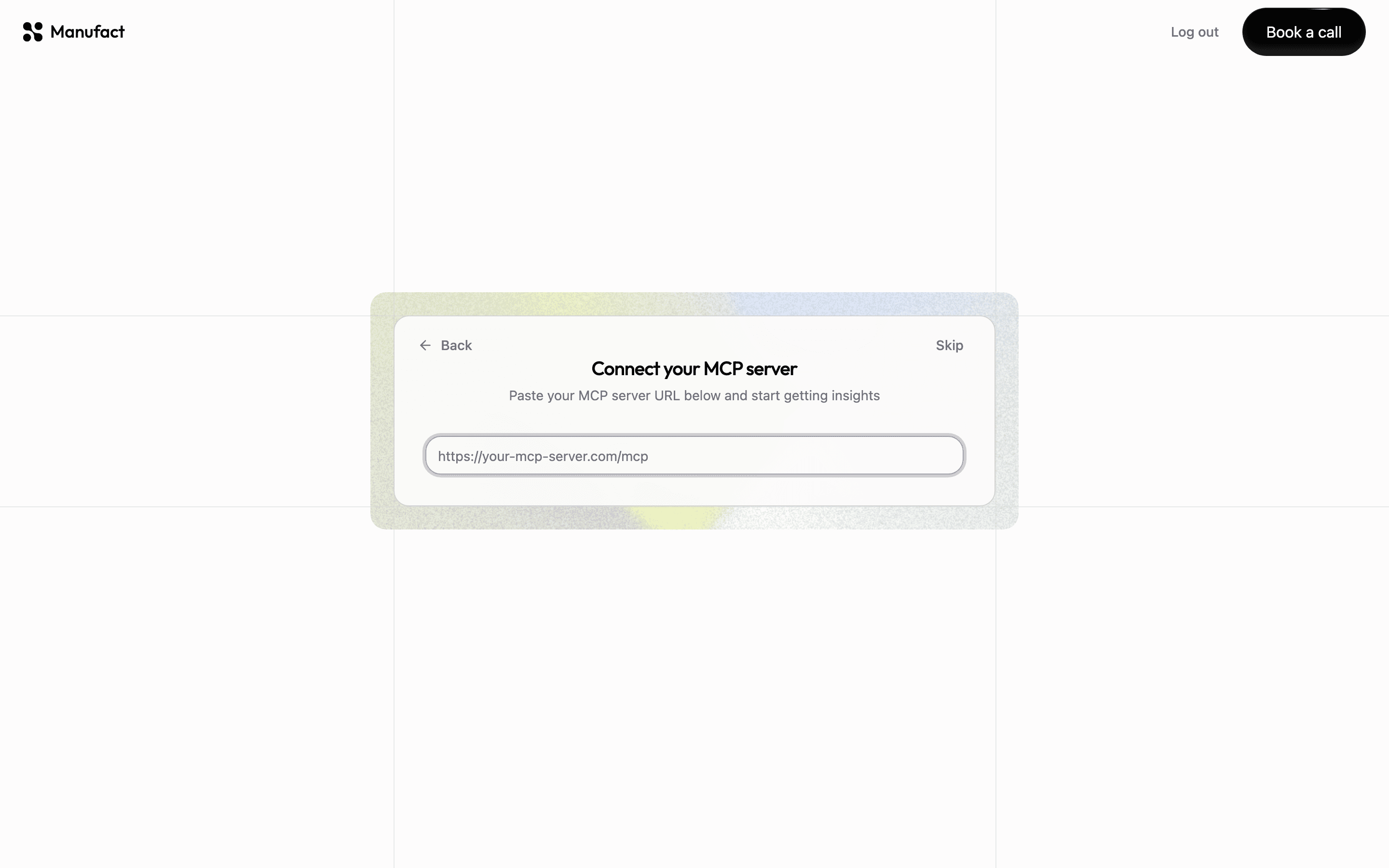
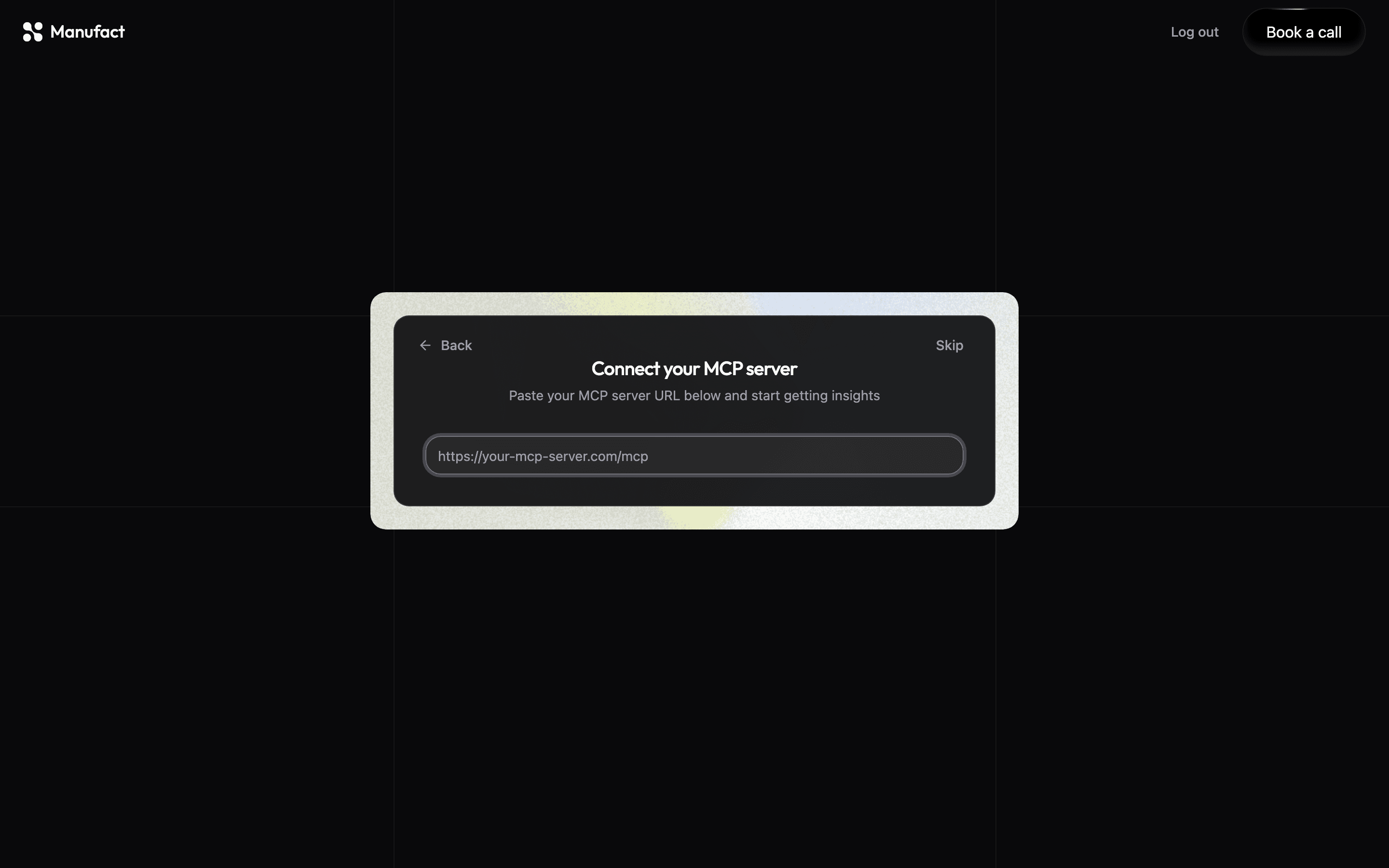
- Paste your MCP server URL on the Connect your MCP server screen.
- Complete OAuth if prompted, then click Connect.
Manufact opens the server's publish checklist with autorun=1 so checks start immediately. For the full URL-connect guide, see Connect an existing server.
Create
Best for: starting from scratch with a coding agent.
- On What are you trying to do?, pick Create.
- Copy the agent prompt (includes a pre-approved CLI device code so
mcp-use loginworks without an extra browser step). - Paste the prompt into Cursor, Claude Code, Codex, or another agent.
- The wizard shows CLI deploy progress while the agent scaffolds and deploys via the CLI.
Install the skill directly:
The device-code flow is documented in CLI login (--device-code).
Skip and back
- Skip on any step saves progress where applicable and sends you to the organization dashboard.
- Back returns to the previous step (for example, from goal selection to invite members, or to organization setup).
After onboarding
| Path | Typical landing page |
|---|---|
| Deploy | Server overview or deployments |
| Connect | Server checklist (/servers/{id}/checklist?autorun=1) |
| Create | CLI progress step, then dashboard when deploy completes |